backtest-kit api reference
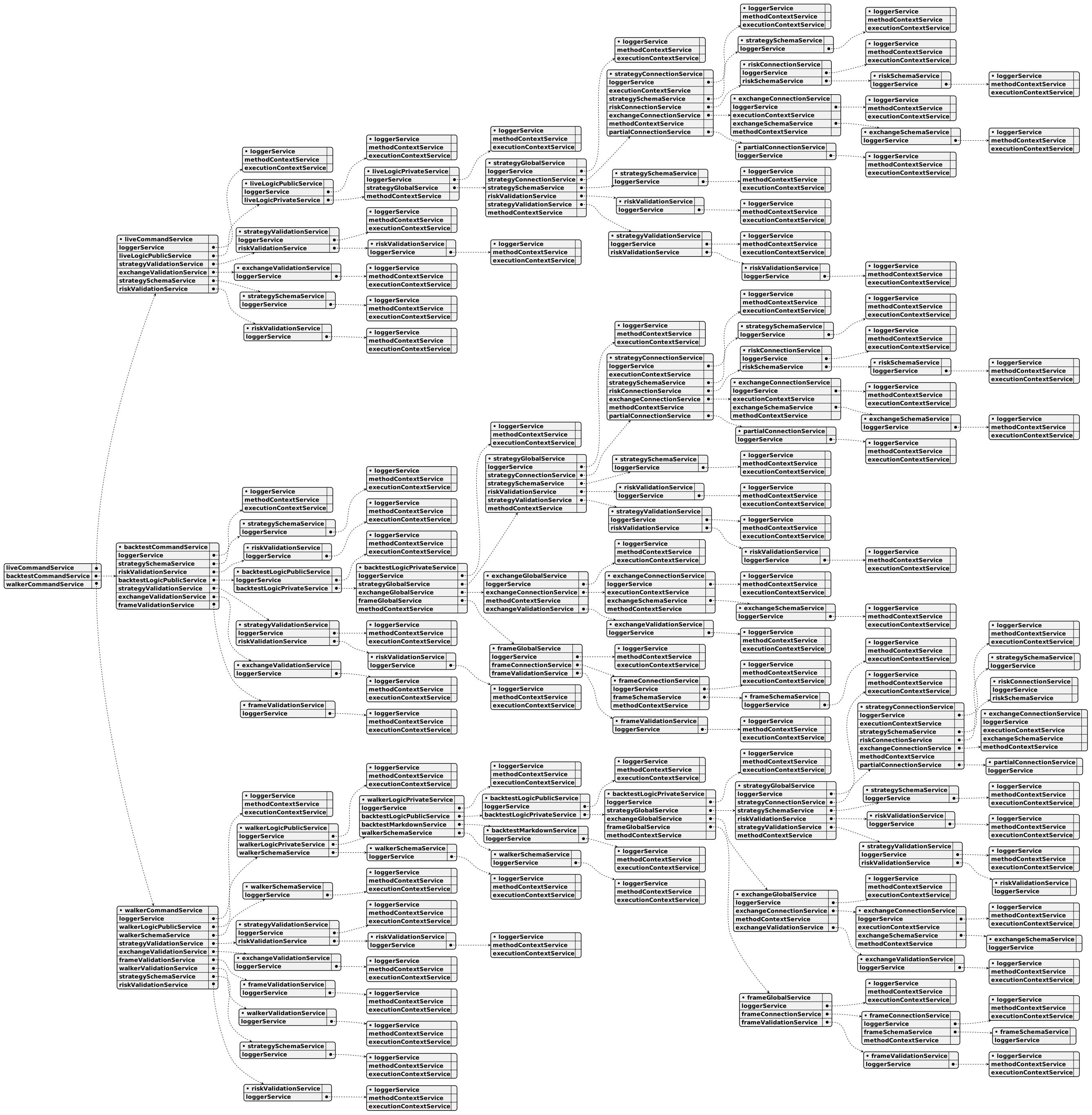
Overview:
Backtest-kit is a production-ready TypeScript framework for backtesting and live trading strategies with crash-safe state persistence, signal validation, and memory-optimized architecture. The framework follows clean architecture principles with dependency injection, separation of concerns, and type-safe discriminated unions.
Core Concepts:
- Signal Lifecycle: Type-safe state machine (idle → opened → active → closed) with discriminated unions
- Execution Modes: Backtest mode (historical data) and Live mode (real-time with crash recovery)
- VWAP Pricing: Volume Weighted Average Price from last 5 1-minute candles for all entry/exit decisions
- Signal Validation: Comprehensive validation ensures TP/SL logic, positive prices, and valid timestamps
- Interval Throttling: Prevents signal spam with configurable intervals (1m, 3m, 5m, 15m, 30m, 1h)
- Crash-Safe Persistence: Atomic file writes with automatic state recovery for live trading
- Async Generators: Memory-efficient streaming for backtest and live execution
- Accurate PNL: Calculation with fees (0.1%) and slippage (0.1%) for realistic simulations
- Event System: Signal emitters for backtest/live/global signals, errors, and completion events
- Graceful Shutdown: Live.background() waits for open positions to close before stopping
- Pluggable Persistence: Custom adapters for Redis, MongoDB, or any storage backend
Architecture Layers:
- Client Layer: Pure business logic without DI (ClientStrategy, ClientExchange, ClientFrame) using prototype methods for memory efficiency
- Service Layer: DI-based services organized by responsibility:
- Schema Services: Registry pattern for configuration with shallow validation (StrategySchemaService, ExchangeSchemaService, FrameSchemaService)
- Validation Services: Runtime existence validation with memoization (StrategyValidationService, ExchangeValidationService, FrameValidationService)
- Connection Services: Memoized client instance creators (StrategyConnectionService, ExchangeConnectionService, FrameConnectionService)
- Global Services: Context wrappers for public API (StrategyGlobalService, ExchangeGlobalService, FrameGlobalService)
- Logic Services: Async generator orchestration (BacktestLogicPrivateService, LiveLogicPrivateService)
- Markdown Services: Auto-generated reports with tick-based event log (BacktestMarkdownService, LiveMarkdownService)
- Persistence Layer: Crash-safe atomic file writes with PersistSignalAdaper, extensible via PersistBase
- Event Layer: Subject-based emitters (signalEmitter, errorEmitter, doneEmitter) with queued async processing
Key Design Patterns:
- Discriminated Unions: Type-safe state machines without optional fields
- Async Generators: Stream results without memory accumulation, enable early termination
- Dependency Injection: Custom DI container with Symbol-based tokens
- Memoization: Client instances cached by schema name using functools-kit
- Context Propagation: Nested contexts using di-scoped (ExecutionContext + MethodContext)
- Registry Pattern: Schema services use ToolRegistry for configuration management
- Singleshot Initialization: One-time operations with cached promise results
- Persist-and-Restart: Stateless process design with disk-based state recovery
- Pluggable Adapters: PersistBase as base class for custom storage backends
- Queued Processing: Sequential event handling with functools-kit queued wrapper
Data Flow (Backtest):
- User calls Backtest.background(symbol, context) or Backtest.run(symbol, context)
- Validation services check strategyName, exchangeName, frameName existence
- BacktestLogicPrivateService.run(symbol) creates async generator with yield
- MethodContextService.runInContext sets strategyName, exchangeName, frameName
- Loop through timeframes, call StrategyGlobalService.tick()
- ExecutionContextService.runInContext sets symbol, when, backtest=true
- ClientStrategy.tick() checks VWAP against TP/SL conditions
- If opened: fetch candles and call ClientStrategy.backtest(candles)
- Yield closed result and skip timeframes until closeTimestamp
- Emit signals via signalEmitter, signalBacktestEmitter
- On completion emit doneEmitter with { backtest: true, symbol, strategyName, exchangeName }
Data Flow (Live):
- User calls Live.background(symbol, context) or Live.run(symbol, context)
- Validation services check strategyName, exchangeName existence
- LiveLogicPrivateService.run(symbol) creates infinite async generator with while(true)
- MethodContextService.runInContext sets schema names
- Loop: create when = new Date(), call StrategyGlobalService.tick()
- ClientStrategy.waitForInit() loads persisted signal state from PersistSignalAdaper
- ClientStrategy.tick() with interval throttling and validation
- setPendingSignal() persists state via PersistSignalAdaper.writeSignalData()
- Yield opened and closed results, sleep(TICK_TTL) between ticks
- Emit signals via signalEmitter, signalLiveEmitter
- On stop() call: wait for lastValue?.action === 'closed' before breaking loop (graceful shutdown)
- On completion emit doneEmitter with { backtest: false, symbol, strategyName, exchangeName }
Event System:
- Signal Events: listenSignal, listenSignalBacktest, listenSignalLive for tick results (idle/opened/active/closed)
- Error Events: listenError for background execution errors (Live.background, Backtest.background)
- Completion Events: listenDone, listenDoneOnce for background execution completion with DoneContract
- Queued Processing: All listeners use queued wrapper from functools-kit for sequential async execution
- Filter Predicates: Once listeners (listenSignalOnce, listenDoneOnce) accept filter function for conditional triggering
Performance Optimizations:
- Memoization of client instances by schema name
- Prototype methods (not arrow functions) for memory efficiency
- Fast backtest method skips individual ticks
- Timeframe skipping after signal closes
- VWAP caching per tick/candle
- Async generators stream without array accumulation
- Interval throttling prevents excessive signal generation
- Singleshot initialization runs exactly once per instance
- LiveMarkdownService bounded queue (MAX_EVENTS = 25) prevents memory leaks
- Smart idle event replacement (only replaces if no open/active signals after last idle)
Use Cases:
- Algorithmic trading with backtest validation and live deployment
- Strategy research and hypothesis testing on historical data
- Signal generation with ML models or technical indicators
- Portfolio management tracking multiple strategies across symbols
- Educational projects for learning trading system architecture
- Event-driven trading bots with real-time notifications (Telegram, Discord, email)
- Multi-exchange trading with pluggable exchange adapters
Test Coverage:
The framework includes comprehensive unit tests using worker-testbed (tape-based testing):
- exchange.test.mjs: Tests exchange helper functions (getCandles, getAveragePrice, getDate, getMode, formatPrice, formatQuantity) with mock candle data and VWAP calculations
- event.test.mjs: Tests Live.background() execution and event listener system (listenSignalLive, listenSignalLiveOnce, listenDone, listenDoneOnce) for async coordination
- validation.test.mjs: Tests signal validation logic (valid long/short positions, invalid TP/SL relationships, negative price detection, timestamp validation) using listenError for error handling
- pnl.test.mjs: Tests PNL calculation accuracy with realistic fees (0.1%) and slippage (0.1%) simulation
- backtest.test.mjs: Tests Backtest.run() and Backtest.background() with signal lifecycle verification (idle → opened → active → closed), listenDone events, early termination, and all close reasons (take_profit, stop_loss, time_expired)
- callbacks.test.mjs: Tests strategy lifecycle callbacks (onOpen, onClose, onTimeframe) with correct parameter passing, backtest flag verification, and signal object integrity
- report.test.mjs: Tests markdown report generation (Backtest.getReport, Live.getReport) with statistics validation (win rate, average PNL, total PNL, closed signals count) and table formatting
All tests follow consistent patterns:
- Unique exchange/strategy/frame names per test to prevent cross-contamination
- Mock candle generator (getMockCandles.mjs) with forward timestamp progression
- createAwaiter from functools-kit for async coordination
- Background execution with Backtest.background() and event-driven completion detection
backtest-kit interfaces
Interface WalkerStopContract
This describes a signal that gets sent when a walker, which is essentially a running trading process, is being told to stop.
Imagine you have multiple automated trading strategies running at once; this signal lets you know exactly which strategy and walker is being halted.
It includes the trading symbol involved, the name of the strategy being stopped, and the name of the walker itself, allowing for precise filtering if you're monitoring these signals.
Crucially, the 'when' field represents the time of the last data update the strategy processed, not a real-world clock time. This gives context to the point at which the walker was interrupted.
Interface WalkerStatisticsModel
The WalkerStatisticsModel helps keep things organized when you're analyzing backtest results, particularly when you're comparing different strategies. It builds upon the basic WalkerResults, adding in data that lets you easily compare how different strategies performed.
You’ll find an array called strategyResults within this model; this array contains the results for each strategy you tested, making it simple to see how they stack up against each other.
Interface WalkerContract
The WalkerContract represents a checkpoint during the comparison of different trading strategies. It's like a progress report emitted whenever a strategy finishes its backtest.
Each report contains key details: the name of the strategy that just ran, the exchange and frame it was tested on, the symbol it traded, and its performance statistics.
You'll also find the specific metric the framework is optimizing for, its current value for this strategy, and how that compares to the best metric seen so far.
Essentially, it lets you track how the backtest process is unfolding, knowing which strategies have been evaluated and their relative performance within the overall comparison. The when property indicates the point in time the backtest represents, always based on the simulated trading timeline, not real-world time.
Interface WalkerCompleteContract
The WalkerCompleteContract represents the culmination of a backtesting process, signaling that all strategies have been run and the final results are ready. It bundles together a wealth of information about the completed test, providing a comprehensive overview of the experiment.
You'll find details like the name of the walker, the symbol being traded, the exchange and timeframe used, and the optimization metric employed.
It also reveals how many strategies were tested and, crucially, identifies the best-performing strategy, along with its metric value and detailed statistics.
Finally, a timestamp is included, marking the precise moment the last strategy's data was processed – this isn't real-world time, but rather a reference point within the backtesting sequence.
Interface ValidationErrorNotification
This notification signals that a problem occurred during risk validation – essentially, something went wrong when checking the safety of a trade or strategy.
It's like a warning light that pops on to tell you there's an issue you need to address.
Each notification has a unique identifier (id) to help you track it, and a detailed error object (error) with a stack trace to pinpoint exactly where the problem lies. You'll also get a clear, understandable explanation of the error in the message field.
Importantly, the backtest flag will always be false because these errors happen while assessing risk in a live trading scenario, not during a historical simulation.
Interface ValidateArgs
This interface, ValidateArgs, is like a blueprint for making sure the names of different components in your backtesting system are correct.
Think of it as a checklist – it defines the expected names for things like the exchange you're using, the timeframe of your data, the strategy you're executing, the risk profile applied, the action being taken, the sizing method, and even the walker parameters.
Each property in the interface holds an enum, which ensures that only valid, pre-defined names are used. This helps prevent errors and keeps everything consistent throughout your backtesting process. Basically, it's there to help you avoid typos and maintain a clean, reliable setup.
Interface TrailingTakeCommitNotification
This notification tells you when a trailing take-profit order has been executed. It provides detailed information about the trade, including when it happened (timestamp), whether it was a backtest or a live trade, and the specific trading pair involved. You’ll find details about the strategy that generated the signal, the exchange it ran on, and a unique identifier for both the signal and the notification itself.
The notification also breaks down how the take-profit level was adjusted – the 'percentShift' tells you how much the original take-profit price changed. Crucially, it gives you the current price at the time of execution, along with all the relevant pricing information: entry price, take profit, stop loss prices, and original prices before any trailing adjustments.
Beyond the basics, this notification includes data regarding the trade's cost, the leverage applied, and details about any partial closures or DCA averaging that might have occurred. You'll get the full profit and loss (PNL) details, including peak profit and maximum drawdown figures, and a human-readable note that might explain the signal’s rationale. Finally, there are timestamps for when the signal was created, became pending, and when this notification was generated.
Interface TrailingTakeCommit
This interface describes a trailing take profit event within the backtest-kit framework. It represents a situation where a take profit level has been adjusted based on a trailing stop mechanism.
The action property simply identifies this as a trailing take event.
The percentShift defines how the take profit price is adjusted relative to the price.
Several properties detail the current state of the trade: currentPrice reflects the market price at the time of the adjustment, while position indicates whether it’s a long or short trade. You'll also find the priceOpen (entry price) and the current priceTakeProfit (which has been trailed).
The priceStopLoss is also included, as trailing stops often involve adjustments to both take profit and stop loss.
For performance analysis, you can see the pnl (profit and loss) for the entire position, along with peakProfit (highest profit achieved) and maxDrawdown (largest loss experienced).
Crucially, originalPriceTakeProfit and originalPriceStopLoss hold the initial, unadjusted take profit and stop loss levels.
Finally, scheduledAt and pendingAt provide timestamps related to when the signal was created and when the position became active, respectively.
Interface TrailingStopCommitNotification
This notification tells you when a trailing stop order has been triggered and executed, providing a comprehensive snapshot of the trade. It's like a detailed report card for that specific trailing stop action.
The type confirms it's a trailing stop commit notification, and the unique id and timestamp help you track it. You’ll find details like whether the test was run in backtest or live mode (backtest), the trading pair (symbol), and the strategy that generated the signal.
The report includes specifics about the trade itself: the entry price (priceOpen), take profit and stop loss prices (both original and adjusted by the trailing stop), and the direction of the trade (position).
You'll also see detailed performance metrics like peak profit, maximum drawdown, and percentage profit/loss (pnlPercentage). It breaks down the P&L calculations, considers slippage and fees, and provides insight into the risk associated with the position. Essentially, this notification gives you a complete picture of what happened when a trailing stop was hit, letting you analyze the effectiveness of your strategy and risk management.
Interface TrailingStopCommit
This describes a trailing stop event, which happens when your trading strategy uses a trailing stop-loss order. It essentially signals that the stop-loss price has been adjusted based on the market's movement.
The action property simply confirms this is a trailing-stop event.
You’ll find details about how the stop-loss price changed, including the percentShift which defines the percentage used for the adjustment.
The event also contains important data about the trade itself: the currentPrice at the time of adjustment, the total profit and loss (pnl), the peakProfit achieved, and the maxDrawdown experienced during the trade’s lifetime.
You can also see the position (long or short), the priceOpen at which you entered the trade, and the adjusted priceTakeProfit and priceStopLoss. Crucially, it keeps track of the originalPriceTakeProfit and originalPriceStopLoss so you know how the prices have changed over time. Finally, the scheduledAt and pendingAt timestamps tell you when the signal was generated and when the position was activated.
Interface TickEvent
This interface, TickEvent, serves as a central container for all the data you receive related to trading events. Think of it as a standardized report card for every action your trading system takes, whether it's scheduling a trade, opening a position, or closing it out. It bundles together essential information like timestamps, action types (scheduled, cancelled, opened, etc.), symbols, signal IDs, and pricing details.
You'll find details on things like take profit and stop-loss prices, the number of entries in a DCA strategy, and how much profit or loss has been made. Different properties are only relevant depending on the event type – for example, close reasons are only available when a position is closed. It provides a comprehensive view of a trade's lifecycle, from its initial scheduling to its final result. The peakPnl and fallPnl properties are particularly useful for analyzing performance after a position has been closed, revealing the highest and lowest profit percentages reached during the trade.
Interface SyncStatisticsModel
The SyncStatisticsModel helps you understand how your trading signals are being synced and processed. It essentially gives you a snapshot of the lifecycle of those signals.
You'll find a complete list of all the sync events, with detailed information about each one, in the eventList property.
The totalEvents property tells you exactly how many sync events have occurred.
Specifically, openCount tracks how many times signals were initially opened, and closeCount tells you how many signals were closed.
Interface SyncEvent
This data structure holds all the information about key events throughout a trading signal's lifecycle, designed to be easily used when creating reports. It captures details like when the event happened, which trading pair and strategy it relates to, and what action was taken – whether it's a new signal, an order placement, or a closing of the position. You’ll find specifics on the entry and exit prices, including original values and adjustments due to stop-loss or take-profit trailing.
It also tracks the position’s performance, including metrics such as profit and loss (pnl), peak profit achieved, and maximum drawdown experienced. The structure includes details about partial closes and DCA entries if applicable. A closeReason is specified for signals that have been closed. Finally, it indicates whether the data represents a backtest or a live trade and contains the creation timestamp for accurate tracking.
Interface StrategyStatisticsModel
This model holds a collection of statistics generated while a trading strategy is running. It’s designed to give you a clear picture of how your strategy is behaving, tracking different types of actions it takes.
You'll find a detailed list of every action the strategy performed in the eventList.
Beyond that, it summarizes key activity like the total number of events, and then breaks down the count of specific actions—things like cancelling orders, closing positions, taking partial profits or losses, implementing trailing stops, and more. Having these counts allows you to analyze your strategy's behavior in more detail.
Interface StrategyPauseNotification
This notification tells you when a strategy has been paused or resumed. When a strategy is paused, it stops opening new positions, but any existing orders or signals continue to be managed and closed as usual.
It provides key details about the event, including a unique ID, the exact time of the change, whether it occurred during a backtest or live trading, the trading pair involved, the strategy’s name, and the exchange and frame being used. The paused property clearly indicates the new state – whether the strategy is now paused (preventing new trades) or has resumed normal operation. Finally, the createdAt field records when the notification itself was generated.
Interface StrategyEvent
This data structure holds all the key information about events happening within your trading strategy, making it easy to generate reports and analyze performance. It captures details like when the event occurred (timestamp), which trading pair was involved (symbol), the name of your strategy, and the exchange being used. You’ll also find specifics about the action taken – whether it’s a new trade, a partial close, or something else – along with pricing data like the current market price, take profit, and stop loss levels.
For strategies employing techniques like dollar-cost averaging or trailing stops, you’ll find relevant data like average entry prices, the number of entries, and the original stop loss and take profit prices before adjustments. The structure also indicates whether the activity happened during a backtest or live trading, and includes IDs for scheduled, pending, or canceled actions to help track the flow of events. Finally, you can include optional notes to provide additional context to your strategy events.
Interface SignalScheduledNotification
This notification type tells you when a trading signal is set to be executed in the future. It's like getting a heads-up about a planned trade.
Each notification contains details about the signal, including a unique identifier, the time it's scheduled, whether it's for backtesting or live trading, and the trading pair involved.
You'll also find information about the strategy that generated the signal, the exchange it’s destined for, the trade direction (long or short), target prices (entry, take profit, stop loss), and a breakdown of the trade's cost and potential profit/loss.
The notification also includes performance metrics like peak profit, maximum drawdown, and percentage-based profit/loss, providing a snapshot of the signal's expected behavior. You'll see when the signal was scheduled, the market price at that time, and any notes explaining the reasoning behind the signal. Finally, it notes the time the notification itself was created.
Interface SignalOpenedNotification
This notification tells you when a new trade has been opened. It includes a unique ID and timestamp for tracking purposes, and lets you know whether the trade happened during a backtest or in live mode. The notification also specifies the trading pair involved, the strategy that initiated the trade, and the exchange used.
You'll find details about the trade itself, like the direction (long or short), the price at which the trade was entered, and the take profit and stop-loss levels. It includes original pricing before any adjustments.
Beyond the core trade information, you’ll see details about DCA (Dollar Cost Averaging) – the total entries and partial closes – along with the cost of the initial position. The notification includes leverage information with a multiplier, margin mode, and comprehensive P&L data.
You can see peak profit achieved during the trade’s lifespan, the maximum drawdown experienced, and percentage-based profit/loss calculations. Additional information gives you more detail such as price open and cost data. A note field allows for human-readable explanations for the trade. Finally, there are timestamps for signal creation, pending, and creation of the notification itself for comprehensive historical context.
Interface SignalInfoNotification
This data structure represents a notification sent by a trading strategy to provide informational updates on an open position. It's essentially a way for strategies to communicate details about their actions and the state of a trade.
The type field confirms this is an "signal.info" notification. Each notification includes a unique identifier (id) and a timestamp (timestamp) to track when the event occurred. You can tell if the information comes from a backtest or live trading using the backtest property.
Key details about the trade itself are provided, including the trading pair (symbol), the name of the strategy that created the trade (strategyName), the exchange used (exchangeName), and a unique signal identifier (signalId). The current market price (currentPrice), trade direction (position), and entry price (priceOpen) are also included.
Detailed information about take profit and stop loss orders is also present, including original values and any adjustments due to trailing. You'll find cost information related to the trade (cost), leverage factors (multiplier), and whether margin is isolated (isolated).
The notification also dives into the specifics of DCA (Dollar Cost Averaging) and partial closes, noting the number of entries (totalEntries) and partial closes (totalPartials). A wealth of performance data is also included: total P&L (pnl), peak profit (peakProfit), maximum drawdown (maxDrawdown), and related metrics like percentages and entry counts.
Finally, there's a field for a user-defined note (note), a correlation identifier (notificationId), and timestamps for the creation and scheduling stages of the signal (scheduledAt, pendingAt, createdAt). This allows you to understand the complete lifecycle of the position from the strategy's perspective.
Interface SignalInfoContract
This interface defines the structure for informational messages sent by your trading strategies. When a strategy wants to provide extra context – like custom annotations, debugging details, or notifications to external systems – it uses this structure to package that information. The message includes key identifiers like the trading symbol, the strategy’s name, the exchange being used, and the frame (if applicable).
You’ll find comprehensive data about the signal itself, including original pricing details and execution status, alongside the current market price. A user-defined note and optional ID can be added for clarity and integration with other systems. The message also flags whether it originates from a backtest or live trading execution, along with a precise timestamp for accurate tracking and interpretation. Finally, the when property holds the time associated with the event, representing either the candle timestamp in backtesting or the real-time clock during live trading.
Interface SignalEventContract
This interface, SignalEventContract, provides a way to track the lifecycle of pending trading signals—when they're opened and when they're closed—without needing to monitor the entire signal stream. It's designed to keep you informed about active positions, whether they're part of a backtest or live trading.
You'll receive these events when a pending position is first opened or subsequently closed, covering various scenarios like new signals, scheduled entries, user actions, and different closure triggers (take profit, stop loss, time expiration, broker actions, etc.). Think of it as a focused notification system for the status of your trading positions.
The event contains detailed information, including the symbol, strategy name, exchange, timeframe, the full signal data, the reason for closing (if applicable), the current price at the time of the event, and whether it occurred during a backtest or live trading. Crucially, the when property provides the precise time the event occurred - a virtual time for backtests and the actual time for live trading. This allows consumers to react to signal changes without needing to constantly analyze the entire data stream.
Interface SignalData$1
This interface describes the data needed to calculate and display performance metrics, like profit and loss (PNL), for a single trading signal. It holds information about a completed trade, including which strategy created it, a unique identifier for the signal, the asset being traded, whether the position was a long or short, and the percentage profit or loss achieved. You'll also find details on why the signal was closed, along with the timestamps indicating when the trade was opened and closed. Essentially, it’s a structured way to represent a single closed trading signal and its associated performance data.
Interface SignalCommitBase
This defines the basic information shared by all signal events, whether they come from a backtest or live trading. Every signal commit will have these fields.
It includes details like the trading pair (symbol), the name of the strategy that created the signal, and the exchange used. You'll also find information about the timeframe, whether it's a backtest or a live event, and a unique ID for each signal.
The timestamp indicates when the signal was generated, and a Date object provides a more readable representation of that time. It also tracks how many entries and partial closes have been made as part of the signal, as well as the initial price at which the signal was triggered.
Finally, the signal itself, along with any notes describing why the signal was generated, are included. This allows you to understand the context behind each signal event.
Interface SignalClosedNotification
This notification tells you when a trading position has been closed, whether it's from a backtest or a live trade. It provides a wealth of information about the trade, including a unique identifier, the timestamp of the close, and whether it occurred during a backtest.
You'll find details about the trading pair (symbol), the strategy and exchange involved, the direction of the trade (long or short), and the prices at entry and exit. The notification also includes the original prices and the number of entries and partial closes.
It goes into detail about the financial aspects, providing the cost of the initial position, the leverage multiplier, and the profit/loss (both as a percentage and in USD). You can see peak profit, maximum drawdown, and detailed information related to those metrics.
Finally, you'll learn why the position closed (take profit, stop loss, or time expiration), how long the position lasted, and any notes associated with the signal. A timestamp of when the signal was created is also included for context.
Interface SignalCancelledNotification
This notification indicates that a trading signal was cancelled before it had a chance to be executed. It provides a detailed snapshot of the signal's planned parameters at the time of cancellation, allowing you to understand why the signal didn't proceed. You'll find information such as the planned trade direction (long or short), entry and exit prices, take profit and stop-loss levels, and details about any averaging or partial closing strategies that were intended.
The notification also includes technical details like the signal's unique identifiers, the strategy and exchange involved, and the reason for the cancellation, which could be due to a timeout or manual intervention. It will tell you if this happened in backtest mode or live trading and even give you information about the potential profit and loss that would have occurred if the trade had been placed, along with other relevant data points like price slippage and fees. Finally, you can identify how long the signal was scheduled to run before it was cancelled.
Interface Signal
The Signal object represents a single trading signal generated by your strategy. It holds key information about that signal's execution.
The priceOpen property tells you the price at which the position was initially opened – essentially, the entry price.
The _entry array tracks all of the entry events that occurred for this signal. Each entry includes the price at entry, the cost of the entry, and the timestamp of the event.
The _partial array holds data about any partial exits taken for the signal. For each partial exit, you’ll find the type of exit (profit or loss), the percentage of the position closed, the price at the time of the partial exit, the cost basis at the time of the exit, and the number of units held at the time.
Interface Signal$3
This section describes the Signal$3 object, which represents a trading signal within the backtest-kit framework.
It tracks key information about a trade, including the initial priceOpen at which the position was entered.
The _entry property holds a record of each entry point for the signal, detailing the price, associated cost, and the timestamp of the entry.
Furthermore, _partial keeps track of any partial exits from the position, noting whether it was taken as a profit or loss, the percentage of the position closed, the current price at the time of closure, the cost basis at that point, the number of shares/contracts held at the time, and the timestamp.
Interface Signal$2
This Signal object keeps track of a single trading position's details as it’s being managed during a backtest.
The priceOpen property simply stores the initial entry price for that position.
Internally, it uses two arrays to record important events: _entry logs the details of when the position was initially established (including price, cost, and timestamp), while _partial tracks any partial exits taken (specifying the type of exit, percentage, current price, cost basis, entry count, and timestamp). These internal arrays allow you to reconstruct the position's history step by step.
Interface Signal$1
This Signal$1 object holds crucial information about a trading position.
It tells you the initial entry price, which is stored in the priceOpen property.
You'll also find a detailed record of the entry events in the _entry array, noting the price, cost, and time of each entry.
Finally, the _partial array tracks any partial exits from the position, including the reason (profit or loss), percentage, price, cost basis, entry count, and timestamp.
Interface ScheduledEvent
This data structure holds all the key details about trading events – whether they were scheduled, opened, or cancelled. Think of it as a record of what happened to a trade and why.
Each event includes information like the exact time it occurred, what type of action it was (scheduled, cancelled, or opened), and the trading pair involved. You’ll also find details specific to the trade itself, such as the entry price, take profit, stop loss levels, and even how many partial closes were executed.
For cancelled events, it describes the reason for cancellation and a unique ID if a user initiated it. Opened events record when the position became active. The structure also tracks profit and loss (PNL) and the duration of events like cancellations. Finally, it holds the original scheduling timestamp.
Interface ScheduleStatisticsModel
This model holds key statistics about scheduled trading signals.
It lets you track how many signals were scheduled, opened (activated), and cancelled.
You'll find overall counts for each of these, alongside important rates like cancellation and activation percentages – these tell you how effectively your scheduling is working.
The model also gives you insights into timing, showing the average wait times for both cancelled and activated signals. Think of it as a way to understand and optimize your scheduled trading strategy.
Interface SchedulePingContract
The SchedulePingContract provides a way to keep track of what's happening with your scheduled signals—those automated trading plans you set up. It sends out a little notification every minute while a signal is active, meaning it hasn't been canceled or triggered yet.
Think of it as a heartbeat signal for your strategies.
These pings include a lot of useful information:
- The trading pair (like BTCUSDT) the signal is for.
- The name of the strategy that created the signal.
- The exchange where the signal is being monitored.
- The timeframe or date range the signal applies to (or it's empty if it's a live trade).
- All the details of the scheduled signal itself (like entry price, take profit, stop loss).
- The current price of the asset.
- Whether this ping is from a backtest or a live trading session.
- Precise timestamps for when the ping happened, which differs depending on whether it's backtest or live mode.
You can use this information to build your own custom logic, perhaps to automatically cancel a signal if the price moves too much. You listen for these pings using listenSchedulePing() or listenSchedulePingOnce().
Interface ScheduleEventContract
This interface tracks what's happening with signals that are scheduled for future execution, like setting up an order to trigger later. It lets you know when a signal is initially scheduled and when it’s removed before it ever activates. It doesn't tell you about the signal's actual activation process, just the scheduling and cancellation parts.
You can use this to monitor the lifecycle of your signals without needing to listen to all the signal data continuously.
Here's a breakdown of the information you get with each event:
- Action: Whether a signal was scheduled or cancelled.
- Symbol: The trading pair involved (e.g., BTCUSDT).
- Strategy Name: The name of the trading strategy that created the signal.
- Exchange Name: The exchange the signal is associated with.
- Frame Name: The timeframe the signal is running on (empty in live trading).
- Data: All the details of the signal, including things like price targets and stop-loss levels.
- Reason (when cancelled): Why the signal was cancelled (e.g., timeout, price rejection, or manual cancellation).
- Current Price: The current market price at the time of the event.
- Backtest: Indicates whether the event occurred during a backtest or live trading.
- Timestamp: The exact time the event occurred.
- When: The event time, which is the candle timestamp during backtests and real-time during live trading.
Interface RiskStatisticsModel
This model holds information about risk rejections, helping you understand where and why your system is rejecting trades. It tracks all the individual risk events that occurred, giving you a complete picture of each rejection. You can easily see the total number of rejections, as well as how those rejections are distributed across different symbols and strategies. This breakdown lets you pinpoint areas needing attention and refine your risk management practices.
Interface RiskRejectionNotification
This notification lets you know when a trading signal was blocked by your risk management rules. It's fired when a strategy tries to execute a trade, but the system prevents it due to predefined safety checks.
The notification includes details like the strategy's name, the trading symbol involved (like BTCUSDT), and a clear explanation of why the signal was rejected. You'll also find information about the current market price, the proposed trade direction (long or short), and the intended take profit and stop loss levels.
It specifies whether the rejection happened during a backtest or live trading, and provides a unique ID for tracking purposes. Additional details like the number of active positions and the expected duration of the trade are also included, along with details about leverage and margin settings. A signal note can give you more context about the reason for the signal. Finally, the notification includes a creation timestamp for tracking purposes.
Interface RiskEvent
The RiskEvent data structure holds information when a trading signal is blocked due to risk management rules.
It essentially captures all the details surrounding a rejected signal, allowing you to understand why a trade didn't happen.
You'll find information like the exact time of the event, the trading symbol involved, and the specifics of the signal itself.
It also includes details about the strategy and exchange used, the timeframe, and the current price at the time of rejection.
The rejectionId provides a unique reference for tracking specific rejections, while the rejectionNote gives you a clear explanation of why the signal was rejected. Finally, it indicates whether the event happened during a backtest or in live trading.
Interface RiskContract
This describes a record of when a trading signal was blocked because it violated risk rules. Think of it as an audit trail for rejected trades.
Each record tells you exactly why a trade didn't happen – perhaps it exceeded position limits or broke other safety guidelines. It includes details like the trading pair involved (e.g., BTCUSDT), the specific signal that was rejected, and the strategy that tried to execute it.
You'll also find information about the frame used in the backtest, the exchange, the current market price, and how many other positions were already open. A unique ID and a human-readable explanation help with tracking and debugging.
The timestamp indicates precisely when the rejection occurred. Critically, the when property represents the time of the event – a virtual time during backtesting or real-world time during live trading. Finally, a flag indicates whether the event came from a backtest or live environment.
Interface ProgressWalkerContract
The ProgressWalkerContract helps you keep an eye on how a backtest is running. It provides updates on the progress of a backtesting process, showing you the name of the walker, exchange, and frame being used, along with the trading symbol being analyzed.
You'll see the total number of strategies being tested, how many have already been processed, and a percentage indicating overall completion.
Crucially, the when property provides a timestamp representing the most recent candle processed, derived from the backtest's timeline. This isn't a wall-clock time, but a virtual point in time within the backtest's timeframe.
Interface ProgressBacktestContract
This contract provides updates on the progress of a backtest as it runs. It’s essentially a notification system that tells you how far along the backtest is.
You'll receive these updates while the backtest is running in the background. Each update contains details like the exchange and strategy being tested, the trading symbol, and the total number of historical data points (frames) the backtest will use.
The most useful information is likely the processedFrames and progress properties. processedFrames tells you exactly how many historical data points have been analyzed so far, while progress gives you a percentage indicating overall completion.
Finally, when provides a virtual timestamp representing the end of the timeframe being processed at that moment – it's not real-world time, just the point in the backtest timeline.
Interface PerformanceStatisticsModel
This model holds the combined performance data for a specific trading strategy. It provides a high-level overview of how the strategy performed, including the strategy's name, the total number of performance events that occurred, and the overall time it took to calculate those metrics.
The metricStats property breaks down the performance statistics further, organizing them by the type of metric being measured. Finally, you can access the raw performance events – the individual data points – through the events array, allowing for detailed analysis of specific performance moments.
Interface PerformanceContract
The PerformanceContract helps you understand how fast your trading strategies and the backtest-kit framework itself are performing. It’s like a detailed log of what's happening under the hood, allowing you to pinpoint areas that might be slowing things down.
Each PerformanceContract event represents a specific action, like calculating an order or processing data. It records the exact time of that action (using timestamp), the "virtual" time the backtest is simulating (when), and how long the action took (duration).
You’ll also find details like which strategy is running (strategyName), which exchange is being used (exchangeName), and the trading symbol involved (symbol). The backtest flag tells you if this performance data is from a backtest or live trading. previousTimestamp provides context to understand the sequence of events.
Interface PauseContract
This interface represents events that occur when a trading strategy is paused or resumed.
It's a way for the system to inform you when a strategy stops or restarts its trading activity, allowing you to provide updates to users.
The event tells you which trading symbol was affected, whether the strategy is now paused or active, and the exact time of the change.
You’ll also find details about the strategy itself, including its name, the exchange it's operating on, and the timeframe it uses.
A key piece of information is whether this pause/resume event happened during a backtest or in live trading conditions, so you can handle the notification appropriately.
Interface PartialStatisticsModel
This model holds key statistics gathered during a backtest, specifically focusing on events related to partial profits and losses. Think of it as a snapshot of the performance when your trading strategy takes smaller steps rather than just a final result.
It includes a detailed list of each individual profit or loss event, along with counts for the total number of events, total profits, and total losses experienced. It’s useful for analyzing the frequency and distribution of wins and losses as your strategy progresses.
Interface PartialProfitContract
The PartialProfitContract represents a notification that a trading strategy has reached a specific profit milestone, like 10%, 20%, or 30% profit. It's used to keep track of how a strategy is performing as it makes money.
You'll see these events fired as a strategy progresses, and multiple events can occur during a single market tick if prices move quickly. This helps you monitor your strategy's performance and understand when it’s reaching profit targets.
Each event contains details like the trading symbol, the strategy's name, the exchange being used, the timeframe, and the original signal data. It also tells you the current price at which the profit level was hit and the exact percentage profit achieved (e.g., 10%, 20%). Crucially, it also notes whether the event is from a backtest (historical data) or live trading. You can use this information to build reports or to trigger specific actions based on these profit milestones.
Interface PartialProfitCommitNotification
This notification tells you about a partial profit taking action that happened during a trade. It’s like a little report about a piece of your position being closed.
You'll see details like the unique ID of this event, when it happened (timestamp), and whether it's a backtest or a live trade. It also includes information about the trading pair (symbol), the strategy that triggered the action, and the exchange used.
The notification breaks down the specifics of the partial close, including the percentage of the position closed, the current price, whether it was a long or short trade, and the original entry and take profit/stop loss prices.
It also provides a ton of performance metrics tied to the position – peak profit, maximum drawdown, overall profit/loss figures, and even the prices at which those points were reached. You'll find details about the signal that initiated the trade, including a human-readable note if one was provided. Finally, you’ll see timestamps related to when the signal was scheduled, made pending, and when this notification itself was created. All this data gives you a detailed look into the trading process.
Interface PartialProfitCommit
This object represents a partial profit-taking event within your backtest. It details what happened when a portion of your position was closed, providing key information about the trade's performance.
You'll find the percentage of the position that was closed, along with the current market price at the time. Critically, it includes the total profit and loss (PNL) realized from the entire trade, considering all entry and previous partial closing points.
The peakProfit and maxDrawdown properties show the highest profit and largest loss experienced by the position up to this point, offering insights into its risk profile. You can also see the trade direction (long or short), the original entry price, and the take profit and stop loss levels, both as initially set and after any trailing adjustments.
Finally, timestamps tell you exactly when the signal was created and when the position initially activated. This information allows for precise analysis and optimization of your trading strategies.
Interface PartialProfitAvailableNotification
This notification tells you when your trading strategy has hit a profit milestone, like reaching 10%, 20%, or 30% profit. It's a way to track progress and understand how your strategy is performing.
Each notification includes details like the unique identifier, the exact time it happened, whether it's from a backtest or live trade, the trading pair, the strategy used, and the exchange where the trade occurred. You'll also find information about the signal itself, including its ID and the specific profit level achieved.
Crucially, it provides a snapshot of the trade's current state, including the current price, the entry price, the position direction (long or short), and the original take profit and stop-loss levels.
It also offers a full financial overview: cost of the trade, leverage applied, total entries (useful if you're using averaging techniques), and key performance indicators like peak profit, maximum drawdown, and the overall percentage profit or loss. You’ll find detailed price and cost information, helping you thoroughly analyze the trade's performance. Finally, there’s an optional note field where human-readable explanations for the signal’s logic may be included.
Interface PartialLossContract
The PartialLossContract is a way to keep track of when a trading strategy hits specific loss levels, like -10%, -20%, or -30% drawdown. It's designed to help you monitor how your strategies are performing and when they might be hitting predefined stop-loss points.
Each time a loss level is triggered, a PartialLossContract object is created containing important details. This includes the trading symbol, the name of the strategy that generated the signal, which exchange is used, the timeframe of the trade (if it's a backtest), and the actual price at which the loss was reached.
You’ll find information about the original signal details, the current price, and the exact loss level reached. The backtest flag tells you whether this event occurred during a historical simulation or a live trade. The timestamp and when properties provide a record of precisely when the loss level was detected, which is particularly useful for synchronizing events across different systems. These loss events are only reported once for each level and signal, even if the price moves rapidly.
Interface PartialLossCommitNotification
This notification signals that a partial closure of a trading position has occurred. It provides a wealth of information about the trade, including when it happened, whether it was a backtest or live trade, and the specifics of the signal that triggered it. You'll find details like the trading pair, the strategy and exchange involved, and a unique identifier for the signal.
The notification also breaks down the financial aspects of the position, covering aspects like the percentage closed, current price, entry price, stop-loss levels, and the cost of the original trade. It dives deep into performance metrics, offering insight into peak profit, maximum drawdown, and total profit/loss, along with details like entry counts and prices at various points. Finally, it includes optional notes for a human-readable explanation of the trading decision. The timestamps included let you track the full lifecycle of the trade.
Interface PartialLossCommit
This describes a partial loss event within the backtest-kit framework. It signifies a situation where a portion of an existing trading position is being closed out.
The action property explicitly identifies this as a "partial-loss" event.
The percentToClose indicates what percentage of the total position size is being closed. You'll also find key data points about the trade, including the currentPrice at the time of the action, the total profit and loss (pnl), the highest achieved profit (peakProfit), and the greatest drawdown experienced (maxDrawdown).
Essential details like the trade’s position (long or short), the priceOpen at entry, and target/stop prices (priceTakeProfit, priceStopLoss, originalPriceTakeProfit, originalPriceStopLoss) are provided for a complete picture of the trade's lifecycle. Timestamps, scheduledAt and pendingAt, mark the creation and activation times of the trade.
Interface PartialLossAvailableNotification
This notification alerts you when a trading position hits a defined loss milestone, like -10%, -20%, or -30% of its initial value. It's a way to track potential losses as a trade progresses.
The notification includes details like a unique ID, the exact time it occurred, and whether it happened during a backtest or live trading. It also provides key information about the trade itself: the trading pair, the strategy used, the exchange involved, the signal ID, the current price, entry price, and trade direction (long or short).
You’ll find specifics on stop-loss and take-profit prices, both as originally set and with any trailing adjustments applied. Importantly, it lists the cost of the initial position, any leverage applied, and details about averaging (DCA) if it was used.
The notification also provides comprehensive performance data, including total profit/loss, peak profit, maximum drawdown, and the price points at which those levels were reached. Finally, there’s an optional note field for additional context or explanations.
Interface PartialEvent
This data structure holds information about profit and loss milestones reached during a trade, helping you understand how a strategy performed. Each event represents a specific point where the trade hit a predetermined profit or loss level.
It includes details like the exact time of the event, whether it was a profit or a loss, the trading pair involved, the strategy and signal used, and the position type. You'll also find the current market price, the profit/loss level achieved, and the original entry, take profit, and stop-loss prices.
For strategies using dollar-cost averaging (DCA), it tracks the total number of entries and the original entry price before averaging. Partial closes are also accounted for, noting the total number executed and the percentage completed. Finally, you’ll see the unrealized profit/loss, a human-readable explanation of the signal, when the position became active, when the signal was created, and whether the test was a backtest or live trade.
Interface OrderSyncOpenNotification
This notification tells you about a new position being opened, either immediately or as part of a scheduled signal. It provides a wealth of information about the trade, including a unique identifier, the timestamp of when it happened, and whether it occurred during a backtest or live trading. You'll find details about the trading pair, the strategy that initiated the trade, the exchange used, and the signal's unique ID.
It specifies if the order was an immediate "active" fill or a "schedule"d order placed during signal creation. The notification includes crucial performance metrics like profit/loss (PNL), peak profit, and maximum drawdown, all measured in both absolute and percentage terms, alongside the entry and exit prices used for these calculations. You also get data regarding pricing history, costs, and the number of entries/partials involved.
Finally, it describes the position details like trade direction (long or short), prices at which the trade was executed (entry, take profit, and stop loss, both original and adjusted), the timing of signal and position creation, and an optional note describing the reasoning behind the trade. Essentially, this notification gives a detailed snapshot of a new position being entered into a trade.
Interface OrderSyncCloseNotification
This notification tells you when a trading signal has been closed, whether it's from a backtest or live trading. It provides a wealth of information about the closed position, including when it was created, the trading pair involved, and the strategy that generated the signal. You'll find details about the closing price, the profit or loss realized, and even how the position performed in terms of peak profit and maximum drawdown.
The notification includes key financial metrics like P&L, percentage gain/loss, and cost information, allowing you to analyze the performance of the trading strategy. It also explains why the signal was closed – whether it was a take-profit, stop-loss, time expiry, or manual closure. Additional data such as the original entry and stop-loss prices, the number of entries and partial closes, and the position size are also provided. Essentially, it’s a comprehensive record of a signal’s lifecycle, from creation to closure, allowing for thorough analysis of trading decisions.
Interface OrderSyncCheckNotification
This notification provides a snapshot of an ongoing order's status, acting as a "heartbeat" check to ensure it’s still active on the exchange. It’s triggered whenever the backtest kit or live trading system checks if an order associated with a signal is still valid. These checks happen regularly, but the system avoids sending too many notifications, throttling them to once every 15 minutes per signal.
The notification contains a wealth of information about the order and the associated signal. You’ll find details like the trading symbol, the strategy used, the signal's unique identifier, and the trade direction (long or short). It also breaks down pricing, including the original entry price, stop-loss and take-profit levels, and how these might have been adjusted.
It also offers detailed performance metrics, like unrealized profit/loss (PNL), peak profit achieved, and maximum drawdown, giving you insights into the position's health. Information about the number of entries and partial closes is available as well.
Finally, several timestamps are included—when the signal was created, when it transitioned to a pending state, and when the synchronization check was performed. These timestamps are helpful for debugging and understanding the sequence of events.
Interface OrderSyncBase
This describes the basic information shared by all order synchronization events within the backtest-kit framework. Think of it as the foundational data you'll receive whenever an order is being placed or adjusted.
Each event tells you what kind of order it relates to – either an active order (like opening a position or closing one) or a resting order that's being placed as part of a scheduled signal.
You’ll also find details like the trading symbol, the name of the strategy that triggered the order, the exchange used, and whether you're in backtest or live mode. A unique signal identifier and timestamp are provided, along with the signal data itself.
Importantly, the attempt field tracks how many times the framework has tried to execute this specific order – essentially a retry counter. This helps manage situations where an order might initially fail and needs to be attempted again. The framework manages this counter, increasing it on failures and resetting it on successful executions, within pre-defined retry limits.
Interface OrderStopContract
This event signifies the framework's final decision about an order—essentially, it’s shutting down a monitored order. Think of it as a notification that the order is no longer active or scheduled. It's triggered when the framework determines an order can't or shouldn't be kept open, either because it's been unexpectedly deleted from the exchange, or because the system has repeatedly failed to connect and confirm its status.
The type property tells you whether it's an active position being closed or a scheduled order being cancelled. The reason indicates why this finalization is happening. For example, "deleted" means the order wasn't found on the exchange, while "exhausted" means the system has tried too many times to verify its existence.
The event provides a wealth of information about the order and the trade, including its symbol, the strategy and exchange involved, current market price, unrealized profit and loss (pnl), and details about the original and adjusted take profit and stop-loss levels. You'll also find the creation and activation timestamps, the number of partial closes executed, and even details about any DCA averaging that may have happened. This event isn't generated during backtesting, and any errors that happen while processing it won't disrupt the overall backtest process.
Interface OrderStopCheckNotification
This notification signals the end of a check process for an order, specifically when a terminal issue arises. Think of it as a final message about why a signal-driven order is being closed or cancelled. It's a rare event, occurring only once per signal and never being throttled.
The notification provides extensive details, including the signal's unique identifier, the trading pair, and the strategy involved. You’ll find information about the order type (whether it's an active position or a scheduled order), and the reason for the ending (either because the order was deleted or because the retry attempts were exhausted).
A wealth of data about the trade itself is also included, such as the entry price, stop-loss levels, and realized profit/loss figures. It even breaks down the total entries, partials and leverages used, offering a full picture of the trade’s performance up to that critical point. Finally, timestamps mark significant events in the trade's lifecycle, allowing you to trace the entire journey.
Interface OrderRejectOpenNotification
This notification tells you when an order you tried to place was definitively rejected by the exchange. It's a signal that something went wrong with the order – it wasn't just a temporary hiccup, but a firm refusal from the exchange.
You’ll receive this notification only once per failed order attempt, and it's specific to live trading environments. The notification includes a ton of information about the rejected order:
- A unique identifier for the notification and signal.
- The exact time the rejection occurred.
- The strategy that generated the order and the exchange that rejected it.
- The order type, whether it was an immediate order or a scheduled one.
- How many times the order had been attempted.
- A clear explanation of why the exchange rejected the order.
- Current market prices and a snapshot of the position's performance (profit/loss, peak profit, drawdown, costs).
- Details about entry and exit prices, and how many entries or partial closes were involved.
Essentially, it’s a detailed post-mortem of a failed order attempt, providing insights into what happened and allowing for debugging. The pnl and related properties help understand the context of the rejection.
Interface OrderRejectOpenContract
When an order to open a position or schedule an entry is definitively blocked, this event signals a rejection. Think of it as a final "no" – the trading attempt is immediately canceled, and the signal that triggered it is considered used up.
The action property tells you what was rejected – whether it was an attempt to open a position directly (signal-open) or a scheduled entry. The cost property indicates the total cost associated with that failed order.
Interface OrderRejectCloseNotification
This notification tells you when a trade attempt was rejected by the broker – essentially, when the system tried to close a position but couldn't. It only happens when a closure fails, and it's exclusive to live trading environments.
Each notification provides a lot of detail about why the rejection occurred, including a unique ID, the time of the rejection, and the specific error message from the broker. You’ll find information about the trade itself, like the trading pair, strategy name, and order type.
You also get a comprehensive snapshot of the position's performance, like P&L, peak profit, maximum drawdown, entry/exit prices, and the number of entries/partials. This helps you understand the position’s history leading up to the rejection. Finally, there's data regarding the initial setup, such as original take profit/stop loss prices, and details about the close action that triggered the rejection.
Interface OrderRejectCloseContract
When a trading strategy attempts to close a position, but the system absolutely cannot fulfill that request—meaning the closing order is definitively rejected—this OrderRejectCloseContract signals that event. It's a way of saying "no, we can't close this right now."
The action is always "signal-close" to indicate the rejection.
Crucially, the closeReason property tells you why the closing order was refused, providing the original reason that initiated the close attempt. This helps you understand the underlying issue and potentially adjust your strategy or system configuration.
Interface OrderRejectBase
This event signals a definitive and unrecoverable rejection of an order by the exchange, meaning the system won't retry the order. It's a critical notification about why an order couldn't be filled.
This event only occurs in live trading; it doesn't happen during backtesting.
The type property tells you whether it's a rejection of an "active" order (like an opening, activation, or closing order) or a "schedule" order (placed when the signal is initially created).
You'll find details about the rejected order including the trading symbol, strategy name, exchange, timeframe, a unique signal identifier, and the timestamp of the rejection.
Along with these identifiers, you get a snapshot of the position’s performance including its PnL, peak profit, and maximum drawdown, giving you context for why the order was rejected. Details regarding price levels and entry/exit points are also included. Finally, a human-readable message explains the rejection reason provided by the broker. The attempt property indicates how many consecutive failed attempts preceded this final rejection.
Interface OrderOpenContract
This event, OrderOpenContract, lets you know when a limit order has been filled and a position has been opened. It's particularly useful for confirming order executions with external systems, like order management platforms or auditing tools. Think of it as a notification that the trading framework successfully entered a position based on a pre-set price.
During backtesting, this event is triggered when the candle's low is less than or equal to the intended entry price for a long position, or the candle's high is greater than or equal to the entry price for a short position. In a live trading environment, it’s fired when the exchange confirms the limit order has been filled.
The event provides a wealth of information about the position, including the current market price, total profit and loss, peak profit, maximum drawdown, the cost of the position, the trade direction (long or short), the entry price, take profit and stop loss prices, and details about any DCA averaging or partial closes that may have occurred. It also includes timestamps related to when the signal was initially created and when the position was activated, offering a complete picture of the trading activity.
Interface OrderFillOpenNotification
This notification confirms that a trade order has been successfully filled or placed by the exchange – it's a signal that something actually happened after your strategy requested it. It’s a definitive confirmation, appearing only after the exchange has verified the order. Because it represents a real-world event, it only occurs in live trading environments and not during backtesting.
The notification includes a wealth of data about the trade, including the exchange used, the strategy that initiated it, and a unique identifier for the signal. It specifies whether the order was a filled position ("active") or a resting order ("schedule").
Detailed performance metrics are also provided, tracking key profitability indicators such as peak profit, maximum drawdown, and P&L, along with the associated prices and costs. You'll also find information regarding entry and exit prices, the number of entries and partial exits, and the order's timing details, all giving a comprehensive picture of the trade's execution and performance.
Interface OrderFillOpenContract
This object represents a confirmation from your broker that a trade has either been fully executed or a scheduled order has been placed. Think of it as notification that something has happened with your trading plan.
It tells you whether an order to open a position was filled, meaning the trade went through, or if a scheduled order was put in place to be executed later.
It also provides the total cost associated with that trade – this includes all the costs involved in entering the position.
Interface OrderFillCloseNotification
This notification confirms that a trading position has been definitively closed on a live exchange. It's a crucial event, signaling that the exit order has successfully executed – meaning the broker has confirmed the closure. Unlike other order-related notifications, this one only happens after a confirmed closure, excluding rejected attempts or force-closes.
The notification provides a wealth of information about the trade, including a unique ID, the exact time of confirmation, and the trading symbol. You'll find details about the strategy that initiated the trade, the exchange used, and specifics like the order type and the number of previous attempts to close the position.
It also offers a comprehensive performance snapshot: current price, P&L (profit and loss) figures, peak profit achieved, and maximum drawdown experienced throughout the position's lifetime. Detailed price points and cost calculations further break down the trade's financial aspects.
Finally, the notification includes details about the initial trade setup like entry and exit prices, original prices before adjustments, and the number of entries involved. It also outlines the reason for the trade’s closure, and creation timestamps for reference. Essentially, it's a complete record of a closed position's journey and financial outcome.
Interface OrderFillCloseContract
This describes when a trade has been fully exited and confirmed by your broker.
It signifies that an order to close a contract has been filled – whether that was triggered by a take-profit, stop-loss, a timer, or a manual action.
The action field simply indicates this is a close event.
The closeReason explains why the position was closed, giving you insight into the logic that led to the exit.
Interface OrderFillBase
This document describes the OrderFillBase event, which represents a confirmed order execution within the backtest-kit trading framework. It's important to understand that this event isn't triggered for every order attempt; it only fires when the broker confirms an order has actually been placed on an exchange. This makes it a reliable source for notifications and audit trails.
You won’t see these events during backtesting, or when an order is rejected or transiently fails, or when a forced closure happens. The event carries a wealth of information about the trade, including details about the signal that triggered it, the exchange used, and the current market conditions. It also includes important performance metrics like peak profit, maximum drawdown, and profit & loss information related to the position.
The type property indicates whether the fill relates to an active trade or a scheduled order. The signalId uniquely identifies the signal that generated the order, and the attempt property indicates how many prior attempts were needed before this confirmation occurred. Numerous price-related fields provide insight into the trade execution, from the initial entry price to the adjusted take profit and stop loss levels. Finally, scheduledAt and pendingAt timestamps offer further granularity regarding the timing of the trade lifecycle.
Interface OrderContinueContract
This event lets you know the backtest-kit framework is still actively monitoring an order on an exchange. It's a follow-up to an initial check and indicates the framework believes the order is still open, even if there were temporary issues confirming it. The type property tells you if it's related to an active position ("active") or a resting entry order ("schedule"). The attempt number tracks how many consecutive checks have failed but are still being tolerated – a higher number means the framework is giving the order more leeway.
You'll receive this event repeatedly as long as the framework continues to monitor the order. The event includes a wealth of information about the trade, such as the symbol, strategy name, exchange, timeframe, signal ID, timestamp, signal details, entry and exit prices, profit and loss data, and details about any averaging or partial closures that occurred. Remember that this event only happens during live trading, never during backtests. It's designed for monitoring purposes and any errors during the event don't disrupt the overall framework decision.
Interface OrderContinueCheckNotification
This notification lets you know about the ongoing health of an order check – it’s a signal that things are still in progress. It's sent after an initial check, indicating whether the order is still valid or if a temporary problem was handled.
Essentially, it’s a periodic update on an order that's being monitored, like a resting order waiting to be triggered or an active position.
Here's what the information within this notification tells you:
- Identification: You'll find unique IDs and timestamps to track the specific order and when the check happened.
- Order Details: Crucially, it provides information about the order itself – the trading pair, strategy, exchange, order type (active or scheduled), and the current price.
- Position Information: This section describes the trade - its direction (long or short), entry and exit prices, stop-loss and take-profit levels, and how much was initially invested.
- Performance Metrics: It also includes details about the position's performance like profit/loss (both percentage and absolute values), peak profit, and maximum drawdown.
- DCA and Partials: Track how many averaging entries or partial exits have been executed.
- Troubleshooting: The 'attempt' number tells you if there have been any temporary failures encountered during the monitoring process.
It's important to note that this notification only happens when the check is ongoing, not when it’s definitively resolved.
Interface OrderCloseContract
This event tells you when a trading signal has been closed, whether because of a profit target, a stop-loss, time expiry, or a manual action. It's designed for systems that need to keep track of orders and performance outside of the backtest kit itself, like external order management systems or audit trails.
The event provides detailed information about the closed position, including the current market price at the time of closure, the total profit and loss (PNL), the highest profit reached, and the biggest drawdown experienced. You'll also find information about the original and adjusted prices for entry, take profit, and stop loss, along with the initial entry price and how many DCA entries and partial closes were involved. Finally, timestamps indicate when the signal was initially created and when the position was activated, along with the specific reason why the signal was closed.
Interface OrderCheckContract
This event, called a "signal ping," is a way for the trading framework to confirm with your external order management system whether an order related to a trading signal is still active. It's crucial for ensuring your trades remain in place as expected.
There are two types of signal pings: one for active, open positions ("active" type) and another for scheduled orders awaiting activation ("schedule" type).
Essentially, the framework sends this ping and expects a response. If the response confirms the order is still live, the monitoring continues. If the order is gone – whether canceled, filled, or liquidated – the framework handles it accordingly, either closing the active signal or canceling the scheduled one. Transient errors are tolerated for a set number of attempts, giving the system a chance to recover from temporary issues.
Importantly, this ping doesn't happen during backtests because backtests don't interact with a live exchange.
The ping provides a wealth of information, including the trading symbol, strategy name, exchange, signal ID, timestamps, current market price, unrealized profit/loss, peak profit, maximum drawdown, and details about the order like entry price, take profit price, and stop loss price. It also includes information about DCA entries and partial closes. The "attempt" property tracks consecutive ping failures.
Interface MetricStats
MetricStats helps you understand the performance of a specific metric within your backtesting system. It's like a report card for how long something takes to execute.
You'll find key information like the total number of times an event occurred (count) and the total time it took (totalDuration).
The statistics cover common measures of central tendency (avgDuration, median, p95, p99), providing insight into typical and extreme performance. It also provides details about the consistency of those timings (stdDev).
Furthermore, it captures the waiting periods between those events (avgWaitTime, minWaitTime, maxWaitTime), giving you a broader picture of the overall timing behavior. The metricType property simply tells you what kind of performance you're analyzing.
Interface MessageModel
This describes a single message within a chat history, like you'd see when interacting with a large language model. Each message has a role indicating who sent it – whether it's a system instruction, a user's question, the model's response, or the result of a tool being used. The content property holds the actual text of the message. Sometimes, models will provide more detailed explanations – this is stored in the reasoning_content.
If the model uses tools, there might be a list of tool_calls associated with the message. You can also include images with a message, and they can be provided as either base64 strings, raw bytes, or Blobs. Finally, if a message is a response to a specific tool call, a tool_call_id identifies that connection.
Interface MaxDrawdownStatisticsModel
This model provides a way to track and understand maximum drawdown events in a trading strategy. It essentially stores information about each drawdown occurrence, allowing you to analyze the severity and frequency of losses.
The eventList property holds a chronological record of all the drawdown events that have been identified, with the most recent events appearing first. You can use this list to examine the specifics of each drawdown, like the dates and magnitudes. The totalEvents property simply tells you how many drawdown events have been registered overall.
Interface MaxDrawdownEvent
This describes a single record of a maximum drawdown event that happened during trading. It contains details like the precise time the event occurred, the trading symbol involved, the name of the strategy being used, and a unique identifier for the signal that triggered the trade.
You’ll also find information about the position itself – whether it was a long or short trade – along with the total profit and loss (PNL) of the position, the highest profit achieved, and the specific drawdown amount.
The record also includes the price at which the drawdown occurred, the entry price, and any set take profit and stop loss prices. Finally, it indicates whether this event took place during a backtesting simulation.
Interface MaxDrawdownContract
This contract provides information about when a maximum drawdown is reached for a trading position. Think of it as a notification that a position has lost a certain percentage of its value from its highest point.
It contains details like the trading symbol involved, the current price, and when the event occurred. You'll also find information about the strategy, exchange, and timeframe being used.
Crucially, it tells you whether the event happened during a backtest (simulated trading) or in live trading.
This data can be used to build tools that automatically adjust strategies, like tightening stop-loss orders, when drawdown levels are breached – essentially helping to protect your capital. You can find the precise time of the drawdown, and see exactly what signal triggered the position.
Interface LiveStatisticsModel
This model provides a wealth of statistical data to help you analyze the performance of your live trading strategies. It tracks everything from the total number of trades to more complex metrics like the Sharpe Ratio and Calmar Ratio, giving you a complete picture of your trading results.
The eventList property stores a detailed history of every trade, while other properties like totalEvents, winCount, and lossCount give you a quick overview of your trading activity. You can assess profitability with metrics like avgPnl and totalPnl, and gauge risk with stdDev and sharpeRatio.
Beyond the basics, you'll find insights into trade durations, volatility, and market pressure, offering a deep dive into what's driving your performance. Certain metrics like avgConsecutiveWinPnl and avgConsecutiveLossPnl provide a nuanced view of winning and losing streaks. The model also classifies the overall trend of your trading activity and provides a confidence level for that classification. All numeric values will be null if the calculation is deemed unsafe due to potential errors.
Interface InfoErrorNotification
This notification is sent when something goes wrong during a background task, but it's a problem the system can likely recover from.
It has a unique identifier (id) so you can track specific notifications.
There's a clear message (message) explaining what happened, and a detailed error object (error) including a stack trace and extra information. The backtest flag will always be false, indicating the error originated from the live trading environment, not a simulated backtest. Think of it as a heads-up that something unexpected occurred that needs attention, but isn't necessarily a crisis.
Interface IdlePingContract
The IdlePingContract represents notifications sent when a trading strategy isn't actively responding to any signals. These notifications are useful for understanding how long a strategy remains in an idle state.
It's triggered periodically when there are no active or upcoming signals to react to.
The contract includes details like the trading symbol, the name of the strategy, the exchange it's running on, and whether it's a backtest or live trade. You'll also find the current price of the asset, the event's timestamp, and a timestamp indicating when the event occurred.
Users can subscribe to these idle ping events using listenIdlePing() or listenIdlePingOnce().
Interface IWarmCandlesParams
This interface defines the information needed to fetch and store historical candle data. Think of it as the instructions for downloading past price charts for a specific trading pair, exchange, and timeframe. You'll use this when preparing your backtesting environment, so you have the historical data readily available. It specifies things like the trading symbol (e.g., BTCUSDT), the exchange providing the data, the candle timeframe (like 1 minute or 4 hours), and the start and end dates for the data you want to retrieve.
Interface IWalkerStrategyResult
This interface describes the output for a single trading strategy when you're comparing different approaches. It holds the name of the strategy being tested, along with a collection of statistics summarizing its performance. You’ll also find a specific metric value used to judge how well the strategy did, and its rank relative to other strategies in the comparison. Essentially, it bundles all the key information about a strategy’s test results into one place.
Interface IWalkerSchema
The IWalkerSchema defines how to set up A/B tests comparing different trading strategies. Think of it as a blueprint for running experiments.
You give it a unique name, a description, and specify the exchange and timeframe you'll be using for all the strategies involved.
It's crucial to list the names of the strategies you want to test – these strategies must have been previously registered within the backtest-kit system.
You can choose which metric to optimize, like Sharpe Ratio, to see which strategy performs best.
Finally, you can add optional callbacks to customize how the test runs and receive updates at various stages.
Interface IWalkerResults
The IWalkerResults object holds all the information gathered after running a comparison of different trading strategies. It tells you what asset, or 'symbol', was tested, which 'exchange' was used for the trades, the name of the specific 'walker' (the process that ran the tests), and the 'frame' used to analyze the data. Think of it as a container for the key details of a completed backtesting run.
Interface IWalkerCallbacks
This interface lets you hook into different stages of the backtesting process. Think of it as a way to get notified and potentially react to what's happening as the framework tests your trading strategies.
You can use onStrategyStart to know when a particular strategy is beginning its test. onStrategyComplete is triggered when a strategy's backtest finishes, giving you access to performance statistics and a key metric. If a strategy encounters a problem during testing, onStrategyError will notify you with details about the error. Finally, onComplete fires once all strategies have run, allowing you to process the overall results.
Interface ITrailingTakeCommitRow
This interface represents a single action taken during a backtest related to a trailing take commit strategy. It essentially describes a moment where the strategy adjusted its take profit level.
You'll see this when examining the sequence of actions your trading strategy took.
Specifically, it tells you that a "trailing-take" action occurred, meaning the strategy adjusted its take profit based on trailing logic.
The percentShift property tells you by what percentage the take profit was moved, and currentPrice indicates the price level when that adjustment was made.
Interface ITrailingStopCommitRow
This interface describes a queued action related to a trailing stop order. Think of it as a record of what needs to happen for a trailing stop – specifically, the change in price that triggers it.
It includes the type of action being performed ("trailing-stop"), the percentage shift that dictates when the order should adjust, and the price at which the trailing stop was initially established. This information is used to ensure the trailing stop order is accurately managed.
Interface ISweepTrade
The ISweepTrade interface represents a single trading action taken within the backtest kit. Each trade record includes details about its origin, timing, and outcome.
It identifies the specific idea that led to the trade, along with the author responsible for that idea. The trading symbol is clearly noted, which is helpful when analyzing results across multiple assets.
Crucially, the interface tracks when the trade began and ended, and why it was closed. You'll find the actual holding time, as well as the percentage profit or loss achieved.
Finally, a list of ideas that were effectively superseded by this trade is recorded, providing insight into which signals were "absorbed" during the trade's lifetime. This allows for a granular view of signal interactions.
Interface ISweepTrack
This interface, ISweepTrack, represents a single author's performance data within a specific trading rule. Think of it as a detailed report card for an author's strategy, broken down by hold time, lock percentage, stop loss percentage, and trailing take percentage. Each track line represents a unique combination of these parameters and an author, giving you a granular view of their performance.
It includes key metrics like the total number of ideas generated by the author, the number of successful "hits" (where either the lock or trailing arm triggered before the hard stop), and the hit rate, which is simply the hit count divided by the total ideas. Importantly, there are no artificial pass/fail thresholds – the framework provides the raw data, and you decide how much to trust the author's results. The data is designed to be easily searchable and filterable, allowing you to quickly identify high-performing authors under specific conditions.
Interface ISweepSchema
This schema defines how a sweep, or test run, is registered within the backtest-kit framework. Think of it as a blueprint for setting up a specific trading simulation.
Each sweep needs a unique name to identify it. You'll also specify which exchange to pull historical price data from – be aware that the data source must provide exactly the number of candles requested.
The gridAxes section lets you fine-tune certain aspects of the grid trading strategy. You can override default settings for individual axes (like profit target or stop loss), effectively "freezing" their behavior. If you don't specify an axis, it will use the default settings.
Callbacks allow you to hook into different stages of the sweep’s execution. These are optional; if you don't provide a callback, that particular event won't trigger it. A key callback, onAuthorsTrained, is triggered when a unique combination of rules (holding period, stop loss, and trailing stop) is used.
Finally, reportOrder dictates how the sweep results are ranked; by default, they're sorted based on Sharpe ratio. This sorting order doesn't impact the core trading logic or performance tracking.
Interface ISweepResult
The ISweepResult object holds the final outcome of a trading simulation. It’s essentially a summary of what happened during the simulation, providing both quantitative metrics and detailed reports.
You’ll find the trading symbol the simulation focused on, along with counts of the ideas processed – including those that were neutral and those that contributed to directional trades.
It also tracks how many idea profiles were created from the data and how many were cut short because of incomplete candle data.
The result gives you insights into trade holding times, showing the average, the 95th percentile (what's considered a typical long hold), and the 99th percentile (highlighting extremely long holds).
Finally, it contains a crucial reports section which presents a detailed report bucket, grading each grid point based on the "profit-before-stop" metric. This section is organized with sorted reports, identifies the highest-performing trades ("winners"), and breaks down performance by individual author.
Interface ISweepPointReport
This report aggregates performance data for a single grid point within a backtest. It provides a comprehensive overview of trading activity at that specific point, including the grid point itself. The report details how many trades were skipped due to author conflicts and calculates overall profitability metrics like total and average profit percentages.
You'll find information on win rates, profit factors (the ratio of gross profit to gross loss), and drawdown measures (the largest peak-to-trough decline in cumulative profit). Several risk-adjusted return metrics are also included, such as the Calmar ratio, recovery factor, and Sharpe/Sortino ratios. These ratios consider the risk and time involved in achieving the profits.
The report also breaks down trade durations, providing average and percentile holding times, which is useful for understanding typical trade lengths. Exit reasons are categorized to show what triggered trades to close. Finally, a complete list of trades associated with that grid point is included, allowing for detailed inspection of individual trade performance and providing traceability for understanding performance drivers. This full trade list is consistent across all points, deduplicated in other sections to keep file sizes manageable.
Interface ISweepParams
The ISweepParams object defines the settings used when running a sweep, which is essentially a systematic way of testing different trading strategies.
It includes a logger for tracking what's happening and displaying debug messages, helping you understand the sweep's progress and troubleshoot any issues.
The gridAxes property specifies the parameters you're systematically varying—like different entry points, stop losses, or take profit levels—and ensures these parameters are properly configured.
Finally, reportOrder controls how the results of your sweep are ranked and displayed, allowing you to easily compare the performance of various strategy configurations.
Interface ISweepMetricReport
This object represents a single report from a backtest sweep, containing all the information about how individual grid points performed. Think of it as a summary of one complete evaluation run.
It includes a list of reports, each detailing the performance of a specific grid point and ordered by a ranking system like Sharpe ratio.
You'll also find the "best" performing grid points according to four different ranking criteria.
Finally, it contains "tracks" which record the parameters used by different authors or strategies – things like hold times, stop loss strategies, and trailing stops. These are raw data points, not final judgements, allowing you to see the underlying logic behind each approach and make your own assessments. These tracks are organized to be as compact as possible, avoiding repetition and allowing easy filtering and analysis.
Interface ISweepIdeaProfile
This data structure represents a single trading idea's performance across a series of candles. It essentially provides a historical "track record" for that idea, showing how its price moved from the entry point onwards.
The candles property holds the actual price data, and the other properties give you an overview of how the idea performed. For example, hit indicates whether the price moved in the predicted direction.
Metrics like maxMfePercent and maxMaePercent tell you the largest gains and losses seen during the idea’s lifespan. Properties like shakeoutMaePercent offer insight into potential early losses before a bigger gain. The medianMovePercent provides a central tendency measure, revealing if the price generally remained above or below the entry price.
Importantly, these summary metrics aren't used during the grading process itself—each rule only looks at the raw candle data within its own timeframe.
Interface ISweepIdea
This interface represents a single trading idea, which is essentially a public prediction made by someone. Think of it as a snapshot of an analyst's view on a particular trading pair, like Bitcoin against USDT.
Each idea has a unique ID, a timestamp indicating when it was published, and clearly states the trading pair it concerns. It also specifies the direction the author believes the price will move – whether they are expecting it to go up or down. Finally, the author's username is recorded for attribution.
Crucially, backtest-kit processes simulations based on these individual ideas, rather than on grid points.
Interface ISweepGridPoint
This interface defines a single point within a grid of trading parameters. Each grid point represents a potential trading setup, outlining specific risk and reward rules.
The hardStopPercent dictates the maximum loss you're willing to accept on a trade from its entry price.
The trailingTakePercent determines how the take profit level adjusts as the price moves favorably, keeping a set percentage cushion behind the peak.
The holdMinutes specifies the longest time a position will be held open, regardless of price movement.
Finally, profitLockPercent allows you to set a price level where, if the price reaches that level, you'll automatically exit the trade if the price pulls back – essentially locking in a profit. A value of zero disables this feature.
Interface ISweepGridAxes
ISweepGridAxes defines the ranges of values that will be tested for key trading parameters like stop loss levels, trailing take amounts, holding times, and profit locks. Think of it as outlining the boundaries of your experimentation – what's the lowest stop you'll use, what's the maximum holding time, etc.
Each parameter, like hardStopPercent (stop loss percentage), trailingTakePercent (trailing take percentage), holdMinutes (holding time in minutes), and profitLockPercent (profit lock percentage), is represented as an array of numbers. This allows you to sweep through different values to find the optimal combination.
The system always considers these settings for every trade; there's no situation where an axis is ignored without explicit documentation. For example, hardStopPercent dictates how deep a trade can sink before a mandatory loss, impacting how pessimistic the trading strategy is. trailingTakePercent controls how much of a rally is given back. holdMinutes limits how long a trade can remain open and shapes the timeframe used to evaluate its performance. Finally, profitLockPercent establishes profit floors that allow trades to continue running before the trailing take is engaged.
Essentially, this structure lets you explore a wide range of trading behaviors by systematically testing different combinations of these key settings.
Interface ISweepCallbacks
This interface provides a way to monitor the progress and key events happening during a backtesting simulation run. Think of it as receiving updates about what's going on behind the scenes, similar to what you'd see in console logs but delivered directly to your code.
You'll get notified about the progress of various tasks, like analyzing potential trading strategies (ideas) or evaluating different grid configurations.
Specific events like the completion of profile building, author training for grading rules, the evaluation of a single grid point, and ranking calculations will also trigger callbacks.
Finally, a onDone callback signals the completion of the entire simulation, providing the final result for analysis. This allows you to react to the progress of the backtest, potentially update a user interface, or log detailed information about the process.
Interface ISweepBest
This interface represents the best result within a sweep, focusing solely on the criterion used for ranking and the associated report. Think of it as identifying the top contender based on a specific measurement.
The criterion property tells you exactly how the winner was chosen.
The report property provides detailed information about that winning point, although it avoids repeating any data already found elsewhere, like the list of trades or the tracks within the bucket. It's present but might be null if no reports were generated.
Interface ISweepAbsorbedIdea
This interface represents a trading idea that wasn't executed because another trade from the same author was already occupying the available slot. Think of it as a signal that was essentially "swallowed" by a previous trade.
It contains the unique identifier of the idea and the author who created it. This allows for quick analysis of the idea's performance specifically related to that author, as the information is directly linked to their trading activity. You don't need to combine data from different sources to understand the context.
Interface ISweep
The ISweep interface lets you kick off a full backtesting simulation for a particular asset. You provide the asset's symbol and a list of testing ideas – these represent the various strategies or parameters you want to evaluate. The run method then orchestrates a sequence of steps: it first generates different trading profiles, applies filters based on your specified criteria, evaluates how those profiles would perform using a grid of historical data, and finally ranks them based on their simulated results. Essentially, it's a way to test several trading approaches against historical data to see which ones perform best.
Interface IStrategyTickResultWaiting
The IStrategyTickResultWaiting represents a specific scenario in your trading strategy – when a signal has been scheduled but is still waiting for the price to reach the entry point.
You'll receive this type of result repeatedly while the strategy is actively monitoring a scheduled signal.
It provides information like the signal details, the current price being monitored, the strategy and exchange names, and the trading symbol. You'll also find details about the timeframe, progress towards take profit and stop loss (which will always be zero in this 'waiting' state), unrealized profit and loss, and whether the event is part of a backtest or live execution. The createdAt timestamp helps you track when the result was generated relative to candle timestamps or live execution times.
Interface IStrategyTickResultScheduled
This interface describes what happens when a trading strategy generates a signal that's set to activate at a specific price level. Think of it as a signal waiting in the wings.
It provides details about the signal itself, including the strategy and exchanges involved, as well as the trading pair and time frame.
You'll also see the current price at the time the signal was generated, a flag to indicate whether it's a backtest or live trade, and a timestamp for when the event occurred. Essentially, this is a record of a signal being placed on hold, ready to trigger when the market price reaches the defined entry point.
Interface IStrategyTickResultOpened
This interface describes what happens when a new trading signal is created within the backtest-kit framework. It essentially tells you that a signal has just been generated and is ready to be used.
The data provided includes details like the name of the strategy and the exchange it's running on, along with the trading symbol and timeframe involved.
You'll also find information about the current price at the time the signal was created and whether this event is part of a backtest or a live trading scenario.
Finally, a unique ID and timestamp are provided for each newly created signal, allowing for easy tracking and analysis.
Interface IStrategyTickResultIdle
This interface, IStrategyTickResultIdle, represents a situation where your trading strategy isn't actively making any decisions – it's in an idle state. Think of it as a marker indicating there's no signal being generated right now.
It provides details about the context of this idle period, including the strategy’s name, the exchange it's connected to, and the timeframe being used. You’ll also find information about the specific trading symbol, the current price at the time, and whether the event occurred during a backtest or a live trading session. Crucially, the signal property will be null, confirming the absence of an active trading signal. The timestamp indicates when the idle state was recorded, derived from either a backtest candle or the real-time execution environment.
Interface IStrategyTickResultClosed
This data represents the outcome when a trading signal is closed, providing detailed information about the closure. It includes the reason for the closure, such as reaching a take-profit or stop-loss level, or simply expiring due to time.
You'll find key data points like the final price at which the trade closed, a precise timestamp marking when the closure occurred, and a comprehensive profit/loss calculation that factors in fees and slippage.
The record also retains information for tracking and identification purposes, including the strategy's name, the exchange used, the timeframe for trading, the symbol being traded, and whether the event happened during a backtest or a live trading session. If the closure was manually triggered, a unique close ID is included. Finally, the record indicates when it was generated relative to the candle or execution context.
Interface IStrategyTickResultCancelled
This interface describes what happens when a scheduled trading signal is cancelled – meaning it didn't lead to an actual trade being opened. This could be because the signal didn't activate as expected, or because it triggered a stop-loss before a position could be entered.
The data provided includes the reason for the cancellation and the signal itself, along with important context like the current price at the time of cancellation, the timestamp, and the names of the strategy, exchange, and trading symbol involved. You’ll also find information about whether it occurred during a backtest, an optional cancellation ID if a manual cancellation was requested, and a timestamp indicating when the result was generated. Essentially, it’s a record of a planned trade that didn't happen, giving you details about why.
Interface IStrategyTickResultActive
This interface describes the result when a trading strategy is actively monitoring a signal, waiting for a take profit (TP), stop loss (SL), or time expiration. It contains key information about the signal being watched, such as the signal itself and the current VWAP price. You'll also find details about the strategy and exchange involved, including the symbol being traded, the timeframe, and the strategy's name.
The percentTp and percentSl properties track the progress toward TP and SL targets respectively. The pnl property represents the unrealized profit and loss for the active position, taking into account fees, slippage, and potential partial closes. A flag indicates whether the event originated from a backtest or live trading environment. Timestamps provide when the tick result was generated and when the last candle was processed.
Interface IStrategySchema
This schema defines how you register a trading strategy within the backtest-kit framework. Each strategy needs a unique identifier, and you can add a note for your own documentation.
You specify how often the strategy should generate signals – generally at least once per minute is a good starting point.
The core of the strategy is the getSignal function. This function calculates and returns a signal, or nothing if no signal is available. It takes into account the current price and a timestamp.
You can also optionally provide lifecycle callbacks like onOpen and onClose to manage strategy initialization and cleanup.
Risk management is supported with optional fields to assign a risk profile or multiple profiles. There’s also a place to add identifiers for actions the strategy might take. Finally, you can include runtime data for custom monitoring or other external logic.
Interface IStrategyResult
This interface, IStrategyResult, is designed to hold all the information needed to display and compare the results of different trading strategies after a backtest. It bundles together the strategy's name, a comprehensive set of statistics about its performance, and the value of the metric used to rank its success. You'll also find the timestamps of the first and last signals generated by the strategy, which can be helpful for understanding its activity during the backtest period. If a strategy didn’t produce any signals, those timestamp values will be null. Essentially, it’s a structured way to represent a single row in a comparison table of backtest results.
It contains:
- strategyName: A simple label for identifying the strategy.
- stats: A rich object containing many statistical details about the backtest.
- metricValue: The key number that determines how well the strategy performed.
- firstEventTime: When the strategy first started generating signals.
- lastEventTime: When the strategy last generated a signal.
Interface IStrategyPnL
This interface, IStrategyPnL, provides a clear picture of your trading performance after accounting for real-world costs. It breaks down the profit and loss not just as a raw number, but as a percentage change, making it easy to understand relative gains or losses.
You’ll find the entry price and exit price, both adjusted to reflect the impact of fees and slippage – those small costs that eat into your profits. The pnlCost property represents the actual profit or loss in US dollars, calculated based on your percentage gain or loss and the total amount you initially invested. Finally, pnlEntries tells you the total capital you put into your trades.
Interface IStrategyCallbacks
This interface lets you define custom functions that are triggered at various points in a trading strategy’s lifecycle. Think of them as hooks that allow you to react to what’s happening. You can implement functions to respond to every tick, when a new signal opens, transitions to an active state, enters an idle state, closes, is scheduled or cancelled.
It also provides callbacks for more specific scenarios like partial profits or losses, hitting breakeven, and for scheduled or active signals requiring custom monitoring, like checking for cancellation or dynamic adjustments. The onWrite function is specifically for persisting data during backtesting and is not used in live trading. These callbacks allow for a high degree of customization and control over how your trading strategy behaves.
Interface IStrategy
The IStrategy interface defines the core methods a trading strategy must implement.
The tick method executes a single trading step, checking for signals and handling profit targets and stop-loss orders. getPendingSignal and getScheduledSignal retrieve information about active signals. getBreakeven determines if a signal has reached a breakeven point, considering transaction costs.
Methods like getStopped, getPaused, and setPaused manage the strategy's status, controlling its ability to generate new signals and open new positions. getTotalPercentClosed and getTotalCostClosed track the amount of the position that has been closed.
Several methods, including getPositionEffectivePrice, getPositionInvestedCost, getPositionPnlPercentage, and getPositionEntries, provide detailed insights into the state of a pending or active position, including DCA information.
The framework allows for backtesting using historical data (backtest) and provides methods to manage scheduled signals (cancelScheduled, activateScheduled).
Strategies can be manually controlled using methods like closePending, createSignal, createTakeProfit, createStopLoss, and partialProfit. trailingStop and trailingTake provide the ability to automatically adjust stop-loss and take-profit levels. The dispose method releases resources when the strategy is no longer needed.
Interface IStorageUtils
This interface defines the core functionality needed for any storage adapter used within the backtest-kit framework. Think of it as a contract – any storage system you use (like a database or file system) needs to provide methods to interact with signals in a specific way.
The framework sends signals to the storage adapter as events, like when a trade opens, closes, is scheduled, or cancelled. The handleOpened, handleClosed, handleScheduled, and handleCancelled methods are all about responding to these events, allowing the storage to record the activity.
You'll also need ways to look up individual signals – the findById method lets you retrieve a specific signal using its ID – and to get a list of all signals stored (list).
Finally, handleActivePing and handleSchedulePing are used for keeping the signal information up-to-date, particularly when a signal is actively open or scheduled. These methods ensure the timestamps remain accurate.
Interface IStorageSignalRowScheduled
This interface represents a signal's row data when it's scheduled for a future execution.
It tells you the signal's status is "scheduled," indicating it's waiting to be triggered.
The currentPrice property holds the VWAP price that was in effect when the signal was initially scheduled. Think of it as a snapshot of the market price at the time the signal was planned. It corresponds to the currentPrice found in the IStrategyTickResultScheduled object.
Interface IStorageSignalRowOpened
This interface describes a signal event when a trade is opened. It includes the current status, which will always be "opened", and the current price at which the trade was initiated. Think of it as confirmation that a signal has resulted in a trade being placed. It contains vital information for tracking and analyzing your trading activity. The currentPrice reflects the price used when the trade began, aligning with data from the initial trade tick.
Interface IStorageSignalRowClosed
This interface describes the data associated with a trading signal that has been closed. It's specifically for signals that have reached a conclusion and have associated profit and loss information.
Think of it as a record representing a completed trade, storing details like the reason for closing, the final price, and the resulting profit or loss. You'll find information like the exact time the signal closed and the price at that moment, which is directly linked to the final tick data. This record contains all the key information needed to evaluate the performance of a closed trading signal.
Interface IStorageSignalRowCancelled
This interface represents a signal row that has been marked as cancelled.
It's a straightforward way to indicate that a signal is no longer active or valid.
The status property is always set to "cancelled," providing a clear and concise identifier for this specific signal state.
Interface IStorageSignalRowBase
This interface defines the common properties found in all signal storage rows, ensuring consistent data structure. Each signal record includes a createdAt timestamp, marking when it was initially created, and an updatedAt timestamp to track any modifications. A priority value is also assigned, which determines the order in which signals are processed – a simple way to manage which signals are handled first. These properties help maintain the integrity and history of your trading signals.
Interface IStateParams
IStateParams helps you organize and set up the initial conditions for your trading signals. Think of it as defining how your signals are grouped and what their starting point looks like. You specify a bucketName, which acts like a folder to keep related signals together – perhaps "trade" for trade-related signals or "metrics" for performance data. Then, you define the initialValue, which is the value your signal will have if it hasn't been previously saved or loaded.
Interface IStateInstance
The IStateInstance interface outlines how different state management components—like local storage, persistent storage, or even dummy data—should behave. It's designed to provide a way to track information specific to each trade, especially useful when using AI models to make trading decisions. Think of it as a place to record details like the highest unrealized profit, how long the trade has been open, and when to cut losses.
This interface allows you to store and retrieve state data associated with a particular point in time. If you try to read data from a future time, you’ll get a default value to prevent accidentally looking ahead.
Updating the state involves providing a new value or a function to modify the existing one, along with a timestamp. It is important to understand that earlier timestamps will overwrite later ones, which is useful for restarting a backtest and ensuring a clean slate.
Finally, dispose provides a way to release any resources held by the state instance when it’s no longer needed.
Interface ISizingSchemaKelly
This schema defines how to size your trades using the Kelly Criterion, a strategy aiming to maximize long-term growth.
The method property simply confirms that you're using the Kelly Criterion.
The kellyMultiplier determines how aggressively you'll size your trades – it’s a number between 0 and 1. A lower multiplier, like 0.25 (the default), represents a more conservative approach, while a higher multiplier would risk more capital per trade.
Interface ISizingSchemaFixedPercentage
This schema defines a simple trading sizing strategy where the size of each trade is based on a fixed percentage of your available capital. It's straightforward to implement and useful for consistent risk management.
The method property is always set to "fixed-percentage" to identify this specific sizing approach.
The crucial part is the riskPercentage, which dictates what portion of your capital you’re willing to risk on each individual trade; values range from 0 to 100. For example, a riskPercentage of 20 means 20% of your capital will be used to calculate the trade size.
Interface ISizingSchemaBase
This interface defines the basic structure for sizing schemas within the backtest-kit framework. Each sizing schema needs a unique identifier, which is the sizingName. You can also add a helpful note, the note, for yourself or other developers.
The schema also allows you to set limits on position sizes: maxPositionPercentage defines the maximum as a percentage of your account, while minPositionSize and maxPositionSize set absolute limits.
Finally, you can attach callbacks for specific lifecycle events using the callbacks property, allowing for custom actions at different points in the sizing process.
Interface ISizingSchemaATR
This schema defines how your trading strategy determines the size of each trade, using the Average True Range (ATR) as a key factor. It's designed for strategies that want to manage risk based on market volatility.
The method is always "atr-based" to indicate that this sizing approach is being utilized. You'll also specify a riskPercentage which represents the maximum percentage of your capital you're willing to risk on a single trade – a typical value would be between 1% and 2%. Finally, the atrMultiplier controls how the ATR value is used to calculate the stop-loss distance, allowing you to adjust the sensitivity to volatility. A higher multiplier means a wider stop-loss, and vice versa.
Interface ISizingParamsKelly
The ISizingParamsKelly interface defines the required information to configure Kelly criterion sizing within the backtest-kit framework. It focuses on providing a way to log debugging information during the sizing process. Specifically, you'll need to supply a logger service, which is used to output debugging messages – helpful for understanding how the sizing calculations are being made. This logger helps you keep track of the sizing decisions made by the system.
Interface ISizingParamsFixedPercentage
This interface defines the parameters needed to determine how much of your capital to allocate to each trade when using a fixed percentage sizing strategy. It primarily involves a logger, which helps you monitor and debug the sizing process. The logger allows you to see what's happening under the hood, making it easier to troubleshoot and refine your sizing approach. It’s essential for understanding how your sizing is affecting trade sizes.
Interface ISizingParamsATR
This interface defines the settings used when determining how much of your capital to allocate to a trade based on the Average True Range (ATR).
It includes a logger property, which allows you to easily track and debug what the sizing algorithm is doing, helping you understand its behavior. Think of it as a way to get insight into the sizing process.
Interface ISizingCallbacks
The ISizingCallbacks interface provides a way to hook into the sizing process within the backtest-kit framework. You can use it to observe and potentially influence how position sizes are determined.
Specifically, the onCalculate callback function is triggered immediately after the framework computes the size of a trade. This allows you to log the calculated quantity and any relevant parameters, or perform checks to ensure the size makes sense within your trading strategy. Think of it as a chance to audit or fine-tune the sizing logic without directly modifying the core sizing functions.
Interface ISizingCalculateParamsKelly
This interface defines the data needed to calculate your trade size using the Kelly Criterion.
Essentially, it helps you figure out how much of your capital to risk on each trade based on your historical performance.
You’ll need to provide your win rate, which is the percentage of trades that are profitable, expressed as a number between 0 and 1.
Also provide the average win/loss ratio, which reflects how much you typically win compared to how much you lose on a single trade.
Interface ISizingCalculateParamsFixedPercentage
This interface defines the data needed when you're calculating trade sizes using a fixed percentage of your capital.
It’s straightforward: you’ll need to specify that you're using the “fixed-percentage” sizing method.
You'll also provide a priceStopLoss value which represents the price at which a stop-loss order will be triggered. This price is crucial for risk management within your strategy.
Interface ISizingCalculateParamsBase
This interface provides the foundational data needed for calculating trade sizes. It includes essential information like the trading symbol, your current account balance, and the price at which you intend to enter the trade. Think of it as the core set of information every sizing calculation needs to work with. It ensures consistency across different sizing strategies and provides a clear understanding of the inputs involved.
Interface ISizingCalculateParamsATR
This interface defines the settings you use when determining position size based on the Average True Range (ATR).
Essentially, you'll specify that you're using the "atr-based" sizing method.
You'll also provide a numerical value for atr, representing the current Average True Range, which directly impacts how much of your capital you allocate to a trade. This atr value is key to scaling your trades appropriately.
Interface ISizing
The ISizing interface defines how your trading strategy determines how much to trade – essentially, the size of each position. It's a core component used behind the scenes to execute trades.
The key part is the calculate function. This function takes parameters that describe the trading situation (like risk tolerance and account balance) and returns a promise that resolves to the position size – a number representing how much of the asset to buy or sell. This allows for dynamic sizing based on evolving market conditions and account status.
Interface ISignalRow
This data structure, called ISignalRow, represents a complete trading signal that's been processed and prepared for execution. Think of it as a finalized order ready to be placed. Each signal has a unique ID, a cost associated with it, and details about the entry price. It also includes information about how long the signal is expected to last, how much leverage it uses, and which exchange and strategy are involved.
The signal keeps track of important events, like when it was originally created (scheduledAt) and when the position actually became active (pendingAt). It contains the symbol being traded (e.g., BTCUSDT) and internal flags related to scheduling.
For more complex positions, there's history on how the position has been partially closed, helping calculate overall profit and loss. Trailing stop-loss and take-profit prices are also managed here, which dynamically adjust based on the price movement.
The _entry field records the history of any dollar-cost averaging (DCA) entries, and the _peak and _fall fields track the highest and lowest prices seen for the position, respectively, providing insights into the position's performance. Finally, a timestamp is recorded for auditing purposes.
Interface ISignalIntervalDto
This data transfer object, ISignalIntervalDto, is designed to help manage signals, especially when you want to group them together and release them at specific intervals. Think of it as a way to bundle signals so they don't fire off immediately one after another. Each signal within this bundle gets a unique ID, a UUID, allowing you to track and reference them individually. This is particularly useful for scenarios where you need to delay the next signal until a certain time has passed.
Interface ISignalDto
This describes the structure of a signal, which is essentially an order to trade. Each signal has a unique identifier, and specifies which asset (symbol) to trade and whether to buy (long) or sell (short). You'll find details about the entry price, target profit price, and stop-loss price, all crucial for managing risk.
The signal also includes an estimated duration, which defines how long the position should ideally remain open. You can set this to "infinity" to keep the position open indefinitely until a profit target, stop-loss, or manual closure occurs.
Other important details include the cost of the trade and a leverage multiplier that affects how profits and losses are calculated. The isolated margin setting determines if the trade uses isolated or cross margin, impacting how margin is managed and the risk of liquidation.
Interface ISignalCloseRow
This interface, ISignalCloseRow, builds upon the basic ISignalRow and adds extra information when a signal results in a trade closure. It's specifically used when a user manually triggers a trade closure. You'll find properties like closeId, which is a unique identifier for that particular closure event, and closeNote, which allows you to attach a user-provided note or explanation for why the trade was closed. This helps track and understand user actions relating to trade closures.
Interface ISessionInstance
The ISessionInstance interface provides a way to store and retrieve temporary data during a backtest run. Think of it as a shared workspace for each unique combination of symbol, trading strategy, exchange, and timeframe. This space is useful for things like caching results from complex calculations, tracking indicator values between candles, or accumulating data across multiple time periods – essentially anything that needs to be remembered during a single backtest run.
The waitForInit method signals when the session data is ready to be used. setData lets you write new data associated with a specific timestamp, and getData allows you to retrieve that data. Importantly, getData won’t return future data to prevent inaccurate results. Finally, dispose cleans up any resources used by the session when the backtest run is complete.
Interface IScheduledSignalRow
This interface, IScheduledSignalRow, describes a signal that isn't acted on immediately. It’s designed for scenarios where you want to enter a trade only when the price reaches a specific level, creating a delayed entry. Think of it as a signal put on hold, waiting for a price condition to be met.
It builds upon the basic ISignalRow and tracks when the signal was initially scheduled. Once the price hits the priceOpen level, this "scheduled" signal transforms into a regular pending signal, ready for execution. It keeps a record of the priceOpen, which is the price that must be reached before the trade is initiated.
Interface IScheduledSignalCancelRow
This interface represents a scheduled trading signal that might be canceled by the user. It builds upon the existing scheduled signal data by adding details specifically related to cancellations. If a user cancels a scheduled signal, a unique cancelId is assigned to track that particular cancellation, and an optional cancelNote can be included to explain why the signal was canceled. These extra details allow for better tracking and management of user-initiated signal cancellations.
Interface IScheduledSignalActivateRow
This interface represents a scheduled signal, but with a special addition: the ability to track when a user specifically triggered its activation. It builds upon the standard scheduled signal information. If a user manually activated the signal, this interface includes an activateId, a unique identifier for that activation, and an activateNote, which is a message provided by the user explaining why they initiated the activation. Think of it as providing context for user actions related to signals.
Interface IRuntimeRange
IRuntimeRange helps define the period your trading strategy will be tested against. Think of it as setting the start and end dates for your backtest. It specifies the timeframe, using from to represent the beginning date and to to mark the end date of the historical data you're analyzing. This allows you to precisely control which period your strategy will be evaluated on.
Interface IRuntimeInfo
This interface provides essential details about the environment your trading strategy is operating in. You'll find information like the specific trading symbol being used, such as "BTCUSDT".
It also tells you the timeframe for any backtesting you're doing – if you're live trading, this part will be empty.
Strategies can also define their own custom data through the info property, allowing for more specialized monitoring or reporting.
You’ll also get details about the exchange, strategy, and the timeframe (frame) being utilized. The when property gives you the precise timestamp for the current candle or tick, and currentPrice provides the market price at that moment. Finally, backtest simply confirms whether the strategy is running in backtest or live mode.
Interface IRunContext
The IRunContext object is like a central hub of information when your code runs within the backtest-kit framework. It bundles together two key pieces of data: how your strategy is organized (like which exchange, strategy, and frame it belongs to) and the real-time details of the market data it's processing (like the trading symbol and timestamp). Think of it as a comprehensive package ensuring your code has everything it needs to function correctly in the backtesting environment. The framework uses this single IRunContext and then intelligently separates its components to manage different aspects of execution.
Interface IRiskValidationPayload
This object holds the data needed when you're checking if a trade makes sense from a risk perspective. Think of it as a snapshot of your portfolio's situation at a particular moment.
It includes the trading signal that triggered the potential trade, providing details about the price and other relevant information.
You'll also find the total number of positions you currently have open, and a list of those active positions with specifics about each one. This allows you to assess how the new trade will impact your overall risk exposure.
Interface IRiskValidationFn
This defines a function that helps ensure your trading strategies are safe and won't take on unacceptable risks. Think of it as a gatekeeper; it checks a particular aspect of a trade before it's allowed to happen. If everything looks good, the function does nothing. However, if it spots a potential problem – maybe the position size is too large, or the leverage is too high – it signals a rejection. This rejection isn't just a simple "no"; it provides details about why the trade was blocked, helping you understand and correct any underlying issues. It can work by either returning a rejection message or by throwing an error.
Interface IRiskValidation
This interface lets you define how to check if a risk condition is acceptable. You provide a function, validate, that will perform the actual check using the risk parameters. You can also add a note to explain what the validation is doing and why it's important – this is helpful for understanding and maintaining your risk validation rules. Think of it as defining a specific test with an explanation of what that test is meant to catch.
Interface IRiskSignalRow
This interface, IRiskSignalRow, helps manage risk during trading. It builds upon the ISignalDto to add key pricing details. Specifically, it stores the entry price of a trade (priceOpen), the initial stop-loss price used when the trade was created (originalPriceStopLoss), and the initial take-profit price (originalPriceTakeProfit). These original prices are crucial for verifying risk parameters later on.
Interface IRiskSchema
The IRiskSchema lets you define and manage risk controls for your portfolio. Think of it as a blueprint for how you want to handle risk, specifying rules and checks to keep your portfolio on track. You give each risk profile a unique identifier, and can optionally add notes to explain its purpose.
You can also set up callbacks to be triggered during specific events, allowing you to react to risk-related changes. The core of the schema lies in its validations – these are custom checks you create to enforce your risk rules. You can define these checks directly or use functions to provide more complex validation logic.
Interface IRiskRejectionResult
This interface represents the result when a risk validation check fails. It provides details about why the validation failed, helping you understand and fix the issue. Each rejection has a unique identifier (id) so you can track it specifically. A descriptive note (note) explains the reason for the rejection in a way that's easy to understand.
Interface IRiskParams
The IRiskParams object defines how the risk management system operates. It includes essential details like the name of the exchange you’re trading on, a way to log information for debugging, and a time service to ensure accurate data handling and prevent issues caused by looking into the future.
It also specifies whether the system is in backtesting (historical data) or live trading mode.
Finally, it provides a special callback function (onRejected) that gets triggered when a trading signal is blocked due to risk rules; this callback allows you to react to and broadcast information about that rejection.
Interface IRiskCheckOptions
To help manage situations where multiple parts of your trading strategy are checking risk at the same time, the IRiskCheckOptions interface lets you control how risk checks are handled. Specifically, the reserve property, when set to true, provides a way to temporarily "reserve" a portion of your available risk. This ensures that other risk checks see the updated, reserved amount before any actual trades are executed, preventing over-exposure in complex, concurrent scenarios. Think of it as a safety net to avoid unexpected behavior when multiple processes are simultaneously accessing and modifying risk limits.
Interface IRiskCheckArgs
The IRiskCheckArgs interface holds all the information needed to decide whether a new trade should be allowed. Think of it as a safety check performed before a trading signal is actually generated. It provides details like the trading pair (symbol), the pending signal itself, which strategy is requesting the trade, and information about the exchange, risk profile, timeframe and current market conditions like price and time. This information is passed from the broader client strategy context to the risk check function, allowing for customized validation rules.
Interface IRiskCallbacks
This interface defines optional functions you can use to respond to specific risk-related events during trading. Think of them as notification points – your code can react when a trade idea is blocked due to risk rules, or when it's approved and can proceed. The onRejected function gets called when a trading signal fails a risk check, letting you know a trade won't happen. Conversely, onAllowed is triggered when a signal successfully passes all risk checks, indicating a trade is good to go. You can use these callbacks to log events, adjust strategies, or simply monitor the risk assessment process.
Interface IRiskActivePosition
This interface describes a single trading position that's being actively managed, and it's used to keep track of risk across different trading strategies. It holds key details about the position, including which strategy owns it, which exchange it's on, and what time frame it relates to. You’ll find information like the symbol being traded (e.g., BTCUSDT), whether it's a long or short position, and the prices involved – the entry price, stop-loss, and take-profit levels. There's also an estimated duration and a timestamp marking when the position was first opened. Essentially, it's a snapshot of a specific trade, providing a clear view of its characteristics for risk assessment.
Interface IRisk
The IRisk interface is a central component for managing risk and tracking positions in your trading strategies. It helps you ensure that your strategies don't exceed defined risk limits.
The checkSignal method lets you determine if a new trade is permissible based on your risk parameters. A safer, more robust method, checkSignalAndReserve, does this and also temporarily blocks off a position, preventing other strategies from simultaneously opening similar trades and exceeding limits. It’s crucial to follow up on a successful checkSignalAndReserve with either adding the signal (addSignal) or removing it (removeSignal) to avoid incorrect accounting.
You use addSignal to record a newly opened trade and removeSignal to clean up when a trade is closed. Both functions ensure your strategies are properly accounted for and don't violate your predefined risk rules.
Interface IReportTarget
This interface helps you fine-tune what data gets logged during your trading simulations. Think of it as a checklist to decide which aspects of your trading process you want to monitor.
You can individually turn on or off logging for things like strategy commits, risk rejections, breakeven points, partial order executions, heatmap data, walker iterations, performance metrics, scheduled signals, live trading events, backtest closures, signal synchronization, and significant profit/loss milestones like highest profit and maximum drawdown. By selectively enabling these options, you keep your logs focused and manageable.
Interface IReportDumpOptions
This interface defines the information used when writing out report data. Think of it as a set of labels to organize and identify the data being saved. You can specify things like the trading pair (symbol), the name of the strategy being used, the exchange platform, the timeframe, a unique ID for the signal, and the name of the optimization walker – all of these help pinpoint exactly what the report represents. It's like adding tags to a file to make it easier to find later.
Interface IRecentUtils
This interface defines how different systems can keep track of recent trading signals.
It allows you to receive updates when a new signal becomes active, and to easily fetch the most recent signal for a specific trading setup (like a particular symbol, strategy, exchange, and timeframe).
Crucially, the framework includes protection against look-ahead bias – ensuring that you only retrieve signals that would have been available at a given point in time.
Finally, you can quickly determine how long ago a signal was generated, which is useful for various analysis and synchronization needs.
Interface IPublicSignalRow
This interface, IPublicSignalRow, provides a way to expose important details about a trading signal to users. It builds upon the standard ISignalRow and includes the original stop-loss and take-profit prices that were set when the signal was created. This lets users see the initial risk management parameters, even if those values are being adjusted later with trailing stops or other techniques.
The data available through IPublicSignalRow gives you a complete picture of a trade, including costs, the number of entries and partial closes, and performance metrics such as unrealized profit and loss (PNL), peak profit, and maximum drawdown. It also presents the original entry price and a value representing the percentage of the position that has been closed through partial executions. Think of it as a snapshot of a trade's history and current status designed for clear communication and transparency.
Interface IPublicCandleData
This interface describes a single candlestick, which is a common way to represent price data over a specific timeframe. Each candlestick contains several key pieces of information: the timestamp representing when the candle began, the opening price, the highest price reached during that period, the lowest price, the closing price, and the total volume of trades that occurred. Think of it as a snapshot of price activity over a minute, hour, or day – it provides a concise view of what happened to the price and trading activity. You'll encounter this structure when working with historical price data in the backtest-kit framework.
Interface IPositionSizeKellyParams
This interface defines the parameters needed to calculate position sizes using the Kelly Criterion, a strategy for determining optimal bet size.
It focuses on the core inputs without including any specific calculation methods.
You’ll provide a winRate – a number between 0 and 1 representing the percentage of winning trades – and a winLossRatio which indicates the average profit compared to the average loss for each trade. These values are essential for determining how much capital to allocate to each trade.
Interface IPositionSizeFixedPercentageParams
This defines the parameters needed for a trading strategy that uses a fixed percentage of your available capital for each trade.
The priceStopLoss property specifies the price at which a stop-loss order will be triggered to limit potential losses on a trade. It's a crucial element for managing risk in this sizing method.
Interface IPositionSizeATRParams
The IPositionSizeATRParams interface holds the information needed for calculating your position size using an Average True Range (ATR) approach.
It’s a straightforward way to manage how much of your capital you allocate to a trade based on market volatility.
Currently, it only requires you to provide the atr value, which represents the current ATR reading. This value will be used in the position sizing calculation.
Interface IPositionOverlapLadder
IPositionOverlapLadder helps you define a safety zone around your Dollar-Cost Averaging (DCA) levels to catch potential overlaps. Think of it as setting boundaries – an upper and lower percentage – around each DCA price.
The upperPercent property lets you specify how much higher than a DCA level, expressed as a percentage, will trigger an overlap warning. The lowerPercent property does the same for how much lower than a DCA level. These percentages help you fine-tune how sensitive your overlap detection is.
Interface IPersistStrategyInstance
This interface defines how a strategy's state can be saved and loaded later, particularly when dealing with delayed or deferred calculations. It's designed to work with a specific combination of symbol, strategy name, and exchange.
If you want to customize how your strategy's data is stored—perhaps using a database instead of a file—you can create a class that implements this interface.
The waitForInit method is called to set up the storage space. The readStrategyData method retrieves any previously saved data. Finally, writeStrategyData is used to save the current state, and setting it to null effectively deletes the saved data.
Interface IPersistStorageInstance
This interface lets you manage how trading signals are saved and loaded, specifically for either backtesting or live trading – there's a separate system for each. Think of it as a way to customize where and how your signal data is kept.
When you use this, the framework keeps track of each signal using a unique identifier. Reading signals involves looking through all the stored data, and writing involves saving all signals at once.
If you want to change how signals are stored (like using a database instead of a file), you can build your own system that follows this interface.
The waitForInit method is used to set up the storage when it's needed. readStorageData fetches all the saved signals. And writeStorageData updates the storage with a new set of signals.
Interface IPersistStateInstance
This interface helps manage the saved state of your trading strategies, ensuring data isn't lost even if something unexpected happens. Think of it as a secure place to store information specific to a particular trading signal and data grouping.
If you're building your own custom way to save and load strategy data – maybe using a database instead of files – you’ll implement this interface.
Here's what you'll be responsible for:
- waitForInit: A way to signal when storage is ready for the specific trading signal and bucket.
- readStateData: Retrieving the saved data for this context.
- writeStateData: Saving new or updated data, along with the timestamp it was saved.
- dispose: Cleaning up any resources the state persistence is using when it's no longer needed.
Interface IPersistSignalInstance
This interface lets you customize how trading signals are saved and loaded for a particular strategy and exchange combination. Think of it as a way to replace the default file-based storage with something else, like a database or an in-memory solution.
It provides three key methods:
waitForInit: This tells your custom storage when it's ready to start holding signals.readSignalData: This retrieves the previously saved signal data for this specific setup.writeSignalData: This saves the current signal data, and you can even clear the data by writingnull.
By implementing this interface, you can tailor the signal persistence to your specific needs and workflow.
Interface IPersistSessionInstance
This interface defines how to manage persistent storage for individual trading sessions, keeping track of data specific to a particular strategy, exchange, and frame. It’s all about ensuring your session data survives unexpected events like crashes.
If you need to customize how session data is saved (instead of just using files), you can create your own adapters that implement this interface.
Here’s what you’ll need to handle:
- waitForInit: A way to initialize the storage space when the session starts.
- readSessionData: Loads any previously saved session data.
- writeSessionData: Saves the current session data with a timestamp.
- dispose: Releases any resources associated with this particular session storage, although this might not always be necessary.
Interface IPersistScheduleInstance
This interface allows you to customize how backtest-kit stores the scheduled signals for a specific trading strategy. Think of it as a way to replace the default file storage with something else, like a database or in-memory solution.
The waitForInit method lets you prepare the storage when the strategy starts up.
readScheduleData retrieves the previously saved signal data for a particular strategy.
writeScheduleData saves a new signal or clears existing ones. Null values will effectively remove the signal from storage.
Interface IPersistRiskInstance
This interface defines how to manage and store the risk positions for a specific trading context. Think of it as a way to save and load the current risk exposure of your strategies.
If you want to customize how these risk positions are saved—perhaps using a database instead of a file—you can build a class that implements this interface.
The waitForInit method prepares the storage space for the risk data.
readPositionData allows you to retrieve the risk positions that were previously saved for a particular time.
Finally, writePositionData is used to save the current risk positions, ensuring that the system remembers the risk state.
Interface IPersistRecentInstance
This interface helps keep track of the most recent trading signal used for a specific setup – think of it as remembering what you did last. It’s designed to work with a particular combination of factors, like the symbol you're trading, the strategy name, the exchange, and the timeframe.
This system lets you separate how things work during live trading versus when you’re testing past data (backtesting). If you want to use a different way of saving this recent signal information, you can create your own adapter that follows this interface.
The waitForInit method sets up the storage for that specific context.
readRecentData retrieves the last saved signal.
writeRecentData saves a new signal along with the timestamp it occurred.
Interface IPersistPartialInstance
This interface defines how to handle saving and loading partial profit and loss information for a trading strategy. Think of it as a way to remember where a trade stands, even if the program restarts.
It focuses on a single trade scenario: a particular asset, strategy, and exchange.
Each trade’s partial data is kept separately, identified by a unique ID.
If you need a custom way to store this information, like in a database instead of a file, you can build your own adapter that follows this interface.
The waitForInit method prepares the storage for a new context.
readPartialData retrieves previously saved partial information about a trade.
writePartialData saves the current state of a trade's partial data.
Interface IPersistNotificationInstance
This interface lets you customize how your trading system remembers notifications – those little messages about events – whether you're testing strategies (backtest) or running live. Think of it as a way to manage a log of important updates.
You can build your own version of this storage, perhaps to use a database instead of files.
The waitForInit method prepares the storage when things start up, telling it whether it's a new run or a continuation.
readNotificationData fetches all the stored notifications, allowing you to access them in order.
Finally, writeNotificationData saves the notifications, ensuring they aren't lost if the system restarts. Each notification is uniquely identified for easy tracking.
Interface IPersistMemoryInstance
This interface defines how memory data is stored and retrieved for a specific area of your trading system. Think of it as a way to save information related to a particular signal and bucket.
It allows you to initialize the storage, read individual memory entries by their ID, check if a memory entry exists, and write new entries. You can also remove entries – this doesn't actually delete them from disk, but marks them as "removed" so they won't show up in normal searches.
The listMemoryData function lets you pull all the non-removed entries, which is useful when you need to refresh or rebuild certain data structures. Finally, dispose provides a way to clean up any resources that the storage might be using. You can create your own customized storage solutions by implementing this interface.
Interface IPersistMeasureInstance
This interface defines how to persistently store and retrieve cached data for each trading bucket. Think of it as a way to save results from external APIs so you don't have to fetch them repeatedly.
It allows for a feature called "soft delete," meaning you can remove data from appearing in searches without actually deleting the file from disk. This is useful for keeping a history of data.
If you need to customize how this caching is handled, you can create your own implementation of this interface.
Here's a breakdown of what it does:
- waitForInit: Sets up the storage area for the data related to one specific bucket.
- readMeasureData: Retrieves a specific cached data entry based on its unique key.
- writeMeasureData: Stores a new data entry in the cache, including the data itself, a key for identification, and the timestamp when it was saved.
- removeMeasureData: Marks an entry as deleted (soft delete) - the file remains, but isn't shown in normal searches.
- listMeasureData: Provides a way to loop through all the keys of cached entries that haven't been marked for deletion.
Interface IPersistLogInstance
This interface defines how to manage persistent log data for the backtest-kit framework. Think of it as a way to customize how the framework stores its log entries – usually in a file, but it can be changed.
The framework uses a single, global log storage area for each process, meaning all logs are kept together.
If you want to change how logs are saved, you can build your own adapter that follows this interface.
The waitForInit method prepares the log storage, telling the system whether initial data exists.
readLogData retrieves all the stored log entries.
Finally, writeLogData adds new log entries to storage, ensuring that no existing entries are overwritten to maintain a history.
Interface IPersistIntervalInstance
This interface defines how to manage markers that track when an interval has already run for a specific data bucket. Think of these markers as flags indicating "we've already processed this."
When backtest-kit needs to determine if an interval should fire, it checks for the existence of these markers.
If you're building a custom storage solution (rather than using the default file-based system), you'll implement this interface.
Here's a breakdown of what you'll need to do:
waitForInit: Set up the storage for a new bucket.readIntervalData: Retrieve a marker's data based on a key.writeIntervalData: Create or update a marker, recording when it was created.removeIntervalData: "Soft-delete" a marker—essentially, erase it so the next run can fire the interval again.listIntervalData: Get a list of all markers that haven't been deleted.
Interface IPersistCandleInstance
This interface lets you manage how candle data is stored and retrieved for a specific trading context – think of it as a dedicated place for candle information related to a particular symbol, timeframe, and exchange.
It provides a way to initialize the storage space, fetch a range of candles from the stored data, and write new candles to the storage.
If you're building a custom system that needs to handle candles differently than the standard file-based approach, you can create an adapter that implements this interface.
The readCandlesData method is particularly important: if even one candle is missing from the requested range, it will return null, signaling that the data needs to be re-fetched.
When writing data, the implementation can choose to ignore candles that aren't fully complete or that might overwrite existing data, ensuring data integrity.
Interface IPersistBreakevenInstance
This interface helps manage where and how breakeven data is saved for each trading strategy and exchange combination. Think of it as a way to customize where the data about when a trade breaks even is stored.
It’s organized by a unique identifier for each trading signal.
The waitForInit method prepares the storage area for a particular trading setup.
readBreakevenData retrieves the previously saved breakeven information for a specific signal at a given time.
writeBreakevenData is used to save the breakeven information for a signal.
Interface IPersistBase
This interface outlines the core functions needed for any system that wants to store and retrieve data, like order books or account information, persistently. Think of it as a basic set of rules for how to read, write, and check for the existence of data.
It includes methods to:
- Initialize the storage area, ensuring it's ready and consistent.
- Retrieve a specific piece of data based on its unique identifier.
- Verify if a piece of data exists at all.
- Save a piece of data securely.
- List all the unique identifiers of the data being stored, allowing you to iterate through everything or check its integrity.
The system uses these functions to manage how data is saved and loaded, ensuring a reliable and consistent state.
Interface IPartialProfitCommitRow
This represents a single instruction to take a partial profit on a trade.
Think of it as a record of an action, specifically to close a portion of your current position.
It tells the backtesting system how much of the position to close – that's the percentToClose.
Crucially, it also includes the currentPrice which is the price at which this partial profit action was actually executed during the backtest. This allows for accurate profit calculations.
Interface IPartialLossCommitRow
This interface represents a request to partially close a trading position. It’s essentially a record of an action that will be executed to reduce the size of a position.
The action property confirms the type of action being taken – a partial loss. The percentToClose tells you what portion of the position will be closed, expressed as a percentage. Finally, the currentPrice details the price at which the partial closure occurred.
Interface IPartialData
IPartialData represents a piece of information about a trading signal that can be saved and restored later. Think of it as a snapshot of key details.
It specifically holds data about the profit and loss levels that have been hit during a trade. These levels are stored as arrays of PartialLevel objects.
This structure is designed to be easily saved, like when using a database, and then reassembled into a complete trading state later on. It's a simplified version of the full trading state, focusing only on the levels reached.
Interface IPartial
The IPartial interface is responsible for keeping track of how much profit or loss a trading signal has generated. It’s used by components like ClientPartial and PartialConnectionService.
Whenever a signal reaches certain profit milestones (like 10%, 20%, 30%), this interface triggers events to notify other parts of the system. It does the same for losses.
The profit method handles positive profit changes, figuring out which milestones have been hit and only sending out notifications for new ones. The loss method does the same for losses.
Finally, when a trading signal is closed – whether it hits a target profit, a stop-loss, or simply expires – the clear method is used. This cleans up the tracking data, saves it, and prepares everything for the next signal.
Interface IParseArgsResult
The IParseArgsResult interface holds the outcome of parsing command-line arguments. It takes your initial input and adds information about the trading mode you've selected. Specifically, it tells you whether you're running a backtest (simulating historical trades), a paper trade (simulated trading using live data), or a live trade (real trading with actual funds). These flags are critical for determining the environment in which your trading strategies will operate.
Interface IParseArgsParams
This interface describes the information needed to run a trading strategy. Think of it as the basic recipe – it specifies what trading pair you want to analyze (like "BTCUSDT"), which strategy you're using, the exchange you’re connected to (such as "binance"), and the timeframe of the data you'll be looking at (like "1h" for one-hour candles). It provides default values to guide the argument parsing process, ensuring everything is set up correctly before the backtest begins.
Interface IOrderBookData
The IOrderBookData interface represents the data you receive from an order book, which shows the current buy and sell offers for a trading pair. It has a symbol property that tells you which trading pair the data applies to, like "BTCUSDT". You'll also find arrays for bids, which are the orders to buy the asset, and asks, which are the orders to sell the asset. Each element in these arrays details a specific buy or sell order's price and quantity.
Interface INotificationUtils
This interface defines the core functionality for any system that wants to receive and react to signals and events generated by the backtest kit. Think of it as a standardized way for different systems (like email, Slack, or a custom dashboard) to be notified about what’s happening during a trading simulation or live strategy execution.
It provides a series of methods, each responsible for handling a specific type of event. For example, handleSignal is called when a trading signal is generated (like an order to buy or sell), and handlePartialProfit notifies you when a partial profit target is reached.
There are also methods to deal with order-related events, such as when an order is rejected or continues to be monitored.
handleError and handleCriticalError are essential for reporting issues, and handleValidationError deals with problems related to data validation. Finally, getData lets you retrieve the notifications, and dispose clears them out when you're finished.
Interface INotificationTarget
This interface lets you precisely control which notifications your strategy receives, helping to keep things organized and efficient. By default, you’ll get all notifications, but you can selectively subscribe to just the ones you need by providing an object that implements this interface. It allows you to listen for events related to signals (opening, closing, scheduling), partial profits and losses, breakeven points, strategy commits, order synchronization, order checks, order fills and rejections, risk management, informational messages, strategy pauses, and different types of errors. Each property (like signal, partial_profit, etc.) corresponds to a specific type of notification, and setting it to true enables that notification category. Think of it like a customizable subscription list for all the important happenings within the trading framework.
Interface IMethodContext
The IMethodContext object is a crucial piece of the backtest-kit framework, acting as a shared understanding between different parts of the system. Think of it as a little envelope that carries information about which specific versions of your trading strategy, exchange, and data frame are currently being used. It's automatically passed around to make sure everyone is working with the correct components during a backtest.
The object holds three key pieces of information:
exchangeName: Identifies the specific exchange data schema being utilized.strategyName: Specifies which strategy schema is in effect.frameName: Indicates the data frame schema being used; it will be empty when running in live, real-time mode.
Essentially, it provides the necessary context to ensure consistency and accuracy throughout the backtesting process.
Interface IMemoryInstance
The IMemoryInstance interface outlines how different memory storage solutions – whether they're local files, a persistent database, or a dummy setup for testing – should function. It provides a standard way to interact with memory data.
You can initialize the memory using waitForInit. The writeMemory method lets you store data, associating it with an ID, a description, and a timestamp. When you need to retrieve information, searchMemory and listMemory allow you to find entries based on keywords or list all entries up to a specific date. readMemory retrieves a specific piece of data by its ID, and it won't return anything if the data is too recent. Finally, dispose ensures that any resources used by the memory instance are properly released when it’s no longer needed.
Interface IMarkdownTarget
This interface lets you choose which detailed reports to generate when running backtests. Think of it as fine-tuning what kind of insights you want to see about your trading strategy.
You can enable reports focused on specific aspects like:
- How your strategy enters and exits trades.
- When risk management prevents a trade.
- Breakeven points and partial profits.
- Portfolio performance heatmaps.
- Comparing different strategy versions.
- Analyzing bottlenecks and performance metrics.
- Signals waiting to be triggered.
- Live trading activity.
- The complete backtest results, including every trade.
- Signal lifecycle events.
- Tracking milestones like the highest profit achieved.
- Monitoring maximum drawdowns.
By selectively enabling these reports, you gain control over the level of detail and focus in your backtesting analysis.
Interface IMarkdownDumpOptions
This interface defines the configuration options you use when exporting data to Markdown files. Think of it as a set of parameters that tells the system exactly where to put information about a specific backtest or strategy. It includes details like the file path, the trading pair (like BTCUSDT), the name of the strategy being used, the exchange it's running on, and the timeframe (like 1m for 1-minute candles). You can use this to organize and clearly label your backtest reports. The signalId identifies a specific signal generated during the backtest.
Interface IMCPTextMessage
This interface defines a simple text message used within the Model Context Protocol (MCP). Each message has a unique ID for tracking and ensuring it's delivered correctly. The type property confirms it's a text message, and the text property holds the actual message content that a human would read. Think of it as a straightforward way to send textual information between components.
Interface IMCPSignalNotifyCommand
This command is used to send a signal notification through the Model Context Protocol (MCP). It's specifically for informing about the status of a pending position for a particular trading symbol that’s actively being used in a live strategy. The system identifies the signal associated with that position based on the symbol.
The command requires you to specify:
- The trading symbol, like "BTCUSDT".
- The name of the MCP schema that's sending the notification.
- A descriptive note, which is a human-readable message to provide more context for the notification.
Interface IMCPSchema
This defines how your trading strategies connect to the backtest framework. It's essentially a registration form that tells the system which strategy a particular control mechanism (MCP) is responsible for.
Think of it as linking a controller to a specific trading strategy. The mcpName is a unique identifier for this connection.
You can tell the system which strategy the controller manages with strategyName. If multiple strategies are registered, you must specify which one this controller acts upon. Otherwise, it defaults to the single registered strategy.
You also configure important parameters like positionCost (the cost of entering a trade) and multiplier (leverage). If these are omitted, sensible defaults will be applied.
permissions control what actions an external agent can request from the strategy, adding a layer of security. The getMessages function lets you customize how the portfolio information is presented to the agent, and callbacks let you hook into key lifecycle events.
Interface IMCPPositionOpenCommand
This command lets you open a trading position, specifically a moonbag, which uses pre-set take profit and stop-loss levels.
You'll need to specify the trading pair, like "BTCUSDT," and indicate whether you want to go long (buy) or short (sell).
It also includes the name of the strategy using this command and a short note explaining why you're placing the trade. This note is just for your reference to help you understand your trading decisions.
Interface IMCPPositionCloseCommand
This interface defines the information needed to close an existing trading position.
Essentially, it tells the system which symbol's position to close, which strategy is requesting the closure, and provides a note explaining why the position is being closed. Think of it as a request to shut down a specific trade for a particular strategy, along with a brief explanation for record-keeping. The symbol specifies the trading pair like BTCUSDT, the mcpName identifies the strategy behind the request, and the note allows for a human-readable description of the reason for the closure.
Interface IMCPImageMessage
This defines a special kind of message used within the backtest-kit system, specifically for sending images, like a generated chart or visual representation. Each image message gets a unique ID to keep track of it and avoid duplicates. It clearly states it's an image message, and includes the image's MIME type (like "image/png") to tell the receiver how to interpret the data. Finally, it carries the actual image data, which is encoded in a base64 format.
Interface IMCPContext
The IMCPContext acts like a picture of your portfolio at a specific moment in time.
It's a snapshot that gets passed to your trading strategies, providing information about the assets you own.
Think of it as a reference point, telling your strategy what your holdings look like for a particular instance of your trading logic. Each strategy gets its own unique IMCPContext.
Interface IMCPCallbacks
This section details callbacks you can use to monitor what an MCP (Model Context Protocol) is doing during its operations. Think of them as ways to peek behind the curtain and see the raw data generated after actions like getting status, opening positions, closing positions, and submitting signals.
These callbacks don’t interfere with the actual processes; they just provide a view of what happened afterward. If you don't need a particular callback, you can simply leave it out. If a callback does run into an error, it's logged, but the rest of the process continues running.
Here's a breakdown of what each callback lets you observe:
onStatus: See the full snapshot of the portfolio and any messages generated whengetStatusis called.onPositionOpen: Examine the details of the signal that triggered a position opening, including TP/SL levels, cost, and any notes.onPositionClose: Track which signal prompted a position to be closed.onAverageBuy: Know the signal ID associated with a DCA entry.onSignalNotify: See which signal received a notification or note.
Interface IMCPAverageBuyCommand
This command tells the system to add a dollar-cost averaging (DCA) buy order to an existing, active trading position. It’s used within the Model Context Protocol (MCP) framework. The command specifies the trading symbol, like BTCUSDT, and identifies which MCP schema is making the request. Essentially, it's a way to automate adding small buy orders to a position over time, based on the strategy defined in the MCP schema.
Interface ILogger
The ILogger interface defines how different parts of the backtest-kit framework communicate about what's happening. It's essentially a standard way for various components—like agents, states, and storage—to record information about their actions and status.
You can use the log method for general messages about important events.
The debug method provides a way to output very detailed information for development and troubleshooting—think of it as a way to peek inside the system's inner workings.
info messages are used for more routine updates – confirmations of successful actions or validations.
Finally, warn messages alert you to potential issues that aren't necessarily errors but could indicate something needs attention.
Interface ILogEntry
This interface represents a single entry in the backtest kit's log history. Each log entry has a unique identifier and a level, which can be "log", "debug", "info", "warn", or "agent," indicating its severity. A timestamp and creation date are included for accurate tracking and potential log rotation.
Optional context objects, methodContext and executionContext, can be added to provide more specific details about where and how the log entry was generated. The entry also includes a topic – essentially the method name – and can hold any additional arguments that were passed when creating the log entry. This structured format allows for detailed analysis of the backtesting process.
Interface ILog
The ILog interface lets you not just record what’s happening during a backtest, but also review it later. It builds upon standard logging capabilities by adding the ability to access a complete history of log entries. You can retrieve all the logs using the getList method, allowing you to examine the sequence of events, errors, and informational messages that occurred during your trading simulation. This is helpful for debugging and understanding how your strategies performed.
Interface IHeatmapRow
This interface describes the detailed performance data for a single trading symbol, like BTCUSDT, within a backtest. It’s a comprehensive breakdown of how a strategy performed on that specific asset.
You'll find metrics like total profit/loss, Sharpe ratio (measuring risk-adjusted return), and maximum drawdown (the biggest loss from a peak). The data also includes trade-specific details, such as win rate, average profit/loss per trade, and the length of winning and losing streaks.
Beyond basic statistics, it covers advanced indicators like expectancy, which estimates potential returns, and Sortino and Calmar ratios, which assess risk and profitability.
Finally, it includes measures related to market pressure and trend, giving insight into the overall behavior of the trading pair. It's designed to help you deeply understand and compare the performance of strategies for different symbols.
Interface IFrameSchema
This defines a blueprint for how your backtesting data is organized into distinct periods, like daily or weekly segments. Each frame represents a specific backtest window.
Think of it as setting up the rules for when and how your historical data will be chunked up for analysis.
Here's what you'll be defining:
- frameName: A unique name to identify this specific timeframe – like "daily_data" or "weekly_summary".
- note: A helpful note for yourself or others, to explain what this frame is for.
- interval: The frequency of your data – could be every minute ("1m"), hour ("1h"), day ("1d"), or something custom. If you don't specify this, it defaults to "1m".
- startDate: The very first date you want to include in your backtest for this frame.
- endDate: The last date you want to include.
- callbacks: Optional functions you can hook into at key moments within the frame's lifecycle, to perform custom actions or calculations.
Interface IFrameParams
The IFrameParams object holds the essential information needed to set up a frame within the backtest-kit system. Think of it as the configuration blueprint for a specific time period or segment you're analyzing. It builds upon a broader schema to include a logger, which is really helpful for tracking what's happening inside the frame during testing – essentially, a way to get diagnostic messages. Crucially, it also defines the interval, essentially the name or label given to the frame for easy identification and management during the backtesting process.
Interface IFrameCallbacks
This lets you react when the timeframe data – the dates your backtest will use – is created.
You can use this to check the dates, log them, or do any other validation you need. The function receives the array of dates, the start and end dates of the timeframe, and the interval used (like daily, weekly, etc.). It's a great spot to ensure your data is set up correctly before the backtest begins.
Interface IFrame
The IFrame interface is a core piece of how backtest-kit organizes and manages time-based data for your trading simulations.
Essentially, it's responsible for creating the schedule of when your backtest will execute.
The main function you'll find here is getTimeframe, which takes a trading symbol (like "BTCUSDT") and a frame name (like "1h" for 1-hour candles) and returns an array of timestamps. These timestamps tell the backtest engine exactly when to run trades, spaced out according to the chosen timeframe. Think of it as defining the heartbeat of your backtest.
Interface IExecutionContext
The Execution Context holds essential information about what's happening during your trading strategy's execution. Think of it as a package of details passed around to keep everything synchronized.
It tells your strategy which trading pair it's dealing with, like "BTCUSDT" for Bitcoin against USDT.
It also provides the current timestamp, so your strategy knows exactly when an event occurred.
Finally, it indicates whether the strategy is running a backtest (using historical data) or a live trade.
Interface IExchangeSchema
The IExchangeSchema defines how backtest-kit interacts with a specific cryptocurrency exchange. It's essentially a blueprint that tells the framework where to get historical data (candles), how to handle quantity and price formatting, and whether to fetch order books or aggregated trades. Each exchange you want to use needs its own schema.
Each schema requires an exchangeName – a unique ID for the exchange within the system – and optionally a note for developer documentation.
The core of the schema is getCandles, a function that fetches the OHLCV data (Open, High, Low, Close, Volume) needed for backtesting. You also provide functions to correctly formatQuantity and formatPrice to match the exchange’s rules. These formatting functions are important for accurate order simulations.
Beyond the essentials, you can include getOrderBook to retrieve order book data or getAggregatedTrades to access trade data, though these are optional and will trigger an error if not provided. Finally, callbacks allow you to react to events like candle data updates.
Interface IExchangeParams
This interface defines the necessary configuration for connecting to an exchange within the backtest-kit framework. It essentially outlines what functions your exchange implementation needs to provide for the backtesting engine to function correctly.
You'll need to provide a logger for any debugging information. Also, you’ll get an execution context which contains essential information for the backtest like the trading symbol and the time.
Crucially, you must provide methods for fetching historical data (candles), formatting quantities and prices to match the exchange's rules, and retrieving order book and aggregated trade information. The framework uses these functions to simulate real-time trading conditions during the backtest process. If your exchange has specific data requirements, you will need to implement these methods accordingly.
Interface IExchangeCallbacks
This lets you react to new candle data arriving from the exchange. Whenever the backtest kit retrieves candlestick data for a symbol and time interval, this callback function will be triggered. You'll get the symbol, the interval (like 1 minute or 1 day), the starting date of the data, the number of candles requested, and an array of the actual candle data points. You can use this to display data, trigger alerts, or perform other real-time actions based on the incoming candles.
Interface IExchange
The IExchange interface defines how your backtesting environment interacts with a specific exchange. It gives you tools to retrieve historical and future candle data, essential for recreating trading conditions.
You can request candles from the past (getCandles) or even into the future (getNextCandles) – useful for simulating scenarios. The framework helps you format order quantities and prices correctly for the exchange you're using.
Calculating the Volume Weighted Average Price (VWAP) is also simplified with getAveragePrice, which uses the typical price and volume to determine a meaningful average. You can also quickly get the closing price of the most recent candle (getClosePrice).
Beyond candles, you can access order book information (getOrderBook), aggregated trade data (getAggregatedTrades), and even retrieve raw candle data with a lot of flexibility in date ranges and limits (getRawCandles). The entire system is designed to prevent "look-ahead bias," making sure your backtest accurately represents real-world conditions.
Interface IEntity
This interface serves as the foundation for all objects that are saved and retrieved from storage within the backtest-kit framework. Think of it as the common blueprint ensuring that every entity has a consistent structure when dealing with data persistence. It's a core part of how the system manages and tracks information.
Interface IDumpInstance
The IDumpInstance interface defines how to save data during a backtest run. Think of it as a way to record different kinds of information for later analysis. You create an instance of this interface with a specific scope related to a signal and a bucket name.
It provides several methods to store data:
dumpAgentAnswerallows you to save entire conversations between an agent, useful for understanding detailed interactions.dumpRecordis for storing simple key-value pairs.dumpTablehelps organize data into table format, automatically figuring out the column headings.dumpTextis a general way to save text or markdown content.dumpErroris for capturing specific error messages.dumpJsonenables saving complex, nested data structures in JSON format.dumpMCPStatusprovides a snapshot of the Model Context Protocol messages.
Finally, dispose cleans up and releases any resources held by the instance when you're finished with it.
Interface IDumpContext
The IDumpContext object helps keep track of where your data is coming from. It's primarily used behind the scenes when saving data, and it bundles information about the specific trade, the strategy or agent generating it, and a unique ID for that data point.
Think of it as a little package containing these key details:
- A
signalIdthat ties the data to a particular trade. - A
bucketNamethat organizes data by strategy. - A unique
dumpIdto distinguish this specific entry. - A
description– a short explanation of what the data represents, useful for searching and understanding. - A
backtestflag, indicating whether the data originates from a simulation or live trading.
This context is essential for organizing and retrieving data accurately, especially within the framework's memory system.
Interface ICommitRowBase
This interface, ICommitRowBase, acts as the foundation for events that need to be recorded and processed later, especially when dealing with trading actions. Think of it as a way to hold onto information about a trade – like which asset was involved (symbol) – and whether it was part of a historical simulation (backtest) – so that the system can handle it correctly when the time is right. It ensures that critical trading details aren’t missed, even if the immediate environment isn’t ready to process them.
Interface ICheckCandlesParams
This interface defines the information needed to check if candle data already exists in storage. It’s essentially a way to verify that you have the historical price data you need without having to go through the whole process of downloading it again. You'll specify the trading pair (like BTCUSDT), the exchange providing the data, the time interval for the candles (like 1-minute or 4-hour), and the start and end dates of the period you're interested in. Using this allows the system to quickly see if the data is already available, saving time and resources.
Interface ICandleData
This interface represents a single candlestick, the fundamental building block for analyzing price data. Each candlestick holds information about the opening price, the highest and lowest prices reached during a specific time interval, the closing price, and the volume of trades that occurred. The timestamp tells you exactly when this candle's time period began. This data is crucial for things like calculating VWAP and running backtests to evaluate trading strategies.
Interface ICacheCandlesParams
This interface helps manage how your trading strategies handle cached historical data. It lets you define what happens before each stage – both when confirming existing data and when creating new data to fill gaps.
Think of it as a way to get notified and potentially prepare your strategy just before the system starts validating or warming up the cached data for a specific trading symbol and timeframe. You can use these callbacks to log events, adjust settings, or perform other tasks that need to happen right before those processes begin. The callbacks provide information about which symbol, timeframe, and date range are being processed.
Interface IBrokerOrderVerdictTransient
This object represents a temporary setback encountered while trying to place or manage an order. Think of it as a signal that something went wrong, but it's likely fixable with a retry.
It's not created by the adapters – instead, they indicate a transient issue by throwing an error or returning a specific value.
When this happens, the system will automatically attempt to resubmit the order a limited number of times, or will try re-checking order details, before giving up.
The reason property confirms that the issue is indeed transient.
The error property provides more details about the specific failure that triggered this verdict, if that information is available.
Interface IBrokerOrderVerdictRejected
When a trading order encounters a problem that prevents it from being placed, this IBrokerOrderVerdictRejected message explains why. It's a signal from the trading system indicating a permanent rejection—meaning retrying the order won't help.
This isn't something adapters or listeners create directly; they instead use return values or errors to communicate the issue to the framework.
If an order is rejected when trying to open a position, it's simply dropped and won't be attempted again. If a closing order is rejected, the existing position is closed immediately.
The reason property confirms that the rejection is terminal, and the error property contains details about the specific reason for the rejection, usually an OrderRejectedError providing more context.
Interface IBrokerOrderVerdictDeleted
This interface signals that an order has been definitively removed, like when a user cancels it directly on an exchange.
It’s a message the framework uses internally – adapters and listeners don't create this; they communicate order confirmations or rejections differently.
When you see this verdict, it means the order is gone and further attempts to process it are pointless. The system will skip any waiting periods and proceed as if the order never existed.
The reason property confirms this is a deletion event.
Crucially, the error property holds the original error that triggered the deletion, giving you more detail about why the order was removed.
Interface IBrokerOrderVerdictConfirmed
This interface represents a final decision made by the backtest-kit system about an order. Think of it as the framework's way of saying "yes, this order is good to go" or "this order is still valid."
It's not something you, as a developer building adapters or listeners, create directly. Instead, your code signals its intent—either allowing the order, marking it as temporary, or rejecting it permanently—and the framework translates those signals into this verdict.
The reason property, specifically "confirmed", indicates that the order was approved and can proceed.
Interface IBrokerOrderVerdictBase
The IBrokerOrderVerdictBase is a foundational interface used when the trading framework makes decisions about an order, either during synchronization (onOrderSync) or a pre-execution check (onOrderCheck). It's designed to be flexible, meaning the reason behind the decision doesn't change how this base interface is structured.
Essentially, it provides a common base for different types of verdicts, each identifiable by its unique type symbol. This symbol acts like a tag, allowing the system to understand the specific kind of verdict it's dealing with.
Interface IBroker
This interface defines how your code connects to a real brokerage or exchange. Think of it as a bridge between your trading strategy and the outside world.
The waitForInit method is crucial for initial setup—connecting to the exchange, loading credentials, and crucially, cleaning up any orphaned orders or positions left over from previous, possibly interrupted, sessions. It's called before any trading activity. A missed sweep here can lead to unexpected trading behavior.
onOrderCloseCommit handles closing positions (take profit, stop loss, or manual). It's the place to send the actual order to the exchange, and to track profit/loss. Errors here can cause retries or, in extreme cases, force the engine to close the position itself.
onOrderOpenCommit manages opening new positions. This method is called before the framework's internal state changes, allowing for placing real orders and attaching identifiers to track them later. Similar to onOrderCloseCommit, errors here lead to retries or, in severe cases, a rejected order.
onOrderActiveCheck periodically verifies the existence of open orders. If an order is not found on the exchange, it triggers an immediate position closure. It's about making sure the external state matches the internal.
onOrderScheduleCheck functions similarly to onOrderActiveCheck, but for resting orders (orders waiting to be filled). It ensures scheduled orders are either activated or canceled as expected.
onSignalActivePing is the primary event-driven hook for monitoring open positions. This is where you reconcile your strategy’s view of the world (e.g., expected price) with the actual exchange state, potentially triggering adjustments or forced closures. It doesn't gate any actions.
onSignalSchedulePing provides informational feedback on scheduled orders.
onSignalIdlePing is called when there are no open or scheduled orders.
onSignalScheduleOpen is called when a new scheduled order is created and placed on the exchange.
onSignalScheduleCancelled handles the cancellation of scheduled orders that were never activated.
onSignalPendingOpen is a lifecycle hook fired after a position is opened.
onSignalPendingClose is a lifecycle hook fired after a position is closed.
onPartialProfitCommit, onPartialLossCommit, onTrailingStopCommit, onTrailingTakeCommit, onBreakevenCommit, and onAverageBuyCommit are informational hooks related to specific profit-taking, loss-limiting, and average-cost strategies.
Interface IBreakevenData
This interface defines the data needed to save and load breakeven information. It's a simplified version of the full breakeven state, designed to be easily stored and shared, often as JSON. Think of it as a snapshot of whether a trade has hit its breakeven point – just a simple true or false value. The adapter uses this to keep track of breakeven status for each trading signal.
Interface IBreakevenCommitRow
This represents a queued action to adjust a trade to breakeven. It's essentially a signal that the framework needs to recalculate and potentially modify a trade's price to ensure it breaks even.
The action property always indicates "breakeven," confirming the purpose of this event.
The currentPrice tells you the price at the time the breakeven adjustment was triggered – it’s the price point the system is considering when determining the new trade price.
Interface IBreakeven
This interface helps keep track of when a trading signal's stop-loss can be adjusted to the entry price, essentially achieving a breakeven point. It's used by components that manage signals and their associated logic.
The check method is responsible for regularly assessing whether breakeven conditions have been met – it verifies that breakeven hasn't already been achieved, the price has moved sufficiently to cover trading fees, and the stop-loss can safely be adjusted. If everything aligns, the method records that breakeven has been reached, sends out a notification, and saves the updated information.
When a trading signal concludes – whether it hits a take-profit, stop-loss, or expiration – the clear method is invoked. This action removes the breakeven tracking data from active memory and saves the final state to disk, ensuring a clean reset for the next trading opportunity.
Interface IBidData
This interface describes a single bid or ask price point within an order book. It’s essentially one line of the order book.
Each bid or ask has a price, which is represented as a string, and a quantity, also represented as a string, indicating how much is available at that price. Think of it as showing how much someone is willing to buy or sell at a specific price level.
Interface IAverageBuyCommitRow
This interface represents a single step in a queued average-buy (DCA) strategy. It holds information about one specific purchase within the DCA process.
Each instance details the price paid for the purchase, the total cost in dollars, and the running total of entries made as part of the DCA. The action property identifies this as an "average-buy" action, crucial for understanding its role in the backtest. Think of it as a record of a single buy order within a larger DCA plan.
Interface IAggregatedTradeData
IAggregatedTradeData holds information about a single trade that happened. Think of it as a record of one transaction. It contains important details such as the price at which the trade took place, the quantity of assets exchanged, and the exact time it occurred. A key piece of information is whether the buyer was acting as a market maker – this helps to understand the direction of the trade. Each trade record also has a unique ID to identify it.
Interface IAgentLogger
The IAgentLogger interface provides a dedicated way to log information specifically about your AI agent's actions. It’s separate from the framework's general logging system which focuses on internal health checks. Think of it as a way to track what your agent is doing, like its reasoning steps, the tools it's using, and the text it's generating, to help you understand its behavior later. This design ensures that the standard logging system doesn't change when you introduce these agent-specific logs, maintaining compatibility.
The core function you'll use is agent, which takes a topic (a short description of what happened) and any relevant data you want to record. This creates a clear distinction between the agent's actions and the framework's internal workings in your logs.
Interface IActivityEntry
An IActivityEntry represents a single, ongoing trading activity, whether it's a backtest or a live trade. It’s essentially a record of what's currently happening.
These entries are created when an activity begins—like when a backtest starts or a trading strategy executes—and are removed when that activity finishes or encounters a problem.
The system uses these entries to keep track of what’s happening and to ensure that multiple tasks aren’t running at the same time.
Each entry includes the trading symbol (e.g., BTCUSDT), details about the strategy and exchange being used, and a flag indicating whether it’s a backtest or a live activity.
Interface IActivateScheduledCommitRow
This interface represents a queued action to activate a scheduled commitment within the backtest-kit framework. Essentially, it's a message telling the system to go ahead and trigger a pre-defined, scheduled action.
The action property always specifies that the action being requested is an "activate-scheduled" event.
The signalId property is the unique identifier of the signal that's being activated; it's essential for knowing which specific signal to act upon.
Finally, the activateId is an optional identifier that can be used when a user wants to initiate the activation manually, providing extra context or tracking information.
Interface IActionStrategy
The IActionStrategy interface gives your action handlers a way to peek at the current trading signal status. It's like a window into what the strategy knows about pending orders or signals.
This interface provides methods to check if there's an active, open position signal or if a signal is waiting to be triggered in the future. It's used internally by components like ActionProxy to ensure certain actions only happen when signals are in place.
Specifically, you can use it to determine if you should skip actions related to break-even adjustments, profit-taking, loss mitigation, or scheduled actions – all based on the signal conditions. The methods hasPendingSignal and hasScheduledSignal help you make those decisions.
Interface IActionSchema
The IActionSchema lets you extend your trading strategies with custom logic that runs alongside the core strategy execution. Think of them as hooks that let you tap into events happening within the strategy and do things like record data, send notifications, or even integrate with external state management tools.
You register these actions using addActionSchema, giving each one a unique identifier and an optional descriptive note.
Each action has a 'handler', which is essentially a blueprint for creating a specific instance of your custom logic whenever a new trading frame begins. It's like setting up a special agent that observes and reacts to events in real-time.
Finally, you can define 'callbacks' to control exactly when your action’s logic runs, like at the start or end of a strategy frame, or when certain events occur. This allows fine-grained control over how your actions interact with the strategy. You can attach multiple actions to a single strategy to build a sophisticated and customizable trading environment.
Interface IActionParams
The IActionParams object holds all the information an action needs to do its job effectively. It's essentially a package containing the action's schema, any data it relies on during runtime, and the environment it's operating in.
You’ll find a logging tool (the logger) inside, crucial for keeping track of what’s happening and troubleshooting any issues.
It also includes details about the trading strategy – its name (strategyName), the exchange being used (exchangeName), and the timeframe being analyzed (frameName). You can also easily check if it’s a backtest (backtest). Finally, the strategy property gives the action direct access to key information like the current trading signal and your existing positions.
Interface IActionCallbacks
This API reference details the callbacks you can use when building actions within the backtest-kit framework. These callbacks offer extensive control over resource management, event handling, and integration with external systems during both backtesting and live trading.
Initialization and Disposal:
You can define what happens when an action handler starts (onInit) or finishes (onDispose). This is useful for setting up database connections, initializing services, saving state, or cleaning up resources.
Signal Events: Several callbacks provide notifications when signals are received, each tailored to specific modes:
onSignal: A general callback for all signal events.onSignalLive: Specifically for signals received during live trading.onSignalBacktest: Specifically for signals received during backtesting.onPingScheduled: For monitoring scheduled signals, occurring every minute.onScheduleEvent: For lifecycle events related to scheduled signals.onPendingEvent: For when a pending position is opened or closed.onPingActive: Monitors active pending positions every minute.onPingIdle: Fires every tick when no signals are active.
Specialized Event Notifications:
Callbacks like onBreakevenAvailable, onPartialProfitAvailable, onPartialLossAvailable, and onRiskRejection notify you when specific conditions are met, such as breakeven being reached or risk management rejecting a signal.
Order Management:
The onOrderSync callback provides a chance to validate and approve order attempts, while onOrderCheck is for monitoring active and scheduled orders. These callbacks use exception-based gates to handle errors and control order behavior.
Manual Wiring:
For more advanced scenarios, you can manually wire these callbacks to trigger custom actions, like placing orders or canceling them, directly within the strategy tick. This provides a flexible alternative to using a Broker adapter. The onPingActive callback is recommended for managing ongoing exchange fills and implementing protective TP/SL and close order logic.
Interface IAction
This interface, IAction, is designed to help you integrate your custom logic with the backtest-kit framework, allowing you to react to events happening during strategy execution. Think of it as a central hub for handling signals, profits, losses, and other key occurrences.
You can use this interface to do things like manage your application state (using Redux or Zustand), log events, create real-time dashboards, or track metrics. It provides specific methods that get triggered by different events, like when a signal is generated, a breakeven is reached, or a partial profit level is hit.
Each method corresponds to a distinct event; for example, signalLive deals with signals during live trading, while signalBacktest handles signals during backtesting. There are also methods for dealing with scheduled events, pinging, risk rejections, and even order synchronization – essential for managing orders placed during trading. Finally, dispose allows for proper cleanup when the action handler is no longer required. These callbacks are the key to extending the framework’s functionality and building customized trading solutions.
Interface HighestProfitStatisticsModel
This model holds all the information about the events that resulted in the highest profit during a backtest.
It contains a list of individual events, called eventList, which are sorted from the most recent to the oldest. You can use this list to analyze exactly when and how the highest profits were achieved.
Alongside the list of events, the model also includes the totalEvents count, indicating how many profit-generating events were recorded during the backtest.
Interface HighestProfitEvent
This data represents the single most profitable moment recorded for a specific trade. It tells you when that peak profit occurred, what trading pair was involved, which strategy was used, and a unique identifier for the signal that triggered the trade.
You'll find details about the trade's direction (long or short), along with a breakdown of the overall profit and loss (PNL) for the entire position. The data also includes the highest profit achieved at any point during the trade's life, and the largest drawdown experienced.
Finally, it provides the price at which the record profit was achieved, alongside the opening price, take profit level, and stop-loss price set for the trade. It also indicates if this event arose during a backtesting simulation.
Interface HighestProfitContract
The HighestProfitContract lets you track when a trading strategy hits a new peak profit level. It provides details about what’s happening - the symbol being traded, the current price, and the exact time of the update. You'll also get information about the strategy, exchange, and timeframe involved, along with the signal that triggered the trade. The backtest flag tells you if this profit milestone was reached during a simulation or in live trading. This is useful for building custom logic, like setting trailing stops or taking partial profits, whenever a certain profit target is reached.
Interface HeatmapStatisticsModel
This model provides a comprehensive overview of your portfolio's performance, aggregating data across all the assets you're trading. It breaks down key metrics like total profit/loss, Sharpe ratio, and trade counts at the portfolio level.
You'll find data on average peak and fall profit/loss, which helps understand typical performance swings. Several important risk-adjusted return metrics are available as well, like Sortino and Calmar ratios, giving a fuller picture of the portfolio's efficiency.
It also summarizes trade durations—how long trades typically last—separating winning and losing trade durations. Finally, you get information about expected yearly returns and the frequency of trades, giving insights into long-term potential. Essentially, this model consolidates a lot of detail to give you a high-level understanding of how your portfolio is performing overall.
Interface DoneContract
This interface lets you track when background tasks, like backtests or live executions, finish running.
It provides information about the completed process, including the exchange used, the strategy's name, and whether it was a backtest or a live trade.
You’ll also get the trading symbol involved and the exact time the process finished.
In backtesting, that time represents the last candle processed; otherwise, it's the time of the last tick. This allows for monitoring and logging of the completion details of your trading activities.
Interface CronHandle
This object, which you get when you schedule a task using the register function, lets you easily cancel that scheduled task. Think of it as a cleanup token – when you’re done with a scheduled job, calling methods on this object removes it from the schedule, just like Cron.unregister() would. It provides a convenient way to manage your scheduled tasks.
Interface CronEntry
The CronEntry defines how and when a function will run within your backtesting environment.
Each entry needs a unique name to identify it, and this name is important for registering and managing your scheduled tasks.
The interval specifies how frequently the handler should be called, like every minute, hour, or day. If you leave out the interval, the entry acts as a "fire-once" function, running only the first time a condition is met.
You can choose to have your handler run globally for all symbols, or specifically for a set of symbols defined in the symbols array. This array acts as a whitelist – only ticks matching those symbols will trigger the handler.
Finally, the handler itself is the function that will actually perform the work you need done at the scheduled time.
Interface CriticalErrorNotification
This notification signals a critical error that demands the immediate shutdown of your trading process. It's a severe warning that something went wrong and continued operation isn't safe.
Each notification carries a unique identifier (id) to help track the specific error.
You’ll also receive a human-readable message to help understand what went wrong, and a detailed error object (error) including a stack trace and additional information about the cause. The backtest property is always false because these notifications arise from live trading contexts, not backtesting simulations.
Interface ColumnModel
This defines how your data is presented in a table. Think of it as a blueprint for each column you want to display.
Each column has a unique key to identify it.
It also has a label, which is the text you’ll see as the column header.
The format function is really important; it’s responsible for taking the raw data and turning it into a readable string for the table.
Finally, isVisible lets you conditionally show or hide a column based on certain conditions.
Interface ClosePendingCommitNotification
This notification tells you when a pending trading signal is closed before a position is fully activated. It's triggered when a signal is canceled before it becomes a live, active trade.
Here's a breakdown of the information included:
- Basic Details: You'll find a unique identifier (
id), when the closure happened (timestamp), whether it was a backtest or live trade (backtest), the trading pair involved (symbol), and the strategy that generated the signal (strategyName). - Signal Information: It includes the exchange used (
exchangeName), the unique signal ID (signalId), a possible reason for the closure (closeId), and whether it was a long (buy) or short (sell) position (position). - Price Data: You get the market price at the time of closure (
currentPrice), the effective entry price, and the intended take profit and stop loss levels (both original and adjusted for any trailing). - DCA Details: If the strategy used Dollar-Cost Averaging (DCA), it tells you how many entries and partial exits were involved.
- Financials: It provides information about the original entry price (
originalPriceOpen), the initial cost of the position (cost), leverage applied (multiplier), margin mode (isolated), and comprehensive Profit/Loss details (pnl,peakProfit,maxDrawdown) with percentages and individual price points. - Timing: The notification captures the signal's creation time (
scheduledAt) and when the position would have started (pendingAt). - Notes: A human-readable explanation of the signal’s closure might also be included (
note). - Creation details: Notification creation timestamp (
createdAt)
Interface ClosePendingCommit
This signal signifies that a previously opened position has been closed. It provides details about the closure, including an identifier you can optionally provide to explain why the position was closed.
You'll also find information about the position's overall profit and loss (PNL), the highest profit it reached, and the largest drawdown it experienced during its lifetime, all calculated up to the point the closing signal was generated. This allows you to understand the position's performance trajectory.
Interface CancelScheduledCommitNotification
This notification tells you when a scheduled trade was cancelled before it actually happened. It provides a ton of details about what would have been the trade, including the symbol, strategy, and exchange involved.
You'll see information like the planned entry and take profit/stop loss prices, the intended position size, and the expected cost. It also includes timestamps to track when the signal was initially created and when the cancellation occurred.
The notification also gives you a full breakdown of potential profit and loss, peak profit points, maximum drawdown, and other key metrics, effectively giving you a snapshot of what the outcome could have been had the trade gone through. You can also see details regarding partial closes and DCA entries if applicable. Finally, a note field allows for a human-readable explanation of why the signal was cancelled.
Interface CancelScheduledCommit
This interface defines a way to cancel a previously scheduled signal event. It's primarily used to communicate the cancellation to the backtest kit.
The action property simply identifies this as a cancellation request. You can add a cancelId to give context or explanation for why you're cancelling.
Along with the cancellation, you can include details about the trading position that was affected. This includes the total profit and loss (pnl), the highest profit ever reached (peakProfit), and the largest drawdown experienced (maxDrawdown). Providing this data helps understand the impact of the cancellation.
Interface BreakevenStatisticsModel
This model helps you understand how often breakeven points are reached during a trading simulation. It keeps track of every instance where a breakeven point is hit, giving you a detailed list of those events, including all their specifics.
You can also see the total count of breakeven events, allowing for a quick understanding of how frequently these milestones are occurring. Essentially, it's a way to monitor and analyze when trades are reaching a point where they're neither profitable nor losing.
Interface BreakevenEvent
This data structure holds all the key details whenever a trading signal hits its breakeven point. It's designed to provide a complete picture for generating reports and analyzing performance.
You'll find information like the exact time of the event, the trading symbol involved, and the name of the strategy used. It also includes identifiers for the specific signal and its position (long or short).
Crucially, it records the current market price at breakeven, along with the original entry price, take profit target, and stop-loss levels – both as initially set and as they existed when the signal was created.
For strategies using dollar-cost averaging (DCA), you'll find details on the total entries and partial closes. It also includes the unrealized profit and loss (PNL) at the time, a human-readable note explaining the signal’s reasoning, and timestamps for when the position became active and the signal was initially created. Finally, a flag indicates whether the event occurred during a backtest or in live trading.
Interface BreakevenContract
This describes a BreakevenContract, which is a notification that a trading signal's stop-loss has been moved back to the original entry price. It’s a way to keep track of when a strategy reduces its risk by reaching breakeven.
These notifications are only sent once for each signal to prevent duplicates and are used by different services to generate reports and allow users to monitor their strategies.
Each notification includes details about the trade, such as the symbol (e.g., BTCUSDT), the name of the strategy that created the signal, the exchange being used, the timeframe, and the full details of the original signal. It also includes the current price at which breakeven was achieved, whether the event is part of a backtest or live trading, and the precise timestamp of the event. The timestamp's meaning depends on whether it's a backtest (candle timestamp) or live trading (wall-clock time).
Interface BreakevenCommitNotification
This notification signals that a breakeven action has been executed, essentially meaning the trade has reached a point where it's neither profiting nor losing. It provides a ton of detail about the trade, including a unique ID, when it happened, and whether it occurred during a backtest or live trading.
You'll find information about the trading pair involved, the strategy used, and the exchange where the trade took place. The notification also details important prices like the entry price, take profit price, and stop-loss levels, along with their original values before any adjustments.
Crucially, it breaks down the financial aspects, including the cost of the trade, the leverage applied, and the total number of entries and partial exits. It also provides a complete picture of the trade’s performance, including peak profit, maximum drawdown, and the overall percentage profit or loss.
Finally, there’s optional descriptive text that explains the reason for the signal, along with timestamps that track when the signal was created, became pending, and when the notification itself was generated. All these details paint a full picture of a breakeven event within the trading system.
Interface BreakevenCommit
This BreakevenCommit represents a breakeven event triggered during a backtest. It details the conditions and values relevant to that specific event, essentially marking a point where the strategy adjusted a position to break even.
The event includes important metrics like the current market price, the position's profit and loss (PNL), the highest profit achieved (peak profit), and the maximum drawdown experienced so far. You'll also find details about the original entry price, the initially set take profit and stop loss prices, as well as the prices after any trailing adjustments.
The position property indicates whether the trade was a long (buy) or short (sell) position. Timestamps are provided to indicate when the signal was created and when the position was activated. This event provides a snapshot of the position's state at the moment the breakeven adjustment occurred.
Interface BreakevenAvailableNotification
This notification signals that your trading position now has the potential to break even – meaning the price has moved enough that you could move your stop-loss to your original entry price. It's a positive development, potentially reducing risk.
The notification provides a wealth of information about the trade, including a unique ID, timestamps for key events, and whether it's from a backtest or live trading scenario. You’ll find details about the trading pair, the strategy used, and the specific exchange involved.
It includes price data such as the current market price, your entry price, and current stop-loss/take-profit levels. Information about the trade's size and direction (long or short) is also available.
Beyond the basics, the notification gives a comprehensive view of the position’s performance: total profit/loss (PNL), peak profit, maximum drawdown, and detailed data regarding entry and exit prices. You can also review information on DCA averaging, partial closes, and the original signal details, including cost and margin settings. Lastly, any descriptive notes added to the signal are also included.
Interface BeforeStartContract
This interface lets you run custom setup tasks right before a trading strategy begins its execution. Think of it as a signal that the engine is about to start working with a specific trading symbol.
You can use it to initialize things that need to happen only once per trading session, like opening log files, resetting counters, or sending notifications that a new run has started.
It's guaranteed to fire once for each run and will always be accompanied by an AfterEndContract event later, even if the run encounters problems. Any errors you encounter while using this interface won't stop the run itself, but will be handled separately.
When running a backtest, the when property represents the intended start time for the historical data. In live trading, it reflects the current wall-clock time. You'll receive information like the trading symbol, strategy name, exchange, and a snapshot of the price at the beginning of the run.
Interface BacktestStatisticsModel
This model provides a comprehensive breakdown of backtest results, offering a wealth of statistical insights into your trading strategy's performance. It contains details on individual trades, like price and profit/loss, along with aggregated metrics to assess overall strategy effectiveness. You'll find data on the number of winning and losing trades, win rate, average profit/loss per trade, and overall cumulative profit.
Advanced metrics like Sharpe Ratio, Sortino Ratio, and Calmar Ratio help evaluate risk-adjusted returns, while measures like standard deviation and average duration shed light on volatility and trade longevity. Several new metrics have been added like expectancy, recovery factor, and consecutive win/loss PNL.
The inclusion of pressure and trend indicators allows you to analyze market dynamics influencing the strategy, distinguishing between bullish, bearish, or sideways trends, along with strength and confidence values to gauge those trend characteristics. If any calculation involves a potentially unstable value (like dividing by zero), the corresponding metric will be marked as null, preventing misleading results.
Interface AverageBuyCommitNotification
This notification tells you when a new averaging (DCA) order has been executed as part of an ongoing trade. It's a signal that your strategy is continuing to build its position, gradually buying more over time.
Each notification includes details like the unique identifier, the time it happened, whether it's from a backtest or live trading, the trading pair involved, and the strategy that generated the signal.
You'll find the price at which the new averaging order was placed, its cost, and the total number of averaging entries made so far. Critically, it provides the effective averaged entry price and details about stop-loss and take-profit levels.
Beyond just the averaging order itself, the notification also contains performance metrics for the entire position like profit/loss, maximum drawdown, and peak profit, giving you a holistic view of the trade's health. There's also a note field for human-readable explanations if provided by the strategy. Finally, timestamps are provided to track the creation and scheduling of the signal.
Interface AverageBuyCommit
This event, called AverageBuyCommit, signals that a new purchase has been made as part of a dollar-cost averaging (DCA) strategy for an existing position. It provides detailed information about this particular averaging purchase, including the price it was executed at. You'll also find the overall cost of this purchase, along with how it changes your average entry price.
The event includes crucial metrics regarding the position's performance, such as the current unrealized profit/loss (PNL), the highest profit achieved so far, and the maximum drawdown experienced. Details about the original entry price, along with any adjusted take profit and stop-loss levels, are provided, giving a full picture of the position's parameters. The timestamps for when the signal was created and the position became active are also included for tracking purposes. Essentially, this event gives you a comprehensive snapshot of the averaging purchase and the position's status.
Interface AfterEndContract
This interface signals the end of a trading strategy run. It’s designed to be a reliable point for cleanup tasks – think flushing data buffers, closing files, or sending notifications – that absolutely need to happen once per strategy execution. You’re guaranteed to receive this event exactly once for each time a strategy run begins, and it’s paired with a corresponding BeforeStartContract event.
The when property tells you precisely when the run concluded. In backtesting, it represents the historical time of the last candle processed, or the frame's start date if no candles were processed. In live trading, it’s the current time, rounded down to the nearest minute. You'll also find key information like the trading symbol, strategy name, the exchange used, and whether it was a backtest or live run. A convenient currentPrice is also provided to avoid needing to fetch it directly from the exchange. The timestamp provides the same date information as when in milliseconds for easy serialization.
Interface ActivePingContract
The ActivePingContract provides a way to track the lifecycle of pending signals while they are actively being monitored. It sends out a ping event every minute for each active pending signal, giving you information about its status.
This allows you to build custom logic to manage these signals – for example, automatically adjusting positions or closing them based on market conditions.
Each ping event includes details such as the trading symbol, the strategy name, the exchange, and the timeframe being used. You'll also get the full data related to the signal itself, including the original order details.
Crucially, it also provides the current price of the asset and indicates whether the event originates from a backtest (historical data) or live trading. The when field gives you the time of the event which will be candle timestamp during backtest and real time during live trading.
Interface ActivateScheduledCommitNotification
This notification signals that a scheduled trading signal has been activated. It’s like a confirmation that a signal you planned for is now being executed, whether you're testing strategies (backtest mode) or trading live.
The notification provides a lot of detail about the trade, including a unique ID, the exact time it was activated, and whether it’s a backtest or live trade. It tells you which exchange and strategy triggered the signal, along with the trading pair involved (like BTCUSDT).
You’ll find information about the trade itself – the position direction (long or short), the entry price, take profit and stop-loss levels, and even details about any initial cost or leverage applied.
It also tracks the trade's performance, providing insights like peak profit, maximum drawdown, and overall profit/loss, both as percentages and in USD. Finally, there's a timestamp of when the notification was initially created, alongside a note for any explanations. This comprehensive data lets you understand precisely when, why, and how your scheduled trades are happening.
Interface ActivateScheduledCommit
This data structure represents the event triggered when a scheduled signal is activated, essentially marking a trade's start. It includes crucial details about the trade, such as whether it's a long (buy) or short (sell) position, the entry and take profit/stop loss prices – both the original values and those adjusted with trailing stops. You'll find performance metrics too, showcasing the position’s peak profit, maximum drawdown, and total profit/loss (PNL) accumulated up to the activation point. A timestamp indicates when the signal was initially created, and another logs the precise moment the position became active. The activateId allows for optional user-provided context explaining the activation. Finally, the currentPrice captures the market price at the time of activation.