backtest-kit api reference
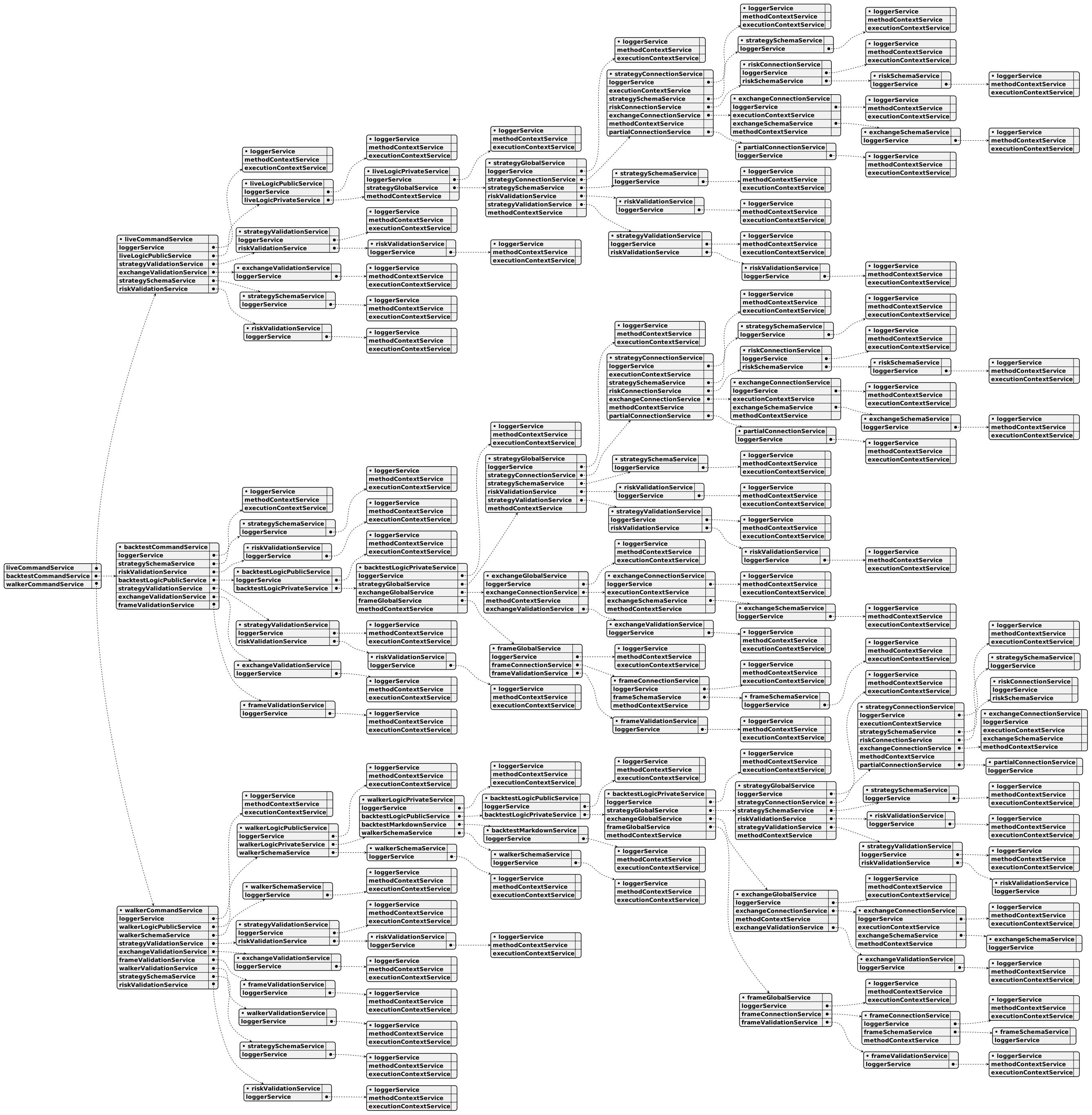
Overview:
Backtest-kit is a production-ready TypeScript framework for backtesting and live trading strategies with crash-safe state persistence, signal validation, and memory-optimized architecture. The framework follows clean architecture principles with dependency injection, separation of concerns, and type-safe discriminated unions.
Core Concepts:
- Signal Lifecycle: Type-safe state machine (idle → opened → active → closed) with discriminated unions
- Execution Modes: Backtest mode (historical data) and Live mode (real-time with crash recovery)
- VWAP Pricing: Volume Weighted Average Price from last 5 1-minute candles for all entry/exit decisions
- Signal Validation: Comprehensive validation ensures TP/SL logic, positive prices, and valid timestamps
- Interval Throttling: Prevents signal spam with configurable intervals (1m, 3m, 5m, 15m, 30m, 1h)
- Crash-Safe Persistence: Atomic file writes with automatic state recovery for live trading
- Async Generators: Memory-efficient streaming for backtest and live execution
- Accurate PNL: Calculation with fees (0.1%) and slippage (0.1%) for realistic simulations
- Event System: Signal emitters for backtest/live/global signals, errors, and completion events
- Graceful Shutdown: Live.background() waits for open positions to close before stopping
- Pluggable Persistence: Custom adapters for Redis, MongoDB, or any storage backend
Architecture Layers:
- Client Layer: Pure business logic without DI (ClientStrategy, ClientExchange, ClientFrame) using prototype methods for memory efficiency
- Service Layer: DI-based services organized by responsibility:
- Schema Services: Registry pattern for configuration with shallow validation (StrategySchemaService, ExchangeSchemaService, FrameSchemaService)
- Validation Services: Runtime existence validation with memoization (StrategyValidationService, ExchangeValidationService, FrameValidationService)
- Connection Services: Memoized client instance creators (StrategyConnectionService, ExchangeConnectionService, FrameConnectionService)
- Global Services: Context wrappers for public API (StrategyGlobalService, ExchangeGlobalService, FrameGlobalService)
- Logic Services: Async generator orchestration (BacktestLogicPrivateService, LiveLogicPrivateService)
- Markdown Services: Auto-generated reports with tick-based event log (BacktestMarkdownService, LiveMarkdownService)
- Persistence Layer: Crash-safe atomic file writes with PersistSignalAdaper, extensible via PersistBase
- Event Layer: Subject-based emitters (signalEmitter, errorEmitter, doneEmitter) with queued async processing
Key Design Patterns:
- Discriminated Unions: Type-safe state machines without optional fields
- Async Generators: Stream results without memory accumulation, enable early termination
- Dependency Injection: Custom DI container with Symbol-based tokens
- Memoization: Client instances cached by schema name using functools-kit
- Context Propagation: Nested contexts using di-scoped (ExecutionContext + MethodContext)
- Registry Pattern: Schema services use ToolRegistry for configuration management
- Singleshot Initialization: One-time operations with cached promise results
- Persist-and-Restart: Stateless process design with disk-based state recovery
- Pluggable Adapters: PersistBase as base class for custom storage backends
- Queued Processing: Sequential event handling with functools-kit queued wrapper
Data Flow (Backtest):
- User calls Backtest.background(symbol, context) or Backtest.run(symbol, context)
- Validation services check strategyName, exchangeName, frameName existence
- BacktestLogicPrivateService.run(symbol) creates async generator with yield
- MethodContextService.runInContext sets strategyName, exchangeName, frameName
- Loop through timeframes, call StrategyGlobalService.tick()
- ExecutionContextService.runInContext sets symbol, when, backtest=true
- ClientStrategy.tick() checks VWAP against TP/SL conditions
- If opened: fetch candles and call ClientStrategy.backtest(candles)
- Yield closed result and skip timeframes until closeTimestamp
- Emit signals via signalEmitter, signalBacktestEmitter
- On completion emit doneEmitter with { backtest: true, symbol, strategyName, exchangeName }
Data Flow (Live):
- User calls Live.background(symbol, context) or Live.run(symbol, context)
- Validation services check strategyName, exchangeName existence
- LiveLogicPrivateService.run(symbol) creates infinite async generator with while(true)
- MethodContextService.runInContext sets schema names
- Loop: create when = new Date(), call StrategyGlobalService.tick()
- ClientStrategy.waitForInit() loads persisted signal state from PersistSignalAdaper
- ClientStrategy.tick() with interval throttling and validation
- setPendingSignal() persists state via PersistSignalAdaper.writeSignalData()
- Yield opened and closed results, sleep(TICK_TTL) between ticks
- Emit signals via signalEmitter, signalLiveEmitter
- On stop() call: wait for lastValue?.action === 'closed' before breaking loop (graceful shutdown)
- On completion emit doneEmitter with { backtest: false, symbol, strategyName, exchangeName }
Event System:
- Signal Events: listenSignal, listenSignalBacktest, listenSignalLive for tick results (idle/opened/active/closed)
- Error Events: listenError for background execution errors (Live.background, Backtest.background)
- Completion Events: listenDone, listenDoneOnce for background execution completion with DoneContract
- Queued Processing: All listeners use queued wrapper from functools-kit for sequential async execution
- Filter Predicates: Once listeners (listenSignalOnce, listenDoneOnce) accept filter function for conditional triggering
Performance Optimizations:
- Memoization of client instances by schema name
- Prototype methods (not arrow functions) for memory efficiency
- Fast backtest method skips individual ticks
- Timeframe skipping after signal closes
- VWAP caching per tick/candle
- Async generators stream without array accumulation
- Interval throttling prevents excessive signal generation
- Singleshot initialization runs exactly once per instance
- LiveMarkdownService bounded queue (MAX_EVENTS = 25) prevents memory leaks
- Smart idle event replacement (only replaces if no open/active signals after last idle)
Use Cases:
- Algorithmic trading with backtest validation and live deployment
- Strategy research and hypothesis testing on historical data
- Signal generation with ML models or technical indicators
- Portfolio management tracking multiple strategies across symbols
- Educational projects for learning trading system architecture
- Event-driven trading bots with real-time notifications (Telegram, Discord, email)
- Multi-exchange trading with pluggable exchange adapters
Test Coverage:
The framework includes comprehensive unit tests using worker-testbed (tape-based testing):
- exchange.test.mjs: Tests exchange helper functions (getCandles, getAveragePrice, getDate, getMode, formatPrice, formatQuantity) with mock candle data and VWAP calculations
- event.test.mjs: Tests Live.background() execution and event listener system (listenSignalLive, listenSignalLiveOnce, listenDone, listenDoneOnce) for async coordination
- validation.test.mjs: Tests signal validation logic (valid long/short positions, invalid TP/SL relationships, negative price detection, timestamp validation) using listenError for error handling
- pnl.test.mjs: Tests PNL calculation accuracy with realistic fees (0.1%) and slippage (0.1%) simulation
- backtest.test.mjs: Tests Backtest.run() and Backtest.background() with signal lifecycle verification (idle → opened → active → closed), listenDone events, early termination, and all close reasons (take_profit, stop_loss, time_expired)
- callbacks.test.mjs: Tests strategy lifecycle callbacks (onOpen, onClose, onTimeframe) with correct parameter passing, backtest flag verification, and signal object integrity
- report.test.mjs: Tests markdown report generation (Backtest.getReport, Live.getReport) with statistics validation (win rate, average PNL, total PNL, closed signals count) and table formatting
All tests follow consistent patterns:
- Unique exchange/strategy/frame names per test to prevent cross-contamination
- Mock candle generator (getMockCandles.mjs) with forward timestamp progression
- createAwaiter from functools-kit for async coordination
- Background execution with Backtest.background() and event-driven completion detection
backtest-kit functions
Function setLogger
This function lets you plug in your own logging system into the backtest-kit framework. It's useful if you want to send logs to a specific place, like a file, a database, or a custom analytics platform. When you provide your logger, all internal messages from the framework will be routed through it. Importantly, the framework automatically adds helpful context to each log message, like the strategy name, the exchange used, and the trading symbol – making it easier to understand what's happening during backtesting. You simply need to create a logger that conforms to the ILogger interface and pass it to this function.
Function setConfig
This function lets you adjust the overall settings for your backtesting environment. Think of it as tweaking the global preferences for how your trading simulations run. You can provide a configuration object with only the settings you want to change – you don't have to redefine everything. It’s a simple way to customize the framework’s behavior without needing to modify the core code. The changes you make through this function are applied globally to all backtests.
Function listWalkers
This function helps you see all the trading strategies (walkers) that have been set up within the backtest-kit system. It provides a straightforward way to get a list of these strategies, which is really handy for understanding what’s running, creating documentation, or even building interfaces that adapt to the strategies you’re using. Essentially, it gives you a peek under the hood to see the registered walkers.
Function listStrategies
This function gives you a way to see all the trading strategies that backtest-kit knows about. It returns a list of strategy descriptions, letting you understand what strategies are available for backtesting. You can use this to inspect your strategies, create tools to document them, or even build user interfaces that dynamically display available strategies. Essentially, it’s a way to peek under the hood and see what strategies are loaded into the system.
Function listSizings
This function helps you see all the sizing configurations that are currently active within the backtest-kit framework. Think of sizing as how much of an asset you're trading at a time – this function gives you a look at all those rules. It’s handy for checking things out when you're troubleshooting, creating documentation, or building tools that need to know about those sizing strategies. The function returns a list of sizing schemas, which you can then use in your own applications or analyses.
Function listRisks
This function lets you see all the risk assessments your backtest kit is using. Think of it as a way to check what kinds of potential problems your trading strategy is accounting for. It gives you a list of all the risk configurations you’ve previously set up with addRisk(), making it easier to understand your overall risk management approach or build tools to display risk information. You'll receive this information as a promise that resolves to an array of risk schema objects.
Function listOptimizers
This function lets you see all the different optimization strategies currently set up within your backtest environment. Think of it as a way to peek under the hood and see exactly what optimization methods are available for use. It returns a list of descriptions, each outlining the specifics of a registered optimizer – perfect for understanding your system's capabilities or for generating documentation. You can use this to inspect the available options or create a user interface that adapts to the registered optimizers.
Function listFrames
This function lets you see all the different data frames that your backtest kit setup recognizes. Think of it like getting a directory listing – you're discovering what data structures are available for your trading strategies to work with. It returns a list of frame schemas, providing information about each frame’s structure. This is helpful if you're trying to understand your backtest environment, generate documentation, or build tools that adapt to the available data frames.
Function listExchanges
This function lets you see all the different exchanges that your backtest-kit framework knows about. It’s like getting a catalog of supported trading platforms. You can use this information to make sure everything is set up correctly, build tools that adapt to different exchanges, or simply understand what’s available. The function returns a list of objects, each describing a registered exchange.
Function listenWalkerProgress
This function lets you keep track of how a backtest is progressing. It provides updates after each strategy finishes running during a Walker.run() execution. Think of it as a way to receive notifications as the backtest completes each part. The updates are delivered one at a time, even if the function you provide takes some time to process, ensuring things stay in order. You give it a function that will be called with each progress event, and it returns another function that you can use to unsubscribe from these updates when you no longer need them.
Function listenWalkerOnce
This function lets you set up a temporary listener that reacts to specific events happening within a trading simulation. It's perfect when you only need to respond to something once, like waiting for a particular market condition to be met. You tell it what kind of event you’re looking for with a filter, and then provide a function that will be executed when that event occurs. Once the event is triggered, the listener automatically stops listening, so you don’t have to worry about cleaning it up.
It takes two parts: a filter that defines what kind of event you want to catch, and the action you want to perform when that event happens. The listener will fire your action only once and then quietly stop listening.
Function listenWalkerComplete
This function lets you listen for when the backtest-kit’s strategy testing process finishes. When the testing is done, it will call the function you provide. It’s designed to handle events one at a time, even if your callback function does some asynchronous operations, ensuring things run in a predictable order. You give it a function, and it returns another function that you can use to unsubscribe from these completion notifications later.
Function listenWalker
This function lets you keep an eye on how your backtest is progressing. It’s like setting up a listener that gets notified after each strategy finishes running within the backtest. You provide a function (fn) that will be called with information about each strategy's completion. Importantly, even if your callback function takes some time to process (perhaps because it’s asynchronous), the notifications will be handled one at a time, in the order they arrive, to avoid things getting out of sync. This gives you a way to monitor the backtest’s journey and react to its events as it unfolds.
Function listenValidation
This function lets you keep an eye on any errors that pop up when the system is checking trading signals for potential risks. Think of it as setting up an alert system. Whenever a risk validation check fails – for instance, if something goes wrong while verifying a signal – this function will notify you. The notifications will arrive in the order they happen, even if the notification itself needs to do some work asynchronously. This is great for tracking down problems and ensuring your risk management is working correctly. You provide a function that will be called whenever an error is detected.
Function listenSignalOnce
This function lets you set up a listener that reacts to specific trading signals, but only once. You tell it what kind of signal you're looking for by providing a filter – essentially, a rule that determines which signals will trigger your response. Once a signal matches your filter, the provided callback function runs, and the listener automatically stops listening. Think of it as waiting for a single, specific event to happen and then reacting to it. It’s great when you need to perform an action based on a particular signal and then you don't need to listen for it anymore.
The first argument is your filter – a function that decides if a signal is what you’re looking for. The second argument is what happens when a matching signal arrives.
Function listenSignalLiveOnce
This function lets you quickly react to a single, specific signal coming from a live trading simulation. Think of it as setting up a temporary listener for a particular event. You provide a filter – a rule that defines which signals you're interested in – and a function to execute when that signal occurs. Once the function runs, the listener automatically disappears, so you don't have to worry about cleaning up.
It's specifically designed to work with signals generated during a Live.run() execution.
The first argument is the filter, defining which signals you want to catch. The second is the code you want to run when a matching signal arrives.
Function listenSignalLive
This function lets you tap into the live trading signals generated by your backtest kit strategy. Think of it as setting up a listener for when your strategy makes a move. It receives events from strategies running in live mode. These events are delivered one at a time, ensuring they’re processed in the order they arrive. You provide a function that gets called whenever a signal event occurs, and this function receives the details of the signal. Importantly, this subscription is specific to strategies actively running in live execution.
Function listenSignalBacktestOnce
This function lets you tap into the backtest signals, but only for a single event that meets your specific criteria. You provide a filter – a test – to determine which signals you're interested in, and a function to run when that signal appears. Once the filter matches an event, the provided function is executed just once, and then the subscription automatically stops. It's a handy way to react to a specific, targeted event during a backtest without needing to manage subscriptions manually. The function returns an unsubscribe function which allows you to manually stop the listener if needed.
Function listenSignalBacktest
This function lets you tap into the backtest process and react to what's happening. It's like setting up a listener that gets notified whenever a signal is generated during a backtest run.
You provide a function that will be called with information about each signal—this lets your code respond to those signals as they appear. Importantly, the events you receive are processed one at a time, ensuring that you get them in the order they were created during the backtest. You can only receive signals originating from the Backtest.run() function.
Function listenSignal
This function lets you set up a listener to be notified whenever your trading strategy generates a signal. Think of it as a way to react to what your strategy is doing – whether it's deciding to buy, sell, or just waiting.
It makes sure these notifications happen in order, one after another, even if your reaction to a signal takes a little time (like if it involves an asynchronous operation). This prevents things from getting out of sync and keeps your system stable.
You provide a function as input; that function will be called with information about the signal event, such as when a trade is opened or closed. The function you provide returns another function, which you can then use to stop listening for those signal events.
Function listenPerformance
This function lets you keep an eye on how your trading strategies are performing in terms of timing. It essentially sets up a listener that gets triggered whenever your strategy executes something, providing you with data about how long those actions take.
Think of it as a way to profile your code and find any slow spots that might be impacting your overall trading performance. The events are delivered in the order they happen, and even if your callback function takes some time to process, the order will be preserved. This helps ensure accurate measurements and avoid race conditions. You provide a function that will be called with each performance metric event.
Function listenPartialProfitOnce
This function lets you set up a one-time alert for partial profit events in your trading strategy. You provide a filter – essentially a rule – that defines which profit levels you're interested in. When an event matches your filter, a callback function you specify will run just once, and then the subscription automatically stops. It's a clean way to react to a particular profit condition without needing to manage ongoing subscriptions.
The first argument, filterFn, is the rule you define. The second, fn, is the action to take when a matching event occurs.
Function listenPartialProfit
This function lets you monitor your trading strategy's progress towards profitability. It provides notifications whenever your strategy hits certain profit milestones, like reaching 10%, 20%, or 30% profit. Importantly, these notifications are handled in the order they arrive, even if your callback function takes some time to complete. This ensures that events are processed sequentially and prevents issues caused by running callbacks at the same time. You provide a function (the fn parameter) that will be executed each time a partial profit level is reached. This function receives details about the event, letting you react to the progress of your trading strategy.
Function listenPartialLossOnce
This function lets you set up a listener that reacts to partial loss events, but only once. You provide a filter that defines which events you're interested in, and a function to execute when a matching event occurs. Once the event matches your filter and the callback runs, the listener automatically stops, so you don't have to worry about manually unsubscribing. It's a handy way to wait for a particular loss condition to happen and then take action.
The filterFn determines which events trigger your callback. The fn is what gets executed when an event passes your filter.
Function listenPartialLoss
This function lets you track how much your trading strategy has lost along the way. It sends you notifications whenever the loss reaches specific milestones, like 10%, 20%, or 30% of your initial capital. Importantly, it makes sure these notifications are handled one at a time, even if your callback function takes some time to process each event, which helps keep things orderly. You simply provide a function that will be called whenever a partial loss level is reached, and this function returns another function to unsubscribe.
Function listenOptimizerProgress
This function lets you keep an eye on how your trading strategy optimization is progressing. It provides updates as the optimizer works through its data, ensuring you can monitor the process. The updates you receive are handled in order, even if the provided function takes some time to process each update. Essentially, it’s a way to get progress notifications without worrying about things getting out of sync. You give it a function to call when an update is available, and it handles the rest.
Function listenError
This function lets you tap into errors that happen behind the scenes during your backtesting or live trading. Specifically, it catches errors from tasks running in the background, like data fetching or order execution.
Think of it as setting up an error listener – whenever something goes wrong in the background, your provided function will be called with details about the error.
It's important to note that even if your error handling function takes some time to process (like making an API call), these errors are handled one at a time, ensuring that processing doesn't get messed up by overlapping operations.
To use it, you provide a function that will receive the error object whenever a background process encounters a problem. This allows you to log errors, send notifications, or take other corrective actions. The function listenError returns a function which can be used to unsubscribe from errors.
Function listenDoneWalkerOnce
This function lets you react to when a background process within your trading strategy finishes, but only once. It’s useful for tasks you want to perform just after a specific background operation is complete.
You provide a filter – a way to specify which completion events you’re interested in – and a function to run when a matching event occurs.
Once the function runs, it automatically stops listening, ensuring you don't get repeated notifications. Think of it as a temporary listener that handles one event and then disappears.
Function listenDoneWalker
This function lets you monitor when background tasks within the backtest-kit framework finish processing. It's particularly useful when dealing with asynchronous operations within those background tasks. You provide a function that will be called once each background task is complete, and it ensures those calls happen one after another, even if the provided function does some work itself. Think of it as a way to be notified when a series of tasks are finished, guaranteeing they’re handled in the order they completed. The function you provide gets triggered when the Walker.background() method concludes its work.
Function listenDoneLiveOnce
This function allows you to monitor when a background task within your trading system finishes, but with a twist – it only listens once. You provide a filter that determines which completion events you're interested in, and a function that will be executed when a matching event occurs. After the function runs once, the listener automatically stops, ensuring you only react to that specific completion. It’s perfect for situations where you need to handle a single event and don’t want to keep listening for more.
You give it two things: a way to select the events you care about, and the code you want to run when a matching event happens. Once that code runs, the listening stops automatically.
Function listenDoneLive
This function lets you monitor when background tasks within your backtest are finished. Think of it as a notification system for when a process you started in the background finally concludes. It ensures that when a task completes, your code gets notified and runs in a controlled, sequential order, even if your notification code itself takes some time to execute. You provide a function that will be called whenever a background task finishes, and this function will return another function to unsubscribe from these notifications when you no longer need them.
Function listenDoneBacktestOnce
This function lets you react to when a background backtest finishes, but only once. You provide a filter – a test to see if the finished backtest matches what you're looking for – and a function to run when a matching backtest is done. Once that matching backtest completes, your function runs, and the subscription automatically stops. It’s a convenient way to get notified about specific backtest completions and then clean up without manual unsubscription. Essentially, you set up a listener that fires just once for a particular backtest.
Function listenDoneBacktest
This function lets you be notified when a background backtest finishes running. Think of it as setting up a listener that gets triggered when the backtest is done. The notification will include information about the completed backtest. Importantly, even if your notification handling involves asynchronous operations, they're handled in a sequential order, preventing any potential conflicts or unexpected behavior. You can unsubscribe from these notifications whenever you no longer need them.
Function listenBacktestProgress
This function lets you keep an eye on how a backtest is running, giving you updates as it progresses. It's designed to handle updates even if those updates come in quickly or involve some processing time. Think of it like subscribing to a stream of progress reports during a backtest, ensuring each report is handled one at a time, even if your processing of each report takes a little while.
You provide a function that will be called with each progress update, which gives you the details of what's happening. The function you provide will be executed sequentially, guaranteeing that updates are processed in the order they're received.
This function returns an unsubscribe function, which allows you to stop receiving these progress updates when you no longer need them.
Function getMode
This function lets you easily find out whether your trading strategy is running in backtest mode or live trading mode. It returns a simple text result, either "backtest" or "live," so you can adapt your code based on the current environment. Think of it as a quick check to ensure your strategy behaves differently depending on whether it’s testing historical data or actively trading.
Function getDate
This function, getDate, gives you the current date being used in your trading simulation or live trading. When you’re backtesting, it provides the date associated with the specific timeframe you’re analyzing. Conversely, if you're running live, it returns the actual current date and time. It's a simple way to know exactly what date your code is operating on.
Function getCandles
This function lets you retrieve historical price data, or "candles," for a specific trading pair. Think of it as pulling up a chart of past prices. You tell it which trading pair you're interested in, like "BTCUSDT" for Bitcoin against US Dollar, and how frequently you want the data – for example, every minute, every hour, or every four hours. You also specify how many candles (data points) you want to retrieve. The function then uses the data source connected to your backtest-kit setup to get the information. The data will be arranged in a list of candle data objects, each containing open, high, low, close, and timestamp values.
Function getAveragePrice
This function helps you figure out the average price a symbol has traded at recently. Specifically, it calculates the Volume Weighted Average Price, or VWAP, which takes into account both price and trading volume.
It looks at the last five one-minute candles to do this calculation, using a formula that considers the high, low, and close prices of each candle along with the volume traded.
If there’s no volume data available, it falls back to calculating a simple average of the closing prices instead. You just need to provide the symbol of the trading pair, like "BTCUSDT", to get the result.
Function formatQuantity
The formatQuantity function helps you ensure your trade amounts are correctly formatted to match the specific rules of the exchange you're using. It takes a trading pair symbol, like "BTCUSDT", and the raw quantity you want to trade. The function then applies the exchange's formatting logic, guaranteeing the quantity has the correct number of decimal places required by that exchange. This helps prevent order rejections due to incorrect quantity formatting.
Function formatPrice
This function helps you display prices correctly for different trading pairs. It takes a symbol like "BTCUSDT" and a raw price number as input. The function then uses the specific formatting rules set by the exchange to ensure the price is displayed with the right number of decimal places, making it look professional and accurate. Basically, it handles the tricky parts of formatting prices for different exchanges so you don't have to.
Function addWalker
This function lets you register a "walker" – a special component that runs backtests for several strategies simultaneously and then compares how well they did against each other. Think of it as setting up a standardized testing environment for your trading strategies. You provide a configuration object, walkerSchema, which tells the walker how to execute the backtests and what metric to use for comparison. Essentially, it’s how you incorporate a walker into the backtest-kit framework to gain broader insights into strategy performance.
Function addStrategy
This function lets you add a trading strategy to the backtest-kit framework. Think of it as registering your trading logic so the system knows how to run it. When you add a strategy, the framework automatically checks it to make sure everything’s set up correctly, like confirming your price data, stop-loss logic, and timestamps are reasonable. It also helps to prevent your strategy from sending signals too frequently and ensures your strategy’s data is safely stored even if something unexpected happens during live trading. You’ll need to provide a configuration object containing all the details about your strategy.
Function addSizing
This function lets you tell backtest-kit how to determine the size of your trades. Think of it as setting up the rules for how much money you're putting into each position. You provide a configuration object that outlines the sizing method you're using – whether it's based on a fixed percentage of your capital, a Kelly Criterion approach, or something tied to Average True Range (ATR). The configuration also includes details like your risk tolerance and limits on position sizes. Essentially, you’re defining how the framework calculates your position sizes for backtesting purposes.
Function addRisk
This function lets you set up how your trading strategies manage risk. Think of it as defining the boundaries within which your strategies can operate, ensuring you don't take on too much risk at once.
You can specify things like the maximum number of positions your strategies can hold simultaneously.
It also allows for more complex risk checks – you can build in custom validations to monitor portfolio metrics or correlations. You can even define what happens to trading signals if they violate your risk rules – either reject them or allow them with a warning.
Importantly, this risk configuration is shared among all your trading strategies, allowing you to analyze the overall risk across your entire portfolio. The system keeps track of all active positions, making that risk analysis possible.
Function addOptimizer
This function lets you register a custom optimizer within the backtest-kit framework. Think of an optimizer as a system that automatically creates trading strategies for you. It gathers data, uses a large language model to craft prompts, and then builds a complete, executable trading strategy file – essentially a .mjs file – that includes all the necessary pieces like exchange settings, trading logic, and even ways to track progress. You provide a configuration object, optimizerSchema, to define how your optimizer works.
Function addFrame
This function lets you tell backtest-kit about a timeframe you want to use for your backtesting. Think of it as defining the periods of time your strategy will be evaluated on, like daily, weekly, or monthly data. You provide a configuration object that specifies the start and end dates of your backtest, the interval for generating timeframes (e.g., 1 day, 1 week), and a function that gets called when timeframe events occur. Essentially, you’re setting up the schedule for how your backtest will analyze historical data.
Function addExchange
This function lets you tell backtest-kit about a new data source, representing an exchange like Binance or Coinbase. Think of it as registering where the framework will fetch historical price data and how to interpret that data. You provide a configuration object, which defines things like how to get candle data and how to format price and quantity values. By adding an exchange, you’re essentially telling the framework, "Here's where I get my trading data, and here’s how to understand it." It also automatically enables VWAP calculation for that exchange based on recent candle data.
backtest-kit classes
Class WalkerValidationService
The WalkerValidationService helps ensure your trading strategies are built correctly by checking that the configurations you’re using are valid. Think of it as a quality control system for your trading logic.
You can use it to register different “walkers,” which are essentially blueprints for how your strategies operate. The addWalker function lets you register these blueprints, specifying a name and a schema.
The validate function then checks if a specific walker configuration exists and is structured as expected. It's a quick way to catch errors early.
If you need to see all the walkers that have been registered, the list function will provide you with a list of their schemas. This helps you keep track of all the building blocks your strategies are using.
Class WalkerUtils
WalkerUtils is a handy tool that simplifies running and managing your trading walkers. It acts as a central point for interacting with the walker comparison process, making things easier and more organized.
You can use it to execute a walker comparison for a specific trading symbol, automatically handling the necessary details like which exchange and time frame to use. It also offers a way to run walkers in the background, perfect when you only care about things like logging or triggering other actions without needing to see the live results.
Need to retrieve the complete results of a walker's comparison? There's a method for that. You can even generate a formatted markdown report summarizing the walker's findings, or save that report directly to a file for later review. Think of it as a helper for working with your trading strategies and walkers.
Class WalkerSchemaService
The WalkerSchemaService helps you organize and manage different blueprints for your trading strategies, ensuring they're all structured correctly. It acts as a central place to store and retrieve these blueprints, using a type-safe system to keep things organized.
You can add new blueprints using addWalker(), and find them again later by their name. It checks to make sure your blueprints have the necessary information before allowing them to be stored, preventing errors down the line. If a blueprint already exists, you can update parts of it using the override function. Finally, get lets you easily retrieve a specific blueprint when you need it.
Class WalkerMarkdownService
The WalkerMarkdownService helps you automatically create and save reports about your trading strategies as they run. It listens for updates from your trading simulations (walkers) and gathers information about how each strategy is performing.
It organizes the results for each walker separately, so you can easily compare different strategies side-by-side. The service then turns this data into nicely formatted markdown tables and saves them as files, making it simple to review and analyze your trading results.
You don’t need to manually kick things off; the service automatically initializes itself when you first start using it. You have the option to clear the accumulated data for individual walkers or for all walkers at once.
Class WalkerLogicPublicService
This service helps coordinate and manage the execution of your trading strategies, essentially acting as a bridge between your code and the underlying backtesting engine. It takes care of automatically passing along important information like the strategy name, the exchange being used, the timeframe of the data, and the specific walker being run.
The run method is the core function, allowing you to trigger a comparison of walkers for a given asset symbol. It seamlessly handles the context needed for each backtest, simplifying your code and ensuring consistency across your strategies. Think of it as providing the necessary environment for your strategies to run smoothly and accurately. It’s designed to run backtests for every strategy you’re using.
Class WalkerLogicPrivateService
The WalkerLogicPrivateService helps you compare different trading strategies against each other. It essentially acts as an orchestrator, guiding the backtesting process and providing updates along the way.
Think of it as a conductor leading an orchestra of strategies. It runs each strategy one after another, keeping track of how they’re performing and providing you with progress reports as they finish. You're given updates for each strategy, allowing you to monitor the process in real-time.
Once all strategies have been tested, it neatly ranks them based on their performance, giving you a clear picture of which strategies are the strongest contenders. It relies on other services to handle the actual backtesting and markdown generation, streamlining the comparison workflow.
Class WalkerCommandService
The WalkerCommandService acts as a central point for interacting with walker functionality within the backtest-kit framework. Think of it as a helper that makes it easier to manage and use different services related to running and validating walkers.
It's designed to be used within the system and isn't something you'd directly interact with. It bundles together various services like those handling logic, schemas, and validations for walkers, strategies, exchanges, and frames.
The core function you might be interested in is run. This function executes a comparison of walkers for a specific trading symbol, providing context like the walker's name, the exchange being used, and the frame it operates within. This function delivers results as an asynchronous generator, allowing you to process the comparison results step by step.
Class StrategyValidationService
The StrategyValidationService helps ensure your trading strategies are set up correctly before you start backtesting. Think of it as a quality control checkpoint for your strategies.
You can add strategy definitions to this service, essentially telling it what your strategies look like. It then lets you validate a specific strategy to confirm it exists and its risk profile is defined.
This service also provides a way to list all the strategies you’ve registered, giving you an overview of your available trading approaches. This is helpful for management and organization.
Class StrategySchemaService
The StrategySchemaService helps you keep track of your trading strategy blueprints in a safe and organized way. It acts like a central repository where you store and manage the definitions of your strategies.
You can add new strategy definitions using the addStrategy function, and retrieve them later by their names. The service ensures that the structure of your strategy definitions is correct before they're stored, helping you catch errors early.
You can also update existing strategy definitions with just the parts you need to change. The system uses a special type system to make sure everything stays consistent and predictable.
Class StrategyGlobalService
This service acts as a central hub for running and managing trading strategies, especially during backtesting and live trading scenarios. It connects the strategy execution with the necessary context, like the trading symbol and timestamp.
Several internal components are wired together, including services for connecting to strategies, validating configurations, and handling logging.
You can use it to quickly run backtests against historical candle data, check the status of pending signals (like stop-loss or take-profit orders), and even halt a strategy's signal generation if needed. The system remembers validation results to speed things up and avoid unnecessary work. Clearing the system's internal memory will force a fresh start when interacting with a specific trading strategy.
Class StrategyConnectionService
The StrategyConnectionService acts as a central hub for managing and executing trading strategies. It ensures that when you ask it to run a strategy (like a specific trading algorithm) for a particular asset, it connects to the correct implementation.
It intelligently remembers previously used strategy instances, which speeds things up, and waits for a strategy to be fully ready before letting it process market data. You can use it to run strategies in real-time using tick() or simulate past performance with backtest(). If you need to temporarily pause a strategy from generating new signals, stop() provides a way to do that. Finally, clear() lets you effectively "reset" a strategy, forcing it to re-initialize and potentially releasing resources.
Class SizingValidationService
The SizingValidationService helps ensure your trading strategies use valid sizing methods. Think of it as a quality control system for how much capital your strategy allocates to each trade.
You can add different sizing strategies – like fixed percentage, Kelly criterion, or ATR-based – by providing their schemas to the service. The validate function checks if a specified sizing strategy exists and confirms its method is appropriate.
Need to see what sizing strategies are currently registered? The list function provides a simple way to retrieve a list of all available sizing schemas. The loggerService property allows integrating with your preferred logging framework, and _sizingMap internally manages registered sizing schemas.
Class SizingSchemaService
The SizingSchemaService helps you keep track of different sizing strategies for your trading backtests. It acts like a safe and organized storage for these strategies, using a system to ensure they are structured correctly.
You can add new sizing strategies using the register method, and update existing ones with override. To use a specific sizing strategy in your backtest, you simply retrieve it by name using the get method. This service keeps your sizing strategies organized and easy to access. It uses a special system to validate that sizing strategies have the necessary components before they are registered, helping to prevent errors.
Class SizingGlobalService
This service handles the logic for determining how much to trade, often referred to as sizing. It acts as a central point for position sizing calculations within the backtest-kit framework.
Think of it as the engine that figures out the right amount to buy or sell based on your defined risk and investment parameters. It relies on another service, SizingConnectionService, to do the actual calculations and performs validations to ensure the sizing requests are reasonable.
The service keeps track of a logger for tracking and debugging, and exposes a calculate method that you can use to determine the position size needed, providing parameters like risk tolerance and the name of the sizing operation.
Class SizingConnectionService
The SizingConnectionService acts as a central hub for handling position sizing calculations within your backtesting system. It’s responsible for directing sizing requests to the correct sizing implementation based on a name you provide.
Think of it as a dispatcher; you tell it which sizing method you want to use (like fixed percentage or Kelly Criterion), and it finds the right tool to do the job. To boost performance, it remembers which sizing tools it has already loaded, so it doesn't have to create them repeatedly.
You can retrieve a sizing tool using the getSizing method, which handles the caching for you. The calculate method is where the actual sizing calculation happens, taking into account risk parameters and the chosen sizing method. If a strategy doesn't have custom sizing configured, the sizing name would be an empty string.
Class ScheduleUtils
This class, ScheduleUtils, helps you keep an eye on how your scheduled trading signals are performing. Think of it as a central place to track and understand the status of your signals.
It gives you a simple way to get data about signals waiting to be executed, those that were canceled, and calculate metrics like cancellation rates and average wait times.
You can easily generate clear, readable markdown reports that summarize the performance of your signals for a specific trading symbol and strategy.
It’s designed to be used everywhere in your backtesting system—there’s only one instance of it, making it convenient to access. You can also save these reports directly to a file on your computer.
Class ScheduleMarkdownService
This service helps you keep track of your scheduled trading signals and generates reports about them. It listens for signals being scheduled and cancelled, organizing the information by strategy and symbol. You can then easily see how many signals were scheduled, how often they were cancelled, and how long they waited.
The service builds markdown reports – essentially text files formatted into readable tables – that are saved to your logs directory. These reports give you a clear picture of your scheduling performance.
It automatically initializes itself when needed, so you don’t have to worry about setting it up manually. You can also clear the accumulated data if you want to start fresh or if you're troubleshooting. If you need to investigate a particular strategy or symbol combination, you can clear its data independently.
Class RiskValidationService
The RiskValidationService helps ensure your trading strategies are considering various potential risks. Think of it as a central place to define and check for specific risk factors.
You can add new risk profiles, each with its own set of rules and criteria, using the addRisk method. The validate function lets you verify if a particular risk profile is present and meets your requirements.
If you need to see all the risk profiles you've defined, the list method returns a comprehensive list of registered schemas. The loggerService property provides access to logging functionality, and _riskMap stores the risk schemas internally.
Class RiskSchemaService
The RiskSchemaService helps you keep track of your risk profiles in a structured and safe way. It acts like a central repository where you can register, update, and retrieve risk schema definitions.
Think of it as a way to ensure your risk profiles always have the information you need, and that they're consistent across your system. You add new risk profiles using addRisk(), and then you can easily find them again by their name.
The service uses a special type-safe storage system, and before any risk profile is added, it checks to make sure it has the necessary properties. You can also update existing risk profiles with just the parts that need changing. Finally, get() allows you to pull a risk profile back out by its name when you need it.
Class RiskGlobalService
This service handles all the risk-related operations within the backtest-kit framework. It sits between your trading strategies and the risk management system, making sure your trades stay within defined limits.
It manages a connection to the risk system and performs validations to ensure risk configurations are correct, remembering previous validations to avoid unnecessary checks.
You'll find methods for checking if a trade signal is allowed based on risk rules, registering new signals as they open, and removing signals when they close. It also provides a way to completely clear risk data, either for all instances or for a specific one. Essentially, it's the core of risk control, keeping your backtesting environment safe and compliant.
Class RiskConnectionService
The RiskConnectionService acts as a central hub for handling risk checks within your backtesting system. It ensures that risk calculations are directed to the correct implementation based on a specified risk name. To improve performance, it remembers previously created risk implementations, so it doesn’s have to recreate them every time.
You can use it to validate signals, ensuring they adhere to predefined risk limits such as portfolio drawdown and symbol exposure. It also manages the registration and removal of signals from the risk management system.
If a strategy doesn’t require risk configuration, the risk name will be an empty string. The clear function allows you to manually remove cached risk implementations when necessary.
Class PositionSizeUtils
This class provides tools to help you determine how much of your assets to allocate to a trade, a crucial aspect of risk management. It offers several pre-built methods for calculating position sizes, each with its own formula and logic.
You'll find methods like fixedPercentage, which calculates size based on a fixed percentage of your account balance at risk. kellyCriterion helps you determine size using a more sophisticated formula considering win rates and win-loss ratios, while atrBased uses Average True Range (ATR) to factor in price volatility.
Each calculation is validated to make sure the inputs you provide are appropriate for the chosen sizing method, reducing the chance of errors. These are static methods, meaning you don’t need to create an instance of the class to use them; you can just call them directly.
Class PersistSignalUtils
The PersistSignalUtils class helps manage how trading signals are saved and loaded, particularly for strategies running in live mode. It makes sure that signal data is stored reliably, even if there are unexpected interruptions.
The class uses a special system to keep track of different storage instances for each strategy, and it allows you to plug in your own ways of saving data if the default methods aren't suitable. When a strategy needs to be restored, readSignalData retrieves the previously saved signal information. Conversely, writeSignalData ensures signal updates are saved safely to disk using a process that minimizes the risk of data corruption.
If you need to customize how signals are persisted, you can register a custom persistence adapter with usePersistSignalAdapter.
Class PersistScheduleUtils
This class, PersistScheduleUtils, helps manage how your trading strategies keep track of scheduled signals – those pre-planned actions you want to happen later. It’s specifically designed to work with ClientStrategy, making sure those scheduled signals survive even if your application crashes.
It cleverly remembers each strategy’s storage location, allowing for easy access. You can even plug in your own methods for storing this data, providing a lot of flexibility. It handles reading and writing the scheduled signal data, always doing so in a safe and reliable way to prevent any data loss or corruption. The read operation lets you retrieve existing scheduled signals when your strategy starts, and the write operation saves new or updated signals to disk.
Class PersistRiskUtils
This class helps manage how trading positions are saved and restored, particularly for different risk profiles. It remembers which storage instances to use for each risk profile, making things efficient.
You can even customize how the data is stored by providing your own adapter.
The readPositionData function fetches the saved positions for a specific risk profile, and writePositionData saves the current positions to disk, making sure the process is safe even if something unexpected happens. The system uses this to keep track of your active positions across sessions. If you want to use a specific persistent adapter, the usePersistRiskAdapter function lets you register it.
Class PersistPartialUtils
This utility class helps manage how partial profit and loss data is saved and retrieved, especially when dealing with live trading environments. It ensures that partial data, like your running profit or loss, is stored reliably and safely.
The class automatically handles creating storage instances for each trading symbol, so you don’t have to. It also allows you to plug in your own storage mechanisms if the default isn't suitable.
When you need to load existing partial data, like when starting a trading session, readPartialData fetches it from storage. If no data is found, it gracefully returns an empty object.
To save changes to your partial data – for example, after a trade – writePartialData takes care of writing it to disk in a way that’s safe even if the system crashes.
Finally, you can customize how the partial data is persisted by registering your own persistence adapter with usePersistPartialAdapter.
Class PerformanceMarkdownService
This service helps you understand how your trading strategies are performing. It collects data about your strategies as they run, keeping track of key metrics for each symbol and strategy combination. You can then ask it to generate easy-to-read markdown reports summarizing the performance, including identifying potential bottlenecks.
The service stores this performance data separately for each symbol and strategy, ensuring you have a clear picture of each one's behavior. It provides a way to retrieve those aggregated statistics and a method to save the analysis reports directly to your disk. The service is initialized only once to ensure it's ready to receive performance data. A function is provided to clear the accumulated data when needed.
Class Performance
The Performance class helps you understand how your trading strategies are performing. It allows you to collect and analyze performance data for specific symbols and strategies.
You can retrieve detailed statistics, broken down by operation type, to see things like execution counts, durations, averages, and volatility.
Generating a report is easy – it creates a readable markdown document that highlights performance trends and helps pinpoint potential bottlenecks.
Finally, you can save these reports directly to your disk for later review and sharing, streamlining your performance assessment workflow.
Class PartialUtils
This class helps you understand and share information about partial profit and loss events, like those happening during a trade. Think of it as a way to review the smaller steps of your trading activity, not just the final result.
You can use it to get simple statistics about your partial profits and losses for a specific symbol – things like the total number of events.
It also lets you create easy-to-read markdown reports showing each partial profit or loss event in a table format, complete with details such as the type of action, the symbol involved, and the price at the time. These reports include a summary at the bottom.
Finally, you can save these markdown reports directly to a file on your computer, making them easy to share or analyze further. The reports are saved as .md files, named after the trading symbol (e.g., BTCUSDT.md).
Class PartialMarkdownService
This service helps you automatically create reports detailing your partial profits and losses for each trading symbol. It listens for events related to partial profits and losses, keeps track of them individually, and then compiles them into neatly formatted markdown tables.
The service accumulates data for each symbol separately, so you're able to see a clear picture of performance for each one. You can request overall statistics, generate full markdown reports, or save these reports directly to disk. The service handles creating the necessary directories if they don’s already exist.
To reset the data for a specific symbol, or the entire system, a clearing function is available. The entire process is designed to be as hands-off as possible - it initializes itself automatically when first used and requires minimal setup.
Class PartialGlobalService
The PartialGlobalService acts as a central hub for managing partial profit and loss tracking within your trading system. Think of it as a gatekeeper, ensuring all profit, loss, and clearing operations go through a single, controlled point.
It's designed to be injected into your trading strategies, providing a consistent way to handle these crucial events and making your code easier to maintain.
This service doesn't actually do the work of managing the partial connections; it passes those tasks on to the PartialConnectionService. However, it keeps a record of everything happening by logging operations, which is incredibly helpful for monitoring and troubleshooting.
You'll find properties like loggerService that manage the logging and partialConnectionService which handles the underlying connection details. Methods like profit, loss, and clear are the primary ways you'll interact with this service, letting you track and resolve partial profit/loss situations.
Class PartialConnectionService
The PartialConnectionService manages how your trading strategy tracks profits and losses for individual signals. It's like a central hub that keeps track of these partial results.
It creates and holds onto a special object, a ClientPartial, for each unique signal ID. Think of each ClientPartial as a container for all the profit/loss details of a specific trade. This avoids creating unnecessary objects and improves efficiency.
You give it a logger and event emitters, and it uses these to keep track of what's happening with each signal. When your strategy makes a profit or loss, the service handles the details – getting the right ClientPartial and updating it. When a signal is closed, it cleans up the associated data to prevent issues. It's designed to work with your overall trading strategy, managing these partial profit/loss records behind the scenes.
Class OptimizerValidationService
This service helps ensure your optimizers are correctly registered and available for use within the backtest kit. It acts as a central registry, keeping track of all the optimizers you've defined and their associated details.
Adding an optimizer to this registry allows you to validate its existence later on. To prevent errors, it stops you from registering the same optimizer name more than once.
The service remembers previously validated optimizers, which makes checking them repeatedly much faster.
You can also easily retrieve a list of all registered optimizers and their schemas whenever you need them.
Class OptimizerUtils
OptimizerUtils provides helpful tools for working with trading strategies generated by the backtest-kit framework. It simplifies retrieving strategy data, producing executable code, and saving that code to files for later use.
You can use getData to gather all the information about a specific optimizer run, essentially pulling together the results of the strategy generation process. getCode takes that data and crafts a full, ready-to-run strategy code block. Finally, dump lets you automatically create and save the generated strategy code into a file, organizing it neatly within a specified directory. This makes it easy to deploy and reuse your optimized strategies.
Class OptimizerTemplateService
This service acts as a foundation for creating code snippets needed for backtesting and optimization of trading strategies. It leverages a large language model (LLM) through Ollama to generate these snippets, simplifying the process of building and comparing different strategies.
It offers several key functionalities, including analyzing market data across multiple timeframes (1 minute to 1 hour), structuring output as JSON for signals, and providing debugging tools that log information to a designated folder. The service integrates with CCXT for accessing exchange data and uses a "Walker" system for comparing the performance of various strategies.
You can customize certain aspects of this service through configuration. Specifically, it provides templates for various code sections, such as:
- Banner: Includes necessary imports and constants.
- User/Assistant Messages: Constructs prompts for interaction with the LLM.
- Walker Configuration: Generates code for comparing multiple strategies.
- Strategy Configuration: Incorporates multi-timeframe analysis and signal generation.
- Exchange Configuration: Uses CCXT for data retrieval.
- Timeframe Configuration: Defines the period of historical data to be analyzed.
- Launcher Code: Creates a script to run the "Walker" system with progress monitoring.
- Debugging Helpers: Creates functions for logging LLM conversations and results.
- Text and JSON Generation: Provides specialized functions to interact with the LLM for producing text-based market analysis and structured trading signals, respectively. The JSON signals include details such as position type (long, short, wait), explanation, entry/target/stop prices, and estimated duration.
Class OptimizerSchemaService
This service helps keep track of different optimizer schemas, essentially the blueprints for how your backtesting experiments are set up. It’s responsible for registering new schemas, making sure they have the necessary information, and providing a way to easily find them later.
Think of it like a central catalog for your optimizer configurations. When you create a new optimizer setup, this service registers it, ensuring that key details like the optimizer's name, training data range, and how to generate prompts are all present. If you need to change something about an existing optimizer setup, you can partially update it using the override function. And whenever you need to use a specific optimizer setup, you can simply retrieve it by its name.
Behind the scenes, it relies on a tool registry to safely store these schemas, ensuring their integrity.
Class OptimizerGlobalService
The OptimizerGlobalService acts as a central hub for interacting with optimizers, ensuring everything runs smoothly and safely. It's your go-to place for getting data, code, and saving strategy outputs.
Before doing anything, it makes sure the optimizer you’re working with actually exists, and then passes the request on to other specialized services.
You can use it to:
- Retrieve strategy metadata and data for a specific symbol and optimizer.
- Generate the complete code for an executable strategy, again confirming the optimizer is valid.
- Create and save the generated strategy code to a file, making it easy to work with and deploy.
It keeps a record of all actions taken and relies on other services to handle the actual data and validation tasks.
Class OptimizerConnectionService
The OptimizerConnectionService helps you manage and reuse connections to your optimizers, making your backtesting process smoother and more efficient. It acts as a central point for getting optimizer instances, ensuring you don’t create unnecessary duplicates.
It cleverly caches optimizer instances based on their names, which significantly improves performance. You can also provide your own custom templates, and the service automatically combines them with the default templates.
The getOptimizer method is your primary way to get an optimizer—it either returns a cached one or creates a new one if needed.
Beyond just connections, it provides methods to fetch data (getData), generate complete strategy code (getCode), and save that code to a file (dump), simplifying the whole process of creating and deploying your strategies.
Class LoggerService
The LoggerService helps you keep track of what's happening in your backtesting process. It’s designed to make sure your log messages always include useful information like which strategy, exchange, or frame is generating the log.
You can plug in your own logging system – like sending logs to a file, a database, or a cloud service – by using the setLogger function. If you don't provide a logger, it defaults to a "no-op" logger that essentially does nothing.
It offers several methods for different log levels: log for general messages, debug for detailed information, info for important updates, and warn for potential issues. All of these methods automatically add the relevant context to your log messages, making it much easier to diagnose problems and understand the flow of your backtesting runs. The methodContextService and executionContextService properties handle the context injection process internally.
Class LiveUtils
This class, LiveUtils, provides tools to help manage live trading operations. Think of it as a helper for running and monitoring your trading strategies in a live environment.
It offers a run function that’s like a never-ending stream of trading results (ticks) for a specific symbol. Importantly, if something goes wrong and the process crashes, it's designed to pick up where it left off, restoring its state from disk.
If you just need to run a live trading process in the background without needing to see the results directly - perhaps to trigger other actions or save data - the background function lets you do that. It continuously runs, keeping the trading going until you stop it.
You can also retrieve statistics and create reports on how a specific trading strategy performed on a particular symbol using getData and getReport. Finally, dump gives you a way to save these reports to your hard drive for later review.
Class LiveMarkdownService
The LiveMarkdownService helps you automatically create and save detailed reports about your trading strategies as they run. It quietly listens for every trade event – from when a strategy is idle, to when it opens and closes positions – and neatly organizes this information.
You're able to generate markdown tables that present your trading history, including key statistics like win rate and average profit/loss. The service automatically saves these reports as markdown files, making it easy to review your strategy's performance over time.
It keeps data separate for each trading symbol and strategy, ensuring your reports stay organized. You can also clear the accumulated data if you want to start fresh or troubleshoot issues. The service handles the initial setup, so you don't need to worry about configuring anything – it’s ready to go when you start your trading strategies.
Class LiveLogicPublicService
This service simplifies live trading by automatically handling the necessary context, like the strategy and exchange names, so you don't have to pass them around constantly. It powers the live trading process, providing a continuous stream of trading signals – both opening and closing – as an infinite generator.
The system is designed to be robust; if it crashes, it can automatically recover from a saved state. It keeps track of time using the system clock to ensure accurate progression.
You can initiate live trading using the run method, specifying the trading symbol. The service takes care of the rest, making it easier to focus on the trading logic itself. The loggerService and liveLogicPrivateService properties offer access to internal components if you need more control.
Class LiveLogicPrivateService
The LiveLogicPrivateService manages live trading operations, acting as a continuous engine for your strategies. It runs in an ongoing loop, constantly monitoring for new trading signals.
The service creates real-time data points to ensure accurate timing and efficiently streams results using an async generator, only reporting when trades are opened or closed, not during inactive periods. If something goes wrong and the process crashes, it automatically recovers and picks up where it left off.
You can initiate live trading for a specific symbol using the run method, which returns an infinite generator providing a stream of trading results. The service relies on several other services like loggerService, strategyGlobalService, and methodContextService to function.
Class LiveCommandService
This service acts as a central point for accessing live trading capabilities within the backtest-kit framework. Think of it as a convenient way to get things done in real-time, designed to be easily integrated into other parts of your application.
It bundles together several other services, such as those handling logging, live trading logic, strategy and exchange validation, schema management, and risk assessment, making them readily available.
The core functionality is the run method. This method kicks off a live trading session for a particular trading symbol. It's designed to keep running indefinitely, automatically recovering if any errors occur, and provides results in the form of asynchronous data about strategy ticks – whether they're opening, closing, or being cancelled. You essentially feed it a symbol and some context (strategy and exchange names), and it handles the live trading process from there.
Class HeatUtils
This class, HeatUtils, makes it easy to generate and manage portfolio heatmaps for your trading strategies. Think of it as a helpful tool for quickly visualizing how different assets performed within a strategy.
It automatically gathers performance data – like total profit/loss, Sharpe Ratio, and maximum drawdown – across all your symbols for a specific strategy. You can then use this collected data in a few different ways.
You can retrieve the raw performance data using getData, which returns a structured object containing details for each symbol and overall portfolio metrics. Alternatively, getReport will create a nicely formatted markdown table showing these details, sorted by profit. Finally, dump allows you to save this markdown report directly to a file on your computer. It handles creating the necessary directories if they don’t exist, making the process simple and convenient. This class is designed to be easily accessible, providing a straightforward way to analyze and understand your trading strategy's performance.
Class HeatMarkdownService
This service helps visualize and analyze your trading strategies by creating a portfolio heatmap. It gathers information about closed trades, calculating key metrics like total profit, Sharpe Ratio, and maximum drawdown for each symbol and across your entire portfolio.
Think of it as a dashboard that shows you how each strategy is performing, with detailed breakdowns for individual assets and overall summaries. The service automatically generates easy-to-read markdown reports, perfect for sharing or documenting your results. It handles potential calculation errors gracefully and keeps data organized for each strategy.
You can tell it to clear the data it’s collected, either for a specific strategy or for all of them. The service initializes itself automatically when you first use it, subscribing to signals to track trades. It also provides a way to save these reports to disk, creating the necessary folders if they don’t already exist.
Class FrameValidationService
The FrameValidationService helps you ensure your trading strategy’s data frames are set up correctly. It acts as a central place to define and check the structure of the data that your backtesting system uses.
You can think of it as a way to register what data frames your strategy expects and then verify that those frames actually exist and match the expected format. It keeps track of registered frame schemas, allowing you to add new ones and check their validity.
The addFrame method lets you register a new frame schema, telling the service what data you're expecting. validate checks to see if a specific frame exists and is structured as defined. Finally, list provides you with a simple way to see all the frame schemas that have been registered.
Class FrameSchemaService
This service acts as a central place to manage and store the blueprints, or schemas, that define the structure of your trading data frames. It keeps track of these schemas using a type-safe system, ensuring consistency in how your data is organized.
You can add new schema blueprints using the register method, effectively registering them with a unique name. If a schema already exists, you can update parts of it using the override method. Need to look up a schema? The get method allows you to retrieve it by its name.
Before a new schema is added, it's checked to make sure it has all the necessary components and those components are of the expected types. This helps prevent errors down the line. The service also keeps track of a logger to help with debugging.
Class FrameGlobalService
This service helps manage and generate the timeframes needed for your backtesting simulations. Think of it as the engine that creates the timeline of historical data your trading strategies will analyze.
It relies on a connection to your data source to fetch the necessary timeframe information. It also incorporates validation to ensure the timeframes are suitable for backtesting.
The getTimeframe method is the main tool here - you're going to use it to create the sequence of dates you'll be stepping through during your backtest, specifying the symbol and timeframe (like '1m' for one-minute bars). It returns a promise that resolves to an array of dates.
Class FrameConnectionService
The FrameConnectionService helps manage and access different trading frames, like daily, weekly, or monthly data, within your backtesting system. It automatically figures out which frame to use based on the current context, so you don’t have to manually select them.
Think of it as a smart router that directs your requests to the correct frame. It remembers the frames it’s already created, reusing them to make things faster.
You can use getTimeframe to find the start and end dates for a specific symbol and frame, which is useful for controlling the period you're backtesting. In live trading, where you're not constrained to a specific frame, the frame name will be empty.
It relies on services like loggerService, frameSchemaService, and methodContextService to operate. The getFrame function is the main way to access the frame implementations.
Class ExchangeValidationService
The ExchangeValidationService helps you keep track of and verify the structure of your exchange data. Think of it as a central registry for your exchanges and their expected formats.
You can use it to add new exchanges and their corresponding schemas, essentially defining what a valid data structure looks like for each exchange. It provides a way to validate whether incoming data from a particular exchange conforms to the expected schema, ensuring data integrity. You can also see a complete list of all exchanges currently registered within the service. This makes it easier to manage and confirm the configuration of your different trading venues.
Class ExchangeSchemaService
This service keeps track of information about different cryptocurrency exchanges, ensuring everything is structured correctly. It uses a special system to store this data in a type-safe way, meaning it helps prevent errors related to data types.
You can add new exchange information using addExchange(), and retrieve it later using the exchange’s name. Before adding a new exchange, the system performs a quick check to make sure all the essential properties are present and of the expected type.
If an exchange is already registered, you can update parts of its information using override(). This lets you modify specific details without replacing the entire exchange definition. Finally, get() is how you retrieve the information for a specific exchange.
Class ExchangeGlobalService
The ExchangeGlobalService acts as a central hub for interacting with exchanges, ensuring that important information like the trading symbol, time, and backtesting parameters are always readily available. It builds upon the ExchangeConnectionService and ExecutionContextService to provide this context.
Internally, it handles validation of exchange configurations, remembering previous validations to improve efficiency.
The service offers methods for retrieving historical and future candle data (specifically for backtesting), calculating average prices, and formatting both price and quantity values, always incorporating the relevant trading context into these operations. This service is designed to streamline exchange-related tasks within the backtesting and live trading environments.
Class ExchangeConnectionService
The ExchangeConnectionService acts as a central hub for interacting with different cryptocurrency exchanges. It intelligently routes your requests – like fetching historical data, getting the average price, or formatting orders – to the correct exchange implementation based on your current trading context.
To improve efficiency, it remembers (caches) the connection to each exchange so it doesn't have to re-establish it every time.
Here's a breakdown of what it lets you do:
- Get Historical Data (Candles): Retrieve past price movements for a specific cryptocurrency.
- Fetch Next Data: Get the next set of candles, useful for progressing through a backtest or keeping a live trading system up-to-date.
- Get Average Price: Find the current average price – either from a live exchange or calculated from historical data.
- Format Prices and Quantities: Ensure that prices and order quantities are formatted correctly to meet the specific rules of the exchange you’re using. This is important for placing valid orders.
Essentially, it simplifies interacting with different exchanges by handling the complexities of connecting and communicating with each one.
Class ConstantUtils
This class provides a set of pre-calculated percentages designed to help you manage your take profit and stop-loss levels in a trading strategy, inspired by the Kelly Criterion and incorporating risk decay. Think of these as guidelines for partial exits – points at which you can lock in some profit or cut losses.
The TP_LEVEL1 property (30) suggests taking a portion of your profit when the price reaches 30% of the distance to your overall take profit target. TP_LEVEL2 (60) encourages securing the bulk of your profit as the price moves further in your favor. TP_LEVEL3 (90) is for a near-complete exit, leaving a small exposure.
On the stop-loss side, SL_LEVEL1 (40) acts as an early warning – a chance to reduce your risk when the setup starts to weaken. SL_LEVEL2 (80) provides a final exit point to avoid significant losses. These values represent percentages of the total distance to the final take profit or stop-loss target, giving you a structured way to manage your trades.
Class ClientSizing
This component helps determine how much of your capital to allocate to a trade. It provides different methods for calculating position sizes, like using a fixed percentage, the Kelly criterion, or Average True Range (ATR). You can also set limits on the minimum and maximum position sizes, as well as a maximum percentage of your capital that can be used. This component allows for custom validation and logging through callbacks, giving you flexibility in how you manage and monitor sizing decisions. It takes configuration parameters to define its behavior and provides a calculate method that returns the calculated position size.
Class ClientRisk
The ClientRisk component helps manage risk across your trading strategies, acting as a safety net to prevent exceeding defined limits. It's designed to be shared between multiple strategies, enabling a holistic view of your portfolio's risk exposure.
Think of it as a central authority that examines each potential trade before it happens, ensuring it aligns with your overall risk profile. It keeps track of all active positions across all strategies in a map, and can be configured with custom validation rules that consider these positions.
The checkSignal method is its core function – it determines whether a trade is permissible based on these rules. This component automatically handles persistence of position data, and is designed to work seamlessly with the signal management system. Signals are registered (addSignal) when a position is opened and unregistered (removeSignal) when it's closed, keeping the risk tracking up-to-date.
Class ClientOptimizer
The ClientOptimizer helps you build and test trading strategies by connecting to various data sources and using an LLM to generate code. It gathers data, understands the training ranges, and constructs a history of interactions with the language model, all to create your trading strategy.
You can use this class to fetch strategy metadata, generate the actual code for your strategy, or save the generated code to a file, creating the necessary directory structure if it doesn’t already exist. Think of it as the workhorse that takes your optimization requests and produces executable strategy code. It keeps you informed about the progress of these operations through callbacks.
Class ClientFrame
This component handles creating the sequences of timestamps needed for backtesting, essentially providing the timeline against which your trading strategies will be evaluated. It remembers previously generated timelines to avoid unnecessary recalculations, which speeds up the backtesting process. You can control how frequently these timestamps are generated, setting the interval from one minute to three days. It's designed to work closely with the core backtesting engine, helping it move through historical data efficiently.
The getTimeframe method is the key part; it's what you use to get the actual timestamp arrays for a specific trading symbol. It's a "singleshot" operation, which means it only calculates the timeframe once and then serves it from a cache.
Class ClientExchange
This class acts as a bridge to exchange data, providing a client-side implementation for accessing information. It focuses on efficiently retrieving historical and future candle data, essential for backtesting trading strategies.
You can use it to get past candle data based on a specific time, or to look ahead and retrieve future candles, which is particularly useful when simulating trades. It also calculates the VWAP, a volume-weighted average price, based on recent trading activity, providing insights into price trends.
Finally, it handles the formatting of price and quantity values to match the exchange's specific requirements, ensuring compatibility when placing orders. The design prioritizes memory efficiency by using prototype functions.
Class BacktestUtils
This class provides helpful tools for running and analyzing backtests within the trading framework. Think of it as a central place to initiate backtesting processes and gather insights.
You can easily start a backtest for a specific trading symbol, passing along important details like the strategy name, exchange, and timeframe. The run method lets you step through the backtest results as they become available.
If you just want to kick off a backtest and don't need to see the results immediately—perhaps for logging or some other background process—the background method is your go-to.
Need to collect performance statistics after a backtest is complete? The getData method helps you grab those statistics for a specific symbol and strategy.
Want a nicely formatted report summarizing a backtest? The getReport method generates a markdown report you can easily share or review.
Finally, dump allows you to save those reports directly to your hard drive for safekeeping and later analysis.
Class BacktestMarkdownService
The BacktestMarkdownService helps you create and save reports detailing your backtesting results. It automatically tracks closed signals generated by your trading strategies, organizing them for each symbol and strategy combination.
It listens for signals during backtesting and quietly gathers data about those signals. You're meant to call its tick method from your strategy’s onTick callback.
You can then use the getReport method to generate a nicely formatted markdown report, perfect for analyzing performance. The service also provides methods to get raw statistical data (getData) and save the reports to your hard drive, creating folders as needed.
The clear function lets you wipe the accumulated data, either for a specific symbol/strategy pairing or everything at once. Finally, init sets up the service to listen for backtest events, and it handles itself – you typically don’t need to call it directly.
Class BacktestLogicPublicService
This service helps you run backtests in a straightforward way. It takes care of automatically passing along important information like the strategy name, exchange, and frame – you don't have to keep specifying them every time you call a function.
It works by combining other internal services to simplify the process.
The run method is the main entry point: you give it the symbol you want to backtest, and it streams back the results one by one. Think of it as a way to get continuous feedback during the backtest process, without having to wait for everything to finish before seeing any results. This allows for monitoring and potential adjustments while the backtest is running.
Class BacktestLogicPrivateService
This service manages the complex process of backtesting your trading strategies. It works by first getting a list of timeframes, then stepping through them one by one, simulating the trading environment. When a signal tells your strategy to enter a trade, it pulls in the necessary historical price data and runs the backtest calculations. Importantly, it skips forward in time to when the signal tells you to exit the trade.
The key advantage is its efficiency; instead of storing all the results in memory, it streams them to you as they become available. You can also stop the backtest early if needed.
This service relies on several other services to function, including ones for logging, strategy management, exchange data, timeframe data, and method context.
To start a backtest, you’re going to use the run method, providing the symbol you want to backtest. This method returns an async generator that gives you backtest results as they’re completed.
Class BacktestCommandService
This service acts as a central hub for running backtests within the backtest-kit framework. Think of it as a convenient way to access the core backtesting engine, especially when you're building applications that need to inject dependencies.
It bundles together various supporting services like logging, schema validation, and risk assessment, making it easier to manage the different pieces involved in a backtest. The primary function, run, lets you initiate a backtest for a specific trading symbol, providing details about the strategy, exchange, and data frame you want to use. The result is a stream of backtest results, allowing you to monitor and analyze the performance over time.
backtest-kit interfaces
Interface WalkerContract
The WalkerContract helps you keep track of how a backtesting comparison is progressing. It provides updates each time a strategy finishes its testing phase and its ranking is determined.
You'll see details like the walker's name, the exchange and frame being used, and the specific symbol being backtested. The contract also tells you which strategy just finished, along with its performance statistics.
Crucially, it provides the metric value the strategy achieved, the metric currently being optimized, and the best results seen so far, including the best strategy and its metric value. Finally, it tells you how many strategies have been tested and the total number to be tested, giving you a sense of how much longer the process will take.
Interface TickEvent
The TickEvent describes what happened during a trade, acting as a single record of an event like a trade being opened, actively running, or closed. It brings together all the key details into one place, regardless of what specific action took place.
Each TickEvent contains a timestamp, identifying when the event occurred. You’ll find the trading symbol involved, a unique signal ID if applicable, and the type of position (like long or short). For trades that have been opened, you're provided with details like the open price, take profit level, and stop-loss price. When a trade closes, you'll see information like the PNL percentage, the reason for closure, and how long the trade lasted. Essentially, it's a comprehensive log of an event within the trading process.
Interface ScheduleStatistics
This interface, ScheduleStatistics, helps you understand how your scheduled signals are performing. It gives you a breakdown of all events, whether they were successfully scheduled or later cancelled.
You can see the total number of events, the number that were scheduled, and the number that were cancelled. The cancellationRate tells you what percentage of your scheduled signals were cancelled – a lower rate generally indicates better performance. Finally, avgWaitTime gives you insight into how long cancelled signals typically wait before being cancelled, potentially highlighting areas for optimization. Think of it as a dashboard for monitoring the health of your scheduling system.
Interface ScheduledEvent
This interface holds all the details about scheduled and cancelled trading signals, making it easy to generate reports. Each event includes a timestamp, the type of action taken (scheduled or cancelled), and the trading symbol involved. You'll also find the unique signal ID and the position type, along with any associated notes.
For scheduled events, key pricing information like the entry price, take profit level, and stop loss are stored. Cancelled events additionally record the closing timestamp and duration of the signal. Essentially, this interface provides a complete picture of each trading signal’s lifecycle.
Interface ProgressWalkerContract
This interface describes the updates you'll receive as a background process runs within the backtest-kit framework. Think of it as a progress report for long-running tasks, like evaluating many trading strategies.
It tells you which walker, exchange, and frame are being used, along with the symbol being traded. You'll also see the total number of strategies being analyzed and how many have already been processed. Finally, it provides a percentage value representing overall completion. This allows you to monitor the status and estimate the remaining time for the process.
Interface ProgressOptimizerContract
This interface helps you keep an eye on how your trading strategy optimization is going. It provides updates during the optimization process, letting you know which optimizer is running, which trading symbol it's focused on, and how much work is left to be done. You’ll see the total number of data sources the optimizer needs to analyze, the number it has already finished processing, and a percentage indicating overall completion. Essentially, it's a progress report for your strategy optimization.
Interface ProgressBacktestContract
This interface helps you monitor the progress of your backtesting runs. It's designed to be emitted during the background execution of a backtest, giving you updates on how far along the process is.
You’ll see information like the exchange and strategy names, the trading symbol being used, the total number of historical data points (frames) the backtest will analyze, and how many have already been processed. A percentage value represents the overall completion rate, letting you know what portion of the backtest has finished. Essentially, it's a way to keep an eye on long-running backtests and see how things are proceeding.
Interface PerformanceStatistics
This object holds the overall performance data collected by a trading strategy. It provides a way to see how a strategy performed, including the total number of events it generated and the total time it took to execute.
The strategyName tells you which strategy these statistics belong to. totalEvents counts all the performance-related actions recorded during the backtest. totalDuration represents the combined execution time for all the metrics.
Inside, metricStats provides a breakdown of performance data categorized by metric type, offering a more granular view. Finally, events holds the complete list of raw performance events, giving you access to the detailed data that makes up these statistics.
Interface PerformanceContract
The PerformanceContract helps you keep an eye on how your trading strategies are performing. It records key performance details as your code runs, giving you insights into where things are running smoothly and where there might be slowdowns.
Each PerformanceContract captures when an action happened (timestamp), what happened before (previousTimestamp), the type of action being measured (metricType), how long it took (duration), and the strategy, exchange, and symbol involved. It also tells you whether the measurement is coming from a backtest simulation or live trading. This information helps you pinpoint bottlenecks and optimize your strategies for better efficiency.
Interface PartialStatistics
This interface holds key statistical information gathered during a backtest, specifically focusing on partial profit and loss events. Think of it as a snapshot of how your trading strategy performed at various milestones.
You’ll find a detailed list of all profit and loss events recorded in the eventList property. The totalEvents property simply tells you the total number of events that occurred during the backtest period. Then, totalProfit counts how many events resulted in a profit, while totalLoss tells you the number of losing events. These numbers help you analyze the overall profitability and frequency of gains and losses in your strategy.
Interface PartialProfitContract
This interface represents a notification when a trading strategy reaches a partial profit target. Think of it as a report card at key milestones like 10%, 20%, or 30% profit.
You’re given the symbol of the trading pair, all the details of the original signal that triggered the trade, and the current market price at the time the profit level was hit. It also tells you precisely which profit level (10%, 20%, etc.) was reached, and whether the event occurred during a backtest (using historical data) or during live trading.
A timestamp helps you understand when this profit level was detected – either the time of the tick in live trading or the timestamp of the candle used in a backtest. Services like report generators and user callbacks can leverage this information to track performance and execution details.
Interface PartialLossContract
The PartialLossContract lets you keep track of when your trading strategy hits predefined loss levels, like -10%, -20%, or -30%. It’s a way to monitor how much your strategy is losing and when those losses occur.
Each time a loss level is triggered, this contract provides key information: the trading pair involved (symbol), all the signal data, the price at which the loss was reached, the specific loss level that was hit, whether the event occurred during a backtest or live trading, and the exact time it happened.
You can use this information to build reports, trigger alerts, or simply monitor the overall health of your trading strategy. Events are designed to be unique - you're guaranteed to receive each loss level only once per signal. Significantly large price drops can generate multiple loss level events within the same tick.
Interface PartialEvent
This interface, PartialEvent, is designed to hold information about important profit and loss milestones during a trade. Think of it as a snapshot of what happened during a trade – whether it was a profit or a loss, when it occurred, and at what price level it happened. It includes details like the exact timestamp, the trading symbol, a unique signal ID, the type of position held, and the current market price at the time. A key part of this data is the level property, which tells you precisely which profit or loss level was achieved, such as 10%, 20%, or 30%. Finally, it indicates whether the event happened during a backtest or a live trading session. This data is perfect for creating reports and analyzing trading performance.
Interface MetricStats
This interface holds a collection of statistics related to a particular performance measurement, like order execution time or fill slippage. It provides a complete picture of how that metric behaved during a backtest.
You’re able to see how many times a specific metric was recorded (the count), the total time spent on it (totalDuration), and a range of statistical measures offering detailed insights. These measures include the average, minimum, and maximum values, as well as the standard deviation to understand the variability of the metric. Percentiles like the 95th and 99th provide context for outlier behavior.
The interface also tracks wait times between events, enabling analysis of delays within the trading process. Essentially, MetricStats brings together all the essential information needed to thoroughly analyze the performance of a trading strategy.
Interface MessageModel
The MessageModel helps keep track of conversations when testing trading strategies. Think of it as a way to represent each turn in a chat – whether it's a system instruction, a user's question, or the AI's response.
Each MessageModel has two key parts: the 'role' which tells you who sent the message (like the system, the user, or the assistant), and the 'content', which is the actual text of the message. This structure allows Optimizer to build effective prompts and remember the ongoing context of a conversation during backtesting.
Interface LiveStatistics
This interface provides a collection of statistics derived from live trading activity, offering insights into the performance of your strategy. You're given a detailed event history (eventList) and a count of all events processed (totalEvents), as well as the number of completed trades (totalClosed).
Key performance indicators like the number of winning (winCount) and losing (lossCount) trades are readily available. You’re also provided with percentage-based metrics for win rate, average PNL per trade, and total cumulative PNL. Volatility is tracked with standard deviation, and risk-adjusted returns are measured using the Sharpe and annualized Sharpe ratios. Finally, metrics like the certainty ratio and expected yearly returns provide further context for evaluating overall trading effectiveness. All numerical values will be null if the calculation is unreliable or results in an undefined value, ensuring data integrity.
Interface IWalkerStrategyResult
This interface describes the output you're getting for each strategy when you're running a comparison using the backtest-kit framework. Think of it as a report card for a single trading strategy.
It tells you the strategy's name, provides detailed statistics about its backtest performance, and includes a metric value – a single number representing its overall score for comparison purposes. Finally, you'll see its rank, which shows how it performed relative to the other strategies in your comparison; a lower rank number indicates a better result.
Interface IWalkerSchema
The IWalkerSchema helps you set up A/B tests comparing different trading strategies within backtest-kit. Think of it as a blueprint for running a structured comparison.
You give it a unique name so it can be recognized, and you can add a note for yourself or other developers. It specifies which exchange and timeframe to use for all the strategies involved in the test.
Crucially, you tell it which strategy names to compare – these strategies need to be registered beforehand. You can also choose the metric you want to optimize, like Sharpe Ratio, and optionally provide callbacks to be notified about various stages of the walker’s lifecycle. This allows you to monitor and potentially influence the testing process.
Interface IWalkerResults
The IWalkerResults object holds all the information gathered after a complete run of the strategy comparison process. Think of it as a report card for your backtesting walk. It tells you which strategy walker was used, what asset (symbol) was tested, and on what exchange and timeframe.
The results include details such as the optimization metric used, the total number of strategies evaluated, and crucially, which strategy performed the best. You're given the name of the top strategy, its metric score, and access to a set of statistics providing deeper insights into its performance.
Interface IWalkerCallbacks
This interface lets you hook into the backtest-kit's strategy comparison process, allowing you to respond to key events as testing progresses. You can use onStrategyStart to know when a new strategy is beginning its backtest. onStrategyComplete is triggered when a specific strategy's testing is finished, providing you with statistics and a metric value to analyze. Finally, onComplete notifies you when all strategies have been tested, giving you access to the overall results. These callbacks provide a way to monitor, log, or otherwise react to the backtesting workflow.
Interface IStrategyTickResultScheduled
This interface represents a tick result within the backtest-kit framework, specifically when a trading signal has been scheduled. Think of it as a notification that a strategy has identified a potential trade and is now waiting for the market price to reach a predetermined entry point.
It provides key details about this scheduled signal, including the strategy's name, the exchange being used, the trading symbol (like BTCUSDT), and the current price at the time the signal was scheduled. You're essentially getting a snapshot of the conditions that led to the signal being created, helping you understand why the strategy decided to wait for a specific price to trigger the trade. The "action" property confirms this is a scheduled signal, and the "signal" property holds all the details of that specific trading signal.
Interface IStrategyTickResultOpened
This interface, IStrategyTickResultOpened, represents what happens when a new trading signal is created by your strategy. It’s a notification that a signal has been successfully generated, validated, and saved.
You’ll receive this notification after your strategy’s logic has run and determined a trade signal should be opened.
The data provided includes details like the strategy’s name, the exchange being used, the trading symbol (like BTCUSDT), the current price at the time the signal was opened, and the complete signal information itself, including a unique ID assigned to it. This allows you to track and monitor the signals your strategies are creating.
Interface IStrategyTickResultIdle
This interface represents what happens when your trading strategy isn't actively making any trades – it's in an idle state. Think of it as a notification that the strategy is simply observing the market.
It includes information like the strategy's name, the exchange it's connected to, the symbol it's tracking, and the current price. The action property confirms this is an idle event, and the signal is explicitly set to null because no trading signal is present. It’s helpful for monitoring and debugging, allowing you to track how often your strategy enters and exits idle periods.
Interface IStrategyTickResultClosed
This interface represents the result you get when a trading signal is closed, providing a complete picture of what happened. It tells you the reason the signal closed, whether it was due to a time limit, a take-profit order, or a stop-loss trigger. You'll find details like the final price used for the trade, the exact time the signal closed, and a breakdown of the profit or loss, including any fees or slippage incurred. It also includes tracking information like the strategy and exchange names, and the trading symbol involved. Essentially, it's a comprehensive record of a closed trade.
Interface IStrategyTickResultCancelled
This interface describes what happens when a scheduled trading signal is cancelled – essentially, it means the signal didn't result in an actual trade. This could be because the signal never triggered, or it was stopped before a position could be opened.
The interface provides details about the cancelled signal, like the signal itself and the final price at the time of cancellation. You'll also find information for tracking purposes, such as the strategy and exchange names, and the trading symbol involved. It's useful for understanding why a scheduled signal didn't lead to a trade.
Here's a breakdown of the information it contains:
- action: Confirms that this is a cancellation event.
- signal: The details of the scheduled signal that was cancelled.
- currentPrice: The price used at the time the signal was cancelled.
- closeTimestamp: A timestamp marking when the cancellation happened.
- strategyName: Identifies the strategy that generated the signal.
- exchangeName: Specifies the exchange where the trading was intended.
- symbol: The trading pair, like "BTCUSDT".
Interface IStrategyTickResultActive
This interface describes a tick result within the backtest-kit framework when a strategy is actively monitoring a trade signal. Think of it as the state your strategy is in while it's waiting for a trade to hit a target price (take profit), a stop-loss level, or a specified time limit.
It tells you exactly which signal is being watched, what the current price is for monitoring, and identifies the strategy, exchange, and trading pair involved. Essentially, it's a snapshot of the situation when your strategy is in an "active" monitoring phase.
Interface IStrategySchema
This defines the blueprint for how a trading strategy behaves within the backtest-kit framework. Think of it as a recipe you provide to tell the system how to generate buy and sell signals.
Each strategy gets a unique name for identification.
You can add a note to explain your strategy’s purpose.
The interval property controls how frequently the strategy can be checked for signals, helping to manage processing load.
The core of the strategy is the getSignal function, which takes a symbol and a date to determine whether to generate a signal. It returns a standardized signal object, or null if no signal is present. You can use this function to create signals that only trigger when a specific price is reached.
You can also register functions to be called at key points in the strategy's lifecycle, such as when a trade is opened or closed.
Finally, you can assign a risk profile to the strategy, which is useful for managing overall risk exposure.
Interface IStrategyPnL
This interface, IStrategyPnL, represents the result of a profit and loss calculation for a trading strategy. It provides a clear picture of how a trade performed, taking into account common real-world factors.
The pnlPercentage property tells you the overall profit or loss expressed as a percentage – a simple way to gauge performance.
You’re also given the priceOpen, which is the price at which you entered the trade, adjusted to reflect the impact of fees and slippage. Similarly, priceClose gives you the price at which you exited the trade, also adjusted for those same factors. Having these adjusted prices helps you understand the true cost of the trade.
Interface IStrategyCallbacks
This interface provides a way to hook into different stages of your trading strategy's lifecycle. Think of these callbacks as notification points that let your code react to what's happening in the backtest.
You can define functions to be executed when a new signal is opened, when a signal becomes active and is being monitored, or when the system is in an idle state with no active signals. There are also callbacks for when a signal is closed, providing the final closing price.
For strategies using scheduled entries, you'll receive notifications when a scheduled signal is created or cancelled. Finally, you can use callbacks to track partial profits or losses, and even to write signal data for testing or persistence. Each callback gives you the symbol, relevant data, and a flag indicating whether it's a backtest, so you can tailor your actions accordingly.
Interface IStrategy
The IStrategy interface outlines the essential methods for any strategy within the backtest-kit framework.
The tick method is the core of strategy execution, handling each market tick by checking for potential signals, monitoring VWAP, and assessing stop-loss and take-profit conditions.
getPendingSignal allows you to check the status of any currently active signal for a specific symbol; it's useful for tracking things like TP/SL and expiration times.
For quick testing, the backtest method lets you run your strategy against historical candle data, simulating trades and evaluating performance.
Finally, the stop method provides a way to pause your strategy from generating new signals, but it doesn’t automatically close any existing positions – they’re left to resolve normally through their stop-loss, take-profit, or expiration.
Interface ISizingSchemaKelly
This interface defines how your trading strategy determines position sizes using the Kelly Criterion. When implementing this, you're telling backtest-kit that your strategy uses the Kelly Criterion formula to calculate how much capital to allocate to each trade. The method property must be set to "kelly-criterion" to indicate this sizing method is being used. The kellyMultiplier property lets you control the aggressiveness of the Kelly Criterion – a value of 0.25 (the default) represents a "quarter Kelly" approach, which is a more conservative sizing strategy. Higher values increase risk and potential reward, while lower values reduce both.
Interface ISizingSchemaFixedPercentage
This schema lets you define a trading strategy where each trade uses a fixed percentage of your available capital. It's straightforward – you simply specify the riskPercentage, which represents the maximum percentage of your capital you're willing to risk on a single trade. The method property must be set to "fixed-percentage" to indicate that you’re using this particular sizing approach. It’s a simple and common way to manage risk when you want consistent exposure to market fluctuations.
Interface ISizingSchemaBase
This interface, ISizingSchemaBase, provides a foundation for defining how much of your account to allocate to each trade. It ensures consistency across different sizing strategies.
Each sizing configuration gets a unique sizingName to identify it. You can add a note for your own documentation or to explain the strategy.
Crucially, it controls position sizing with maxPositionPercentage, minPositionSize, and maxPositionSize – setting limits on how much capital can be used.
Finally, you can include optional callbacks to execute custom logic at various points in the sizing process.
Interface ISizingSchemaATR
This interface, ISizingSchemaATR, defines how your trades will be sized using the Average True Range (ATR) indicator. It's designed for strategies that want to manage risk dynamically based on market volatility.
You'll specify a method which must be "atr-based" to confirm you're using this sizing approach. The riskPercentage property dictates the percentage of your capital you're willing to risk on each trade – a value between 0 and 100. Finally, atrMultiplier determines how the ATR value is used to calculate the stop-loss distance, effectively controlling the trade size based on how much the price is likely to move.
Interface ISizingParamsKelly
This interface defines how you can control the sizing of your trades using the Kelly Criterion within the backtest-kit framework. Think of it as a way to tell the system how much of your available capital to risk on each trade, based on your calculated edge.
The logger property is a crucial part – it lets you connect a logging service to monitor the sizing calculations and debug any issues. This allows you to see exactly how much capital is being allocated to each trade, which can be extremely helpful in understanding and refining your trading strategy.
Interface ISizingParamsFixedPercentage
This interface defines how to set up your order sizing when using a fixed percentage approach. It’s all about ensuring each trade represents a consistent portion of your available capital. You’re essentially telling the system to risk a predetermined percentage of your balance on each trade.
The key component is the logger, which allows you to monitor the sizing process and troubleshoot any issues that might arise. It’s like having a helpful observer that provides insights into how the sizing calculations are being performed.
Interface ISizingParamsATR
This interface defines how you can control the sizing of your trades when using an ATR (Average True Range) based strategy within backtest-kit. It's all about how much of your capital you’re willing to risk on each trade. You’re required to provide a logger to help with debugging and monitoring your backtest. The logger helps you keep track of what's happening during the simulation.
Interface ISizingCallbacks
This interface helps you monitor and influence how much of an asset your trading strategy buys or sells. The onCalculate property allows you to be notified whenever the framework calculates the size of a trade. Think of it as a way to peek inside the sizing process, perhaps to record the calculated size or confirm it aligns with your expectations. It's a chance to observe the sizing decision before it's finalized and acted upon.
Interface ISizingCalculateParamsKelly
This interface defines the information needed to calculate trade sizing using the Kelly Criterion. When you're using this method for sizing, you’ll need to provide your expected win rate, expressed as a number between 0 and 1. You’ll also need to specify the average ratio of your winning trades compared to your losing trades. These two values work together to determine a suggested trade size based on your historical performance.
Interface ISizingCalculateParamsFixedPercentage
This interface defines the information needed to calculate trade sizes using a fixed percentage approach. When using this method, you’re essentially committing to risking a specific percentage of your capital on each trade.
It requires you to specify the method as "fixed-percentage" to indicate the sizing technique you're using. You also need to provide the priceStopLoss, which represents the price at which your stop-loss order will be triggered, influencing the size calculation based on risk management.
Interface ISizingCalculateParamsBase
This interface, ISizingCalculateParamsBase, provides the essential information needed to determine how much of an asset to trade. It defines the fundamental data shared across different sizing calculations within the backtest-kit framework.
You'll find details about the trading pair you're working with, identified by its symbol like "BTCUSDT". It also includes the current amount of funds available in your trading account and the price at which you intend to enter the trade. These parameters form the groundwork for calculating appropriate trade sizes based on your strategy.
Interface ISizingCalculateParamsATR
This interface defines the information needed when calculating position sizes using an ATR (Average True Range) based approach. It requires you to specify that you're using the "atr-based" method and provides a space to input the current ATR value. Think of it as telling the backtest framework, "I want to size my trades based on this ATR number."
Interface ISizing
The ISizing interface helps your trading strategy determine how much of an asset to buy or sell. Think of it as the engine that figures out your position size based on things like your risk tolerance and the asset's price. It provides a calculate method, which takes parameters defining your risk profile and returns the calculated position size as a number. This method is the core of the sizing logic, and it's used behind the scenes when your strategy is actually executing trades.
Interface ISignalRow
This interface, ISignalRow, represents a finalized signal ready to be used within the backtesting framework. Think of it as the complete package – it contains all the necessary information about a trading signal, including a unique ID to track it.
Each signal has a unique identifier, along with the entry price (priceOpen), the exchange and strategy used for execution, and a timestamp indicating when the signal was created (scheduledAt). There's also a timestamp for when the pending order was placed (pendingAt), along with the symbol being traded (like "BTCUSDT"). Finally, an internal flag, _isScheduled, helps the system keep track of whether the signal originated from a scheduled event.
Interface ISignalDto
The ISignalDto represents the data you'll use to tell the backtest kit how to trade. Think of it as a structured way to describe a trading signal.
It includes essential details like the trade direction ("long" for buying, "short" for selling), a description of why you’re making the trade, the entry price, and where you plan to set your take profit and stop-loss orders.
You don’t necessarily need to provide an ID for the signal; the system will automatically generate one for you. It also helps to specify how long you expect the trade to last before it expires.
The priceTakeProfit and priceStopLoss values need to be set up logically – take profit should be higher than your entry price for a "long" trade, and lower for a "short" trade, with the opposite applying to your stop-loss.
Interface IScheduledSignalRow
This interface, IScheduledSignalRow, helps you manage signals that need to be triggered at a specific price. Think of it as a signal that's on hold, waiting for the market to reach a certain price level before it becomes active. It builds upon the basic ISignalRow and represents a signal that's pending execution until its target price is hit.
When the market price eventually reaches the priceOpen value defined in the row, this pending signal transforms into a regular signal ready to be processed. Initially, the time it was scheduled will be the pending time, but once the signal activates, the pending time will update to the actual time it waited. The priceOpen property holds the target price that needs to be reached to activate the signal.
Interface IRiskValidationPayload
This interface, IRiskValidationPayload, holds the information your risk validation functions need to do their job. Think of it as a package containing details about your current trading situation. It includes the number of open positions you have and a list describing each of those positions, letting your risk checks consider exactly what's happening in your portfolio. It builds upon IRiskCheckArgs, adding the extra data about your active positions.
Interface IRiskValidationFn
This defines a function that's responsible for checking if your risk parameters – things like position size or leverage – are within acceptable limits before a trade is executed. Think of it as a gatekeeper for your trading strategy; it ensures that potentially dangerous settings are caught and prevented. The function takes the risk parameters as input and, if anything seems off, it should throw an error to stop the trade from happening. This helps maintain the safety and stability of your backtesting and live trading.
Interface IRiskValidation
This interface, IRiskValidation, helps you set up checks to ensure your trading strategies are behaving responsibly. Think of it as a way to define rules and explanations for how your risk management system operates.
It has two key parts: a validate function, which is the actual logic that performs the risk check, and a note property that lets you add a human-readable explanation for why this particular check exists. The note is helpful for documenting your strategy and making it easier for others (or your future self) to understand what's going on. Essentially, you're defining how you’re validating risk and why.
Interface IRiskSchema
This interface, IRiskSchema, lets you define and register custom risk controls for your trading portfolio. Think of it as a blueprint for how you want to manage risk at a high level.
Each IRiskSchema has a unique identifier, riskName, so you can easily refer to it. You can also add a helpful note to explain what this risk profile is for.
You can optionally provide lifecycle callbacks, callbacks, such as onRejected and onAllowed, to react to specific events.
The core of the schema is the validations array, which holds your custom validation logic – the actual rules that govern when trades are allowed or rejected. You can add multiple validations to create a complex and robust risk management system.
Interface IRiskParams
The IRiskParams interface defines the information needed when setting up a risk management system within the backtest-kit framework. Think of it as a blueprint for configuring how your system will track and manage potential losses.
It primarily focuses on providing a way to log important events and debug information, using a logger service. This lets you monitor what your risk system is doing and troubleshoot any issues that may arise during backtesting. Providing a logger is essential for understanding how your risk parameters are affecting your trading strategy.
Interface IRiskCheckArgs
The IRiskCheckArgs interface provides the information needed to determine if a new trade should be allowed. Think of it as a safety check performed before a trading strategy generates a signal. It passes along essential data like the trading pair symbol, the name of the strategy requesting the trade, the exchange being used, the current price, and the current time. This allows you to build rules to prevent trades under certain conditions, like during volatile periods or when market conditions aren't suitable. It's all about ensuring that trades align with your risk management policies.
Interface IRiskCallbacks
This interface lets you hook into the risk assessment process within the backtest kit. If a trading signal is blocked because it violates risk limits, the onRejected callback will be triggered, providing you with information about the symbol and the parameters used in the risk check. Conversely, when a signal successfully passes all the risk checks, the onAllowed callback will notify you, again giving you the symbol and relevant parameters. Think of these callbacks as letting you observe and react to the risk management decisions being made.
Interface IRiskActivePosition
This interface represents a single, active trading position that's being monitored by the risk management system. Think of it as a snapshot of a trade as it's happening, allowing you to see details across different trading strategies.
It includes information like the signal that triggered the trade (signal), which strategy initiated it (strategyName), the exchange where it's being executed (exchangeName), and when the position was initially opened (openTimestamp). This helps in analyzing risk exposures and understanding how different strategies impact each other.
Interface IRisk
This interface, IRisk, helps manage and control the risk associated with your trading strategies. Think of it as a gatekeeper that decides whether a trading signal is safe to execute based on predefined risk parameters.
It has three key functions:
checkSignalallows you to verify if a potential trade aligns with your risk rules before actually placing it.addSignallets you register when a new position is opened, so the system can track it.removeSignalallows you to notify the system when a position is closed, ensuring accurate risk tracking.
Essentially, this interface provides a way to define and enforce risk controls for your backtesting and trading processes.
Interface IPositionSizeKellyParams
The IPositionSizeKellyParams interface helps you calculate position sizes using the Kelly Criterion, a popular strategy for determining how much to bet or trade based on expected returns. It focuses on the core inputs needed for that calculation.
You'll provide two key pieces of information: your expected win rate, expressed as a number between 0 and 1, and your average win/loss ratio, which tells you how much you typically win compared to how much you lose on a winning trade. These parameters are essential for calculating a size that balances potential growth with risk management.
Interface IPositionSizeFixedPercentageParams
This interface defines the settings you'll use when determining your trade size using a fixed percentage of your capital. It's a straightforward approach where you commit a set percentage of your funds to each trade.
The priceStopLoss property tells the system at what price to place a stop-loss order to limit potential losses. This is crucial for managing risk when using a fixed percentage sizing strategy.
Interface IPositionSizeATRParams
This interface defines the parameters used when calculating position size based on the Average True Range (ATR). It’s a straightforward way to tell the backtest kit how much weight to give to the ATR when determining how much to trade. The atr property represents the current ATR value, which is a key input for this sizing method – essentially, it’s how much the asset has been fluctuating recently.
Interface IPersistBase
This interface defines the basic functions for saving and retrieving data within the backtest-kit framework. Think of it as the foundation for how your trading strategies interact with persistent storage.
The waitForInit method sets things up initially, making sure the storage area is ready and any necessary files are checked. readValue is how you pull existing data back into your strategy. hasValue lets you quickly check if a specific piece of data already exists before attempting to load or save it. Finally, writeValue is used to save new data or update existing data, ensuring the writes are handled reliably.
Interface IPartialData
This interface, IPartialData, is designed to store a snapshot of important trading data, specifically the profit and loss levels, so it can be saved and later restored. Think of it as a way to remember where a trade has been. It transforms sets of profit and loss levels into simple arrays, making them easy to save as JSON. This data is used by the persistence layer to keep track of trading progress, and is later rebuilt into the complete state of a trading signal. Essentially, it's a simplified version of the full trading state that allows the framework to remember key points.
Interface IPartial
This interface, IPartial, handles tracking and reporting profit and loss milestones for your trading signals. It’s used internally by components like ClientPartial and PartialConnectionService.
When a signal generates a profit, the profit method calculates the current profit level (like 10%, 20%, 30%) and sends out notifications only for new levels reached – it avoids sending duplicate notifications. Similarly, the loss method handles tracking and reporting loss levels.
Finally, the clear method is used when a signal finishes trading, either because it hit a target profit, a stop-loss, or a time limit. This method cleans up the signal's data and releases resources.
Interface IOptimizerTemplate
This interface provides building blocks for creating code snippets and messages used in the backtest-kit trading framework, especially when interacting with Large Language Models (LLMs). It essentially helps generate the necessary code to set up and run trading simulations.
You can use it to produce code for debugging (like dumping JSON data), setting up initial imports and configurations, creating user and assistant messages for LLM conversations, and building configurations for various components such as Walkers, Exchanges, Frames (timeframes), and Strategies. There are also functions to generate code for launching the simulation and creating helper functions for LLM text and JSON output. Each method returns TypeScript code as a string, allowing for dynamic code generation.
Interface IOptimizerStrategy
This interface, IOptimizerStrategy, holds all the information needed to understand how a trading strategy was created. Think of it as a complete record of the conversation with the AI that produced the strategy.
It includes the trading symbol the strategy is for, a unique name to identify it, and the full chat history between you and the AI. Most importantly, it contains the actual strategy logic itself, which is the AI’s description of how to trade. Having access to this context is helpful for debugging, understanding the strategy's reasoning, and potentially refining it further.
Interface IOptimizerSourceFn
This function provides the data that your backtesting optimizer will use to learn and refine trading strategies. Think of it as the feed of historical information the optimizer analyzes. It needs to be able to handle large datasets by providing data in chunks, or pages, rather than all at once. Importantly, each piece of data it returns must have a unique identifier – this helps the optimizer keep track of everything.
Interface IOptimizerSource
This interface, IOptimizerSource, helps you define where your backtesting data comes from and how it's presented to a language model. Think of it as a blueprint for connecting to your data.
You'll give it a unique name to easily identify the data source. A short description, the note property, can also be added for clarity.
The most important part is the fetch function; this tells backtest-kit exactly how to retrieve your data, including handling large datasets through pagination.
Finally, the user and assistant properties allow you to fine-tune the formatting of the messages sent to and received from the language model, letting you control exactly how the data appears in the conversation. If you don’t provide custom formatting, the framework will use its default approach.
Interface IOptimizerSchema
This interface describes the structure for setting up an optimizer within the backtest-kit trading framework. Think of it as a blueprint for how your optimizer will function.
It allows you to specify a unique name so you can easily identify and work with your optimizer. You’re also able to define multiple training periods – these periods each result in a different variation of your strategy for comparison. A single testing period is then used to evaluate how well those strategies perform.
The source property lets you define the different data sources that contribute to the information used for generating trading strategies. A crucial function, getPrompt, dynamically creates the prompts that are fed into the LLM (Large Language Model), shaping the generated trading logic.
You can customize the template used by the optimizer or use default settings. Finally, callbacks offer a way to monitor the optimizer’s lifecycle with custom functions.
Interface IOptimizerRange
This interface, IOptimizerRange, lets you specify the timeframe for training or testing your trading strategies. Think of it as defining the beginning and end dates for the historical data your system will use.
You're essentially drawing a box around a period in time, like "January 1, 2023 to June 30, 2023."
It includes a startDate property to mark the beginning of that period, and an endDate to mark the end. You can also add an optional note to give a descriptive label for that range, such as "2023 Q1 market conditions".
Interface IOptimizerParams
This interface, IOptimizerParams, holds the configuration needed to set up the core optimization process. Think of it as a bundle of essential pieces that work together. It includes a logger – a tool for tracking what's happening during optimization, useful for debugging and understanding the process. Also, it contains a template, which is a complete set of instructions and methods needed for the optimization to run; this template combines your custom settings with default behaviors.
Interface IOptimizerFilterArgs
This interface defines the information needed to request specific data for backtesting. Think of it as specifying exactly what data you want – which trading pair, and the start and end dates for that data. It’s used behind the scenes to efficiently grab the historical data needed for your backtesting experiments. You’re essentially telling the system "I need data for this symbol, from this date, until this date."
Interface IOptimizerFetchArgs
This interface defines the information needed when fetching data in chunks, often used for large datasets. Think of it as telling the system how many items you want to retrieve at once and where to start looking. The limit property specifies the maximum number of records to grab with each request – a sensible default is 25, but you can adjust it. The offset property tells the system how many records to skip over before starting to return results, essentially allowing you to navigate through the data page by page.
Interface IOptimizerData
This interface, IOptimizerData, is fundamental for providing data to backtest optimization processes. Think of it as a basic blueprint for how your data sources should structure their information. Every data source you create needs to conform to this structure, ensuring that each piece of data it provides has a unique identifier. That unique ID, called id, is absolutely crucial for preventing duplicate data entries, especially when dealing with large datasets fetched in chunks or through pagination.
Interface IOptimizerCallbacks
This interface lets you tap into important moments during the backtesting optimization process. You can use it to keep an eye on what's happening and ensure everything is working as expected.
Specifically, you're notified when strategy data is ready, when the code for your strategies is generated, and when that code is saved to a file. You also receive a notification when data is fetched from a data source, giving you insights into the raw information used for backtesting. Each of these events provides a chance to log information, perform validation checks, or trigger other actions as needed.
Interface IOptimizer
This interface lets you work with an optimizer that builds trading strategies and generates code.
The getData method pulls information from various sources and creates a summary of potential strategies for a given symbol. Think of it as gathering all the necessary ingredients for strategy creation.
The getCode method then takes that information and compiles it into a complete, runnable trading strategy. It combines all the pieces – imports, helper functions, the strategy logic itself, and the necessary components to make it work.
Finally, dump lets you save the generated strategy code directly to a file, organizing it into a project structure for you. It's a convenient way to get the code out of the system and ready to deploy.
Interface IMethodContext
The IMethodContext interface helps backtest-kit figure out which specific configurations to use when running a trading strategy. Think of it as a little package that carries important names.
It includes the names of the exchange, the strategy, and the frame you're using – essentially, it tells the system exactly which components to load and use for the current operation. The frame name will be blank when running in live mode, as there's no frame to reference then. This context is automatically passed around within the system to keep everything aligned and working together smoothly.
Interface ILogger
The ILogger interface is your tool for recording what's happening within the backtest-kit trading framework. Think of it as a way to keep a detailed record of your system's activities, helping you understand and debug its behavior.
It provides several methods for logging messages at different levels of importance. The log method is for general notes about significant events. debug is for super-detailed information useful when you're troubleshooting, and info gives you a broader picture of what's going on. Finally, warn flags potential problems that don't stop the system but might need investigation.
This logging mechanism is utilized by various components of the system, like agents and sessions, to track everything from initialization to errors, making it invaluable for monitoring, auditing, and pinpointing issues.
Interface IHeatmapStatistics
This interface defines the data you're going to receive when generating a heatmap for your portfolio's performance. It provides a consolidated view of how all your assets are doing.
You'll find an array of individual symbol statistics, allowing you to see the performance of each asset. Alongside this, it summarizes overall portfolio metrics like the total number of symbols you’re tracking, the overall profit and loss (PNL), the Sharpe Ratio reflecting risk-adjusted return, and the total number of trades executed across the entire portfolio. It's a handy way to quickly understand the broad picture of your investment activity.
Interface IHeatmapRow
This interface represents a row of data for a heatmap visualization, summarizing the performance of all strategies used for a specific trading pair. Each row contains key statistics like total profit or loss, risk-adjusted return (Sharpe Ratio), and maximum drawdown. You'll also find information about the number of trades, win/loss counts, and various performance metrics such as average profit per trade, standard deviation, and profit factor. It also includes streak data and expectancy to provide a complete picture of the trading pair’s performance. Essentially, it gives you a quick overview of how a particular asset has performed across all your strategies.
Interface IFrameSchema
The IFrameSchema lets you define how your backtest will generate data points, essentially setting the timeline and frequency of the simulated trading environment. It’s like creating a blueprint for your backtesting period.
You give each frame a unique frameName to easily identify it, and can add a note to explain its purpose or any special considerations.
The interval specifies how often data will be generated – for example, every minute, hour, or day. You also set the startDate and endDate to establish the exact backtesting period, making sure the simulation covers the relevant time range.
Finally, you can include optional callbacks to customize what happens at specific points in the frame’s lifecycle.
Interface IFrameParams
The IFramesParams interface defines the information needed when setting up a ClientFrame, which is a core component for running trading simulations. It builds upon the IFramesSchema to provide the necessary configuration details. A crucial part of this setup is the logger, which allows you to track what's happening internally within the frame and helps with debugging any issues. Essentially, IFramesParams is the blueprint for configuring a ClientFrame and includes a way to monitor its activity.
Interface IFrameCallbacks
The IFrameCallbacks interface lets you hook into the core workings of how backtest-kit creates and manages the time periods used for testing. Specifically, the onTimeframe property allows you to be notified whenever a new set of timeframes is generated. This is great for things like checking that the timeframes look correct, logging information about them for analysis, or performing other actions based on the generated time periods. You provide a function that gets called with details about the timeframes, including the start and end dates and the interval used.
Interface IFrame
The IFrames interface is a core piece of the backtest-kit, handling how your trading data is organized by time. Think of it as the engine that creates the timeline for your backtesting.
Its main job is to provide a list of specific dates and times that your strategies will be evaluated against. You tell it which asset you're trading and the name of the timeframe you want (like "1 minute" or "1 day"), and it returns an array of dates that represent those time points. This ensures your backtesting process runs consistently across your chosen timeframe.
Interface IExecutionContext
The IExecutionContext interface holds important information about the current trading environment. Think of it as a package of details passed along during your strategy's execution. It tells your code things like the trading symbol being used (e.g., "BTCUSDT"), the current date and time, and whether it’s running a backtest or live trading. This context is essential for functions like fetching historical data, processing new ticks, and running backtest simulations, ensuring everything operates correctly within the appropriate timeframe and mode.
Interface IExchangeSchema
The IExchangeSchema acts as a blueprint for connecting backtest-kit to different trading platforms. Think of it as defining how backtest-kit understands and interacts with a specific exchange.
It requires a unique name to identify the exchange and might include a note for developers to add clarifying information.
The core of the schema is getCandles, a function that tells backtest-kit how to retrieve historical price data (candles) for a specific trading pair and timeframe. You’ll use this to pull data from an API or database.
Furthermore, formatQuantity and formatPrice ensure that order sizes and prices are correctly formatted to meet the exchange's precise rules.
Finally, you can optionally add callbacks to handle events like candle data arrival, allowing for more reactive behavior.
Interface IExchangeParams
The IExchangeParams interface defines the information needed when setting up an exchange within the backtest-kit framework. Think of it as a blueprint for how your exchange will operate during a backtest.
It requires you to provide a logger which is essential for tracking what's happening and debugging any issues. You also need an execution object; this provides vital information like the trading symbol, the specific time period being backtested, and whether the test is a backtest or a live execution. Essentially, it contextualizes your exchange’s actions within the overall simulation.
Interface IExchangeCallbacks
This interface, IExchangeCallbacks, lets you hook into what happens when the backtest kit gets data from an exchange. Specifically, you can provide a function that gets called when new candlestick data arrives. This function receives details like the symbol being traded, the candlestick interval (e.g., 1 minute, 1 hour), the starting date for the data, the number of candles requested, and the actual candle data itself. It’s a way to react to incoming market data as it's being pulled in.
Interface IExchange
The IExchange interface defines how backtest-kit interacts with different trading exchanges. It gives you tools to retrieve historical and future price data (candles) for specific symbols and time intervals, which is essential for simulating trading strategies.
You can use it to get past candles to analyze trends and future candles to anticipate market movements during backtesting.
The interface also handles the intricacies of each exchange by formatting trade quantities and prices to match the exchange’s specific precision rules. Finally, it provides a convenient method to calculate the VWAP (Volume Weighted Average Price) based on recent trading activity, offering insight into prevailing price levels.
Interface IEntity
This interface, IEntity, serves as the foundation for all data objects that are saved and retrieved from storage within the backtest-kit framework. Think of it as a common blueprint – any object needing to be persistently stored will implement this interface. It ensures a standardized structure for entities, making it easier to manage and interact with them regardless of their specific type. This standardization simplifies tasks like data handling and retrieval across different parts of your trading strategies.
Interface ICandleData
This interface defines a single candlestick, the basic building block for analyzing price action and running backtests. Each candlestick represents a specific time interval and contains key information like when it started (timestamp), the opening price, the highest and lowest prices reached during that time, the closing price, and the total trading volume. Think of it as a snapshot of price activity over a defined period. This structure is essential for calculating things like VWAP and evaluating the performance of trading strategies.
Interface DoneContract
The DoneContract interface lets you know when a background task – either a backtest or a live execution – has finished running. It's like a notification saying "Hey, the process is done!"
When a background task concludes, this interface provides key information about what just happened. You'll find details such as the exchange used, the name of the strategy that ran, whether it was a backtest or a live trade, and the trading symbol involved. This lets you understand the context of the completed execution and act accordingly.
Interface BacktestStatistics
The BacktestStatistics object gives you a detailed breakdown of how your trading strategy performed during a backtest. It contains a list of every closed trade, along with key metrics to evaluate its success.
You'll find numbers representing the total trades executed, how many were winners versus losers, and the win rate, expressed as a percentage. The average profit or loss per trade and the total cumulative profit are also provided.
To understand the risk involved, you can examine volatility through the standard deviation and risk-adjusted return through the Sharpe Ratio and its annualized version. The certainty ratio shows how much better your winning trades were compared to your losing ones. Finally, the expected yearly returns give you an idea of potential annualized performance based on the backtest data. All numeric values will be absent if the calculation wasn's possible due to unstable data.